Fix Fiber Jack Connection Issues
The Fiber Jack is the small wall-mounted device where the fiber optic line enters your home. It translates the raw optical signals into internet data for your Wi-Fi router. If your internet is down, the LED lights on your Fiber Jack indicate exactly what is failing.
Locate Your Fiber Jack
Your Fiber Jack was professionally installed on an interior wall. You can identify it by checking for the following:
-
Location: Mounted low on a wall, typically in the room where the main utility lines enter your home.
-
Cables: Connected directly to your main GFiber router via an Ethernet cable.
-
Power Source: Powered either by a dedicated AC power adapter or directly through the Ethernet cable (Power over Ethernet).
Identify Your Model
There are 2 different models of Fiber Jacks:
-
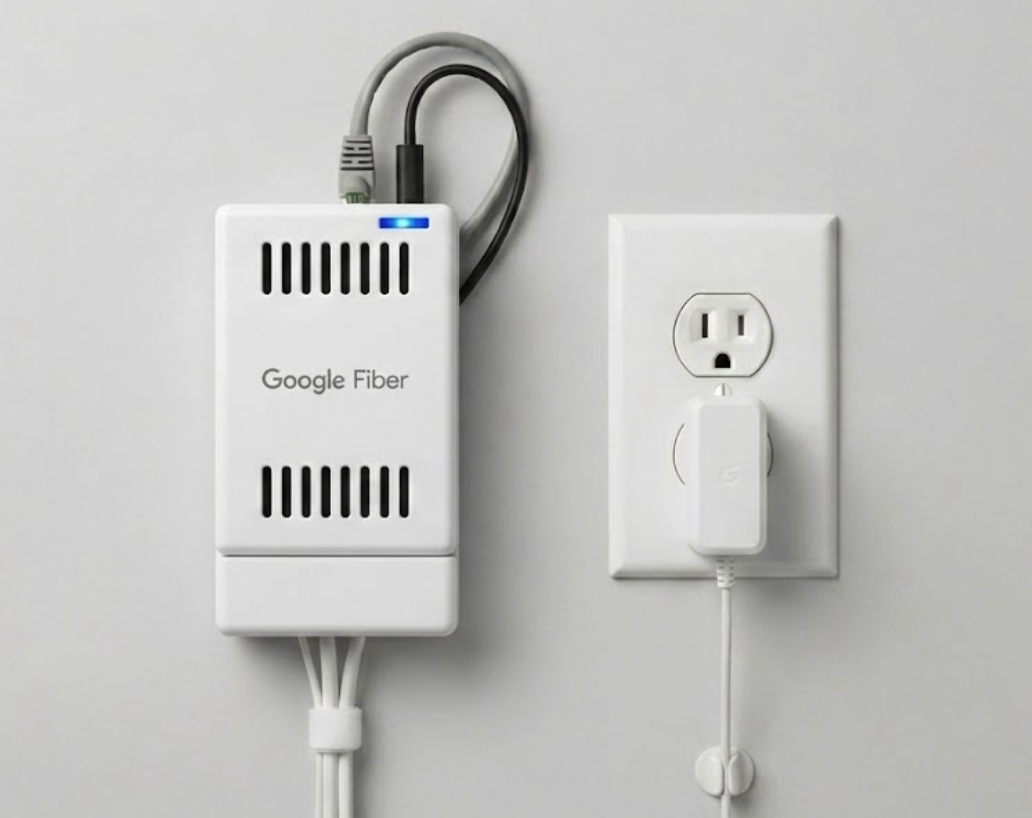
Single-light models: These have 1 light on the front that changes color.
-
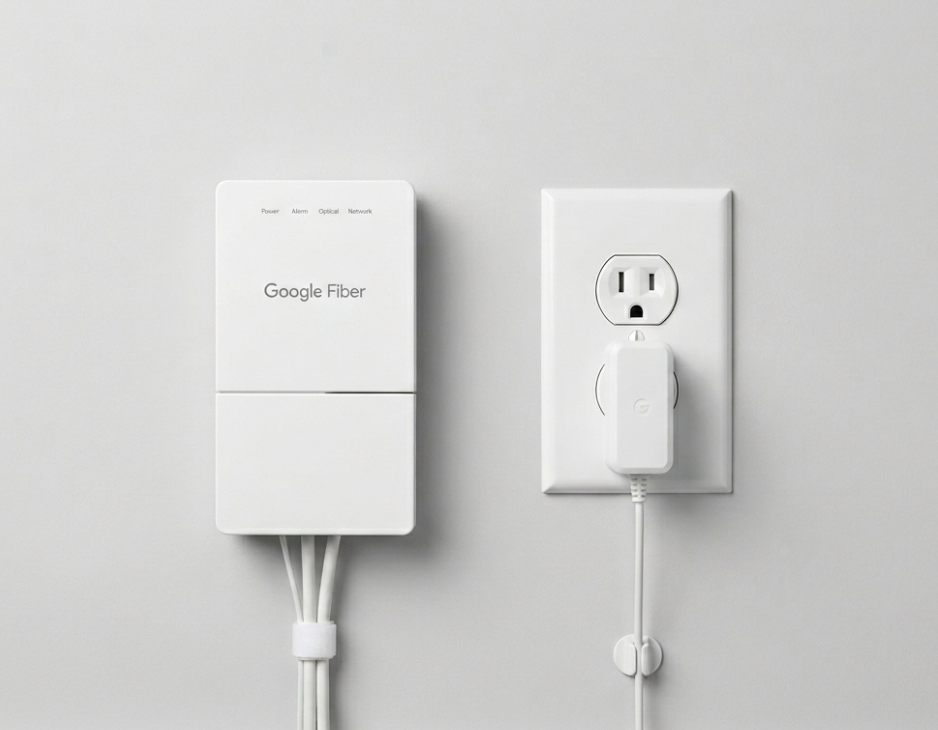
Four-light models: These have 4 separate lights labeled Power, Optical, Network, and Alarm.
Troubleshoot the Status Lights
If your Fiber Jack goes offline, you will receive an alert banner in the GFiber App. Use the table below to diagnose your network status based on the LED indicators on your device.
Single-Light Model
| Light LED | Meaning | What to Do |
| 🔵 Solid Blue | Normal Operation | Your hardware is healthy and connected. If you don't have internet, check your Wi-Fi router or mesh points. |
| 🔵 Blinking Blue | Booting / Updating | The device is starting up or downloading a software update. Wait 5 minutes for it to turn solid blue. |
| 🔴 Solid or Blinking Red | Line or Hardware Fault | Unplug the power cable from the Fiber Jack for 30 seconds, then plug it back in. If it stays red, contact GFiber Support. |
| ⚪ No Light (Off) | No Power | Ensure the power cable is firmly connected to both the Fiber Jack and the wall outlet. Try a different outlet if needed. |
Four-Light Model
| Light Name | Normal State | Problem State | What to Do |
| Power | 🟢 Solid Green | ⚪ Off | No Power: Check that the power adapter is plugged firmly into the outlet. |
| Alarm | ⚪ Off | 🔴 Solid Red | Fiber Signal Loss: The unit isn't getting a light signal from the main fiber line. Check for bent fiber cables or a line outage. |
| Optical | 🟢 Solid Green | 🟢 Blinking or ⚪ Off | Establishing Connection: Blinking means it's booting up/connecting. Off means there's no optical connection. Give it 5 minutes; if it stays off, restart the device. |
| Network | 🟢 Solid or Pulsing Green | ⚪ Off | Router Disconnected: The Fiber Jack is online, but it isn't talking to your Wi-Fi router. Check the Ethernet cable connecting the Fiber Jack to your router. |
Reset Your Fiber Jack
If your device is displaying a Red Light or No Light, performing a hard power cycle often clears the internal cache and restores service.
- Disconnect the Power Source: Unplug the device from its electricity source depending on your model:
- Single-Light Models: Unplug the Ethernet cable directly from the Fiber Jack or from the back of your router (this cuts the Power-over-Ethernet line).
- 4-Light Models: Unplug the AC power adapter from the wall outlet or pull the power pin directly from the bottom of the Fiber Jack.
- Wait for Full Power Drain: Leave the device completely disconnected for at least 30 seconds. This allows the internal hardware components to fully shut down and reset.
- Reconnect and Reboot: Plug the power cable or Ethernet line back in. Wait 2 to 3 minutes for the hardware to cycle through its boot sequence and attempt to re-register with the fiber network.
- Verify the LED Results: Check the front panel lights. If the indicator lights turn solid blue or solid green, your connection is restored.

If you received a self-install kit but can't find a Fiber Jack in your home, please contact us. We'll change your order to a professional installation and send a technician to install a new one.
If you have tried the steps above and still cannot connect, we are here to help:
-
Open the GFiber App for quick troubleshooting and support
-
Select Contact us at the top of this page
If you see a red light, please power cycle your Fiber Jack. If the light stays red after you restart it, contact us. Let our team know you see a red light so we can send a technician to fix the issue.
-
Solid blue: Your internet is working correctly.
-
Pulsing blue: The device is updating software; wait for it to finish.
-
Solid or pulsing red: The device is connecting or has an issue. Wait 2 minutes. If it stays red, power cycle your Fiber Jack.
-
No light: The device has no power. Check your power and Ethernet connections.
-
Power: Solid green means the device has power.
-
Optical: Solid green means your connection is good.
-
Network: Solid or pulsing green means data is moving.
-
Alarm: A red light means there is an issue. Power cycle your Fiber Jack.