Troubleshoot Your Router
Follow the steps in this article to troubleshoot your router.
Quick Resolution Steps (All Models)
Before diagnosing your model-specific lights, try these universal fixes.
Step 1: The 10-Second Power Cycle
-
Unplug the power adapter from the back of the router or the wall outlet.
-
Wait exactly 10 seconds to allow the memory cache to clear.
-
Plug the power cord back in.
-
Allow 3 to 5 minutes for the hardware to boot and pull an IP address.
Step 2: The Hardware Factory Reset

Warning: A factory reset returns the device firmware to its original state to clear configuration bugs. Your custom Wi-Fi network name (SSID) and password settings will remain saved in your cloud GFiber account portal.
-
Ensure the router is powered on.
-
Locate the pinhole Reset button (typically on the base or rear panel).
-
Insert an unfolded paperclip or pen, pressing down firmly for 10 seconds.
-
The status LEDs will flash red/blink to confirm the reset. Release the button and do not unplug the device while it reboots (takes up to 5 minutes).
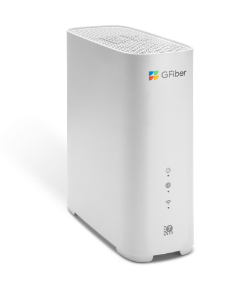
| LED Indicator | Light Status | Meaning & Required Action |
| System Status | 🟢 Solid Green | Online: Wi-Fi is on and should be connected to the network. |
| System Status | 🔵 Blinking Blue | Booting/Syncing: Registering with the network or downloading firmware. Do not unplug. |
| System Status | 🔴 Solid Red | No WAN/IP: The router cannot see the Fiber Jack or failed to pull an IP adress. Check the WAN Ethernet cable. Power cycle the device. |
| Wi-Fi Link | 🟢 Solid Green | Wi-Fi On: Wireless radios are active and broadcasting successfully. |
| Wi-Fi Link | 🔴 Solid Red | Wi-Fi Fault: Wireless broadcasting failed or credentials are misconfigured. Log into your GFiber account and set up your network. |
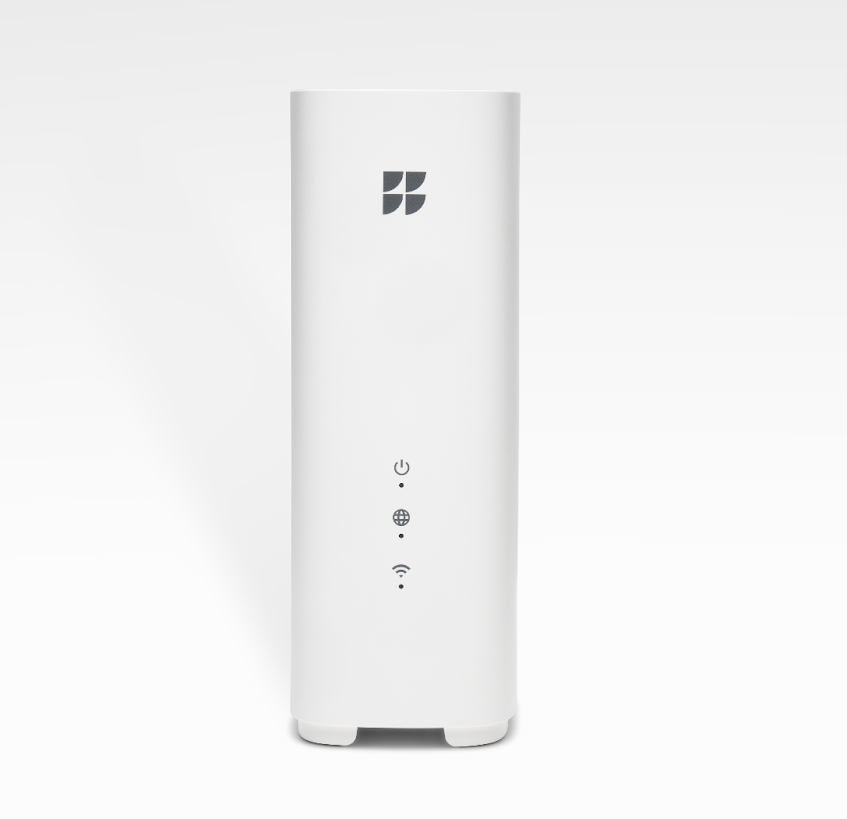
| LED Indicator | Light Status | Meaning & Required Action |
| Power / WAN | 🟢 Solid Green | Online: Connected to the network with a valid IP address. |
| Power / WAN | 🔴 Solid Red | Disconnected: No WAN connection detected. Check cable connection to the Fiber Jack. |
| Wi-Fi | 🟡 Yellow ➡️ 🟢 Green | Configuring: Transition indicates Wi-Fi is starting and credentials synced. |
| Wi-Fi | 🔴 Solid Red | Wi-Fi Off: Radio failure or bad configuration. Log into your online portal to reset the password/SSID. |
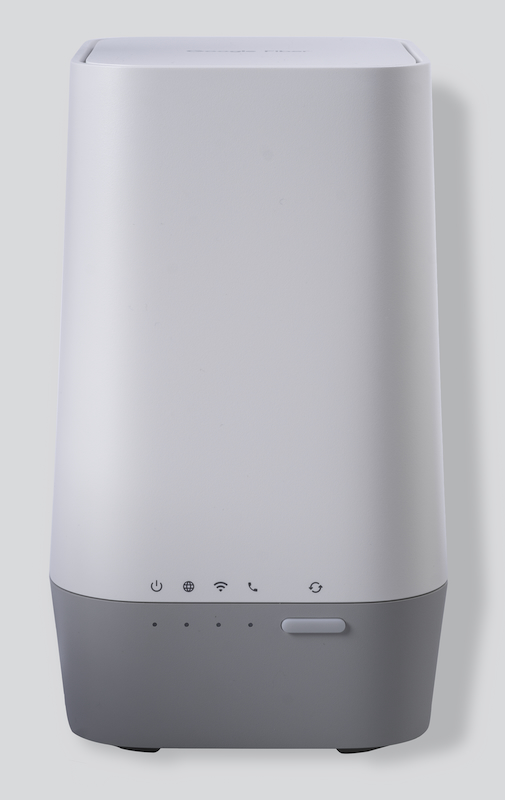
| LED Indicator | Light Status | Meaning & Required Action |
| Power | ⚪ Off / 🟣 Purple | No Power / Booting: Check power cables. Wait 5 minutes for completion. |
| Power | 🔵 Solid Blue | Healthy Power: Hardware is completely powered up. |
| Power | 🔴 Solid Red | Hardware Fault: Internal system failure. Perform a hard restart. |
| Internet | 🟣 Purple / 🔵 Blinking | Connecting: System is retrieving a network DHCP IP address. |
| Internet | 🔴 Solid Red | No Uplink: Check that the Ethernet line is plugged into the Red WAN Port on the back. |
| Internet | 🔴 Blinking Red | Connection Dropped: Network registration timed out. Power cycle the router. |
| Internet | 🔵 Solid Blue | Online: Connected to the GFiber grid. |
| Wi-Fi | 🔵 Solid Blue | Broadcasting: Wireless network is active. |
| Wi-Fi | ⚪ Off | Wi-Fi Disabled: Log into the GFiber app or portal to toggle the Wi-Fi signal on. |
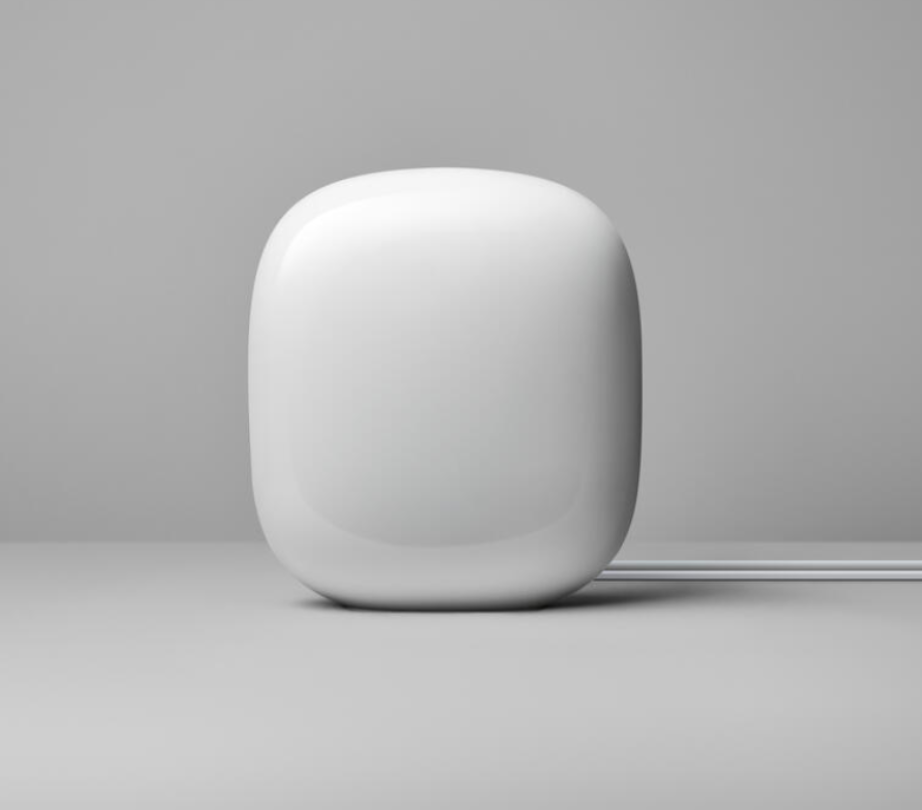
| LED Indicator | Light Status | Meaning & Required Action |
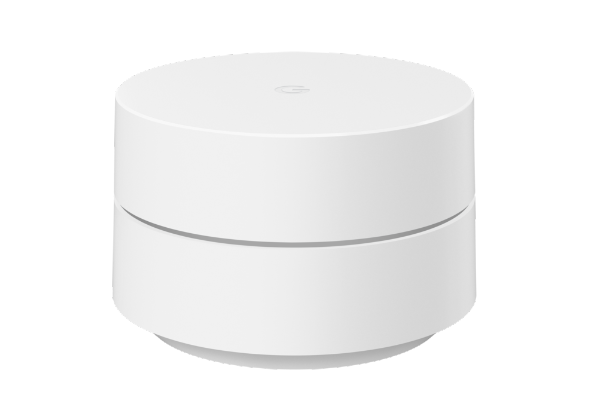
| White | ⚪ Solid | Online: Device is running normally. (Note: LEDs can be dimmed inside the Google Home app settings). |
| White / Blue | ⚪/🔵 Fast Pulsing | System Active: Router is booting up or processing an over-the-air firmware update. |
| Blue | 🔵 Slow Pulsing | Ready for Setup: Open your Google Home app to pair and activate this node. |
| Yellow | 🟡 Solid | Factory Resetting: Device is wiping its local system state (takes up to 10 minutes). |
| Yellow | 🟡 Slow Blinking | Network Error: Loss of connection to the Fiber Jack. Reseat both ends of your Ethernet patch cable. |
| Orange | 🟠 Pulsing (Google Wifi) | No Internet: The node is powered but cannot fetch data. Restart the main point. |
| Red | 🔴 Fast Pulsing | Critical Error: Hardware/software exception. Run a physical manual factory reset. |
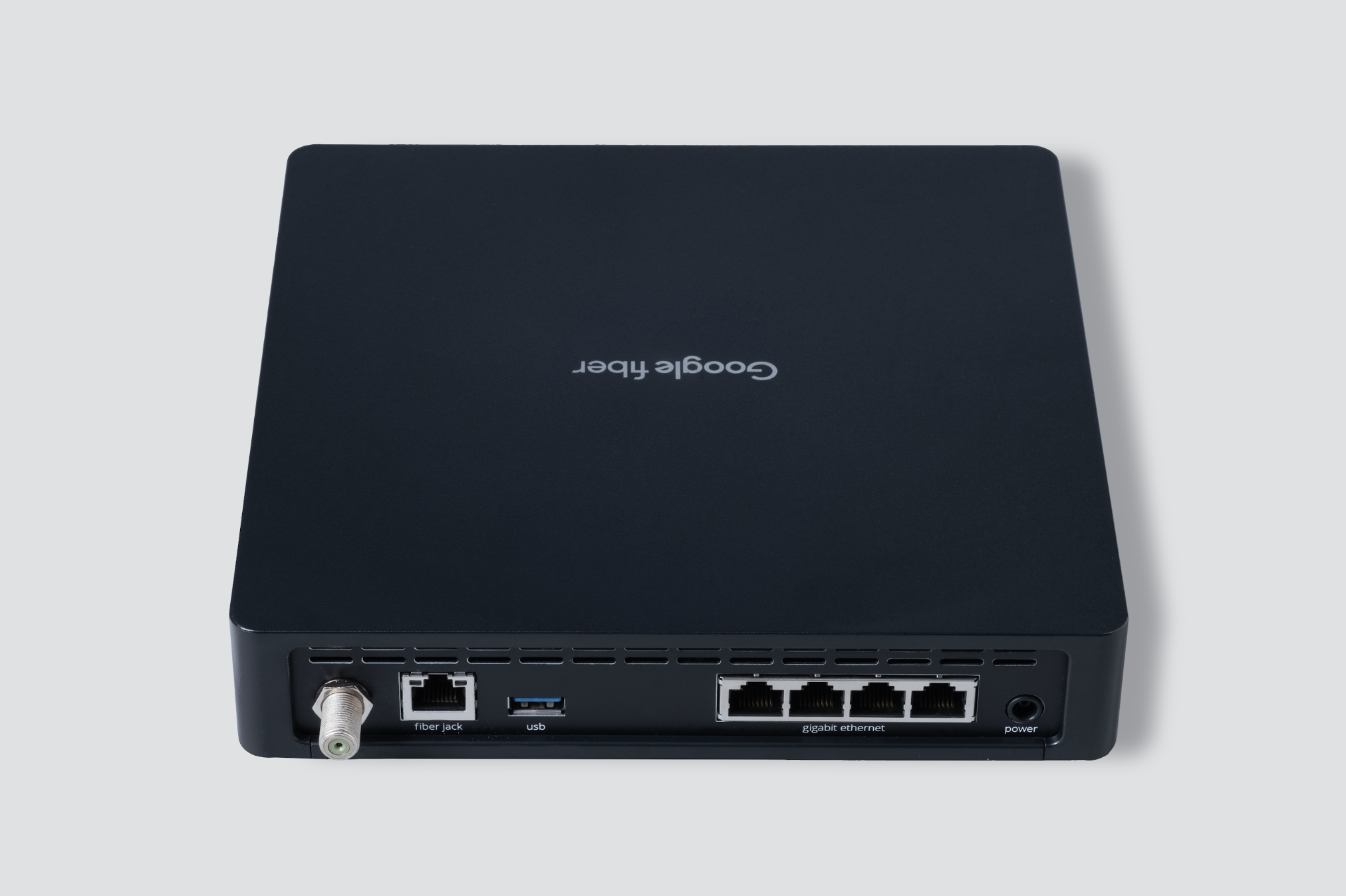
Thinking about an upgrade? Most Network Box customers are eligible to upgrade to a GFiber Wi-Fi 6E Router. Learn more about router upgrades for Network Box customers.
| Light Status | Meaning & Required Action |
| 🔵 Solid Blue | Online: Working normally. |
| 🔵 Slow Pulsing Blue | Updating: Firmware upgrade in progress. Do not disturb. |
| 🔵 Fast Pulsing Blue | Server Timeout: Connected to the wall box but cannot verify connection with GFiber servers. |
| 🔴 Pulsing Red | Disconnected: Physical connection loss to the fiber wall jack. |
| 🔴 Solid Red | Hardware Defect: Hardware has failed. Contact support immediately for a free swap. |