Fix Fiber Jack Connection Issues
The Fiber Jack is the small box on your wall where the fiber optic cable enters your home. It brings the internet to your devices through your router.
Find your Fiber Jack
Before we start troubleshooting, let’s make sure you’ve found the right device. Your Fiber Jack is the small white box that connects your home to the GFiber network. A technician installed this inside your home during your installation appointment. Look for a small white box on your wall that looks like the one in the picture below. There are 2 different models of Fiber Jacks: single-light models and 4-light models.
- Mounted on a wall, usually where the fiber line enters your home
- Connected to your router with an Ethernet cable
- Powered by a power cord or through the Ethernet cable
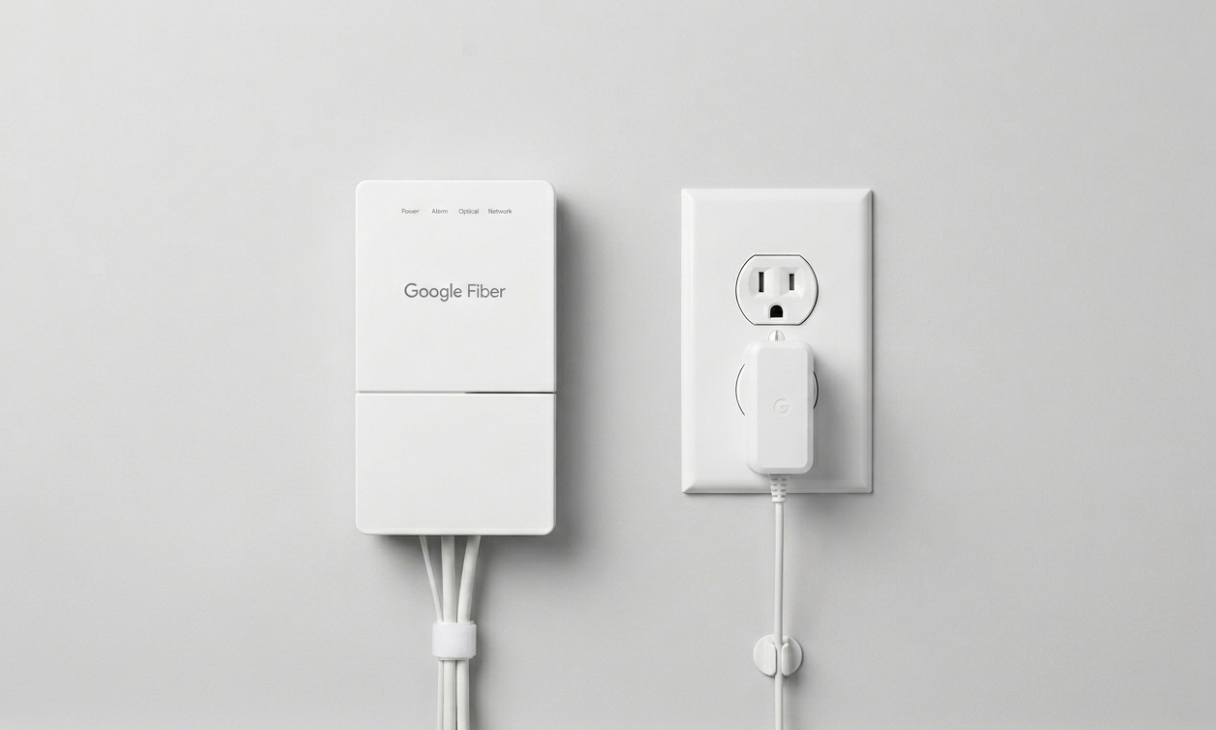
Prefer to watch a video? See how to find your Fiber Jack.
Check the Lights on your Fiber Jack

There are 2 different models of Fiber Jacks:
-
Single-light models: These have 1 light on the front that changes color.
-
Four-light models: These have 4 separate lights labeled Power, Optical, Network, and Alarm.
The light or lights on the front of your Fiber Jack tell you if your service is working correctly. Single-light models have blue lights and four-light models have green lights.
-
Solid Blue or Solid Green: Your internet is working as it should.
-
Blinking Blue or Blinking Green: Your Fiber Jack is starting up or updating its software.
-
Solid or Blinking Red: There is a service issue or a hardware problem. Follow the instructions below to fix a red light.
-
No Light: Your Fiber Jack does not have power. Make sure all cables are securely connected. If there are still no lights, try a different outlet or reset your Fiber Jack. If the light still doesn't come on, please contact us.
Reset your Fiber Jack
If you see a red light, follow these steps to restart your connection:
-
Power cycle the Fiber Jack by unplugging it from power.
-
Single-light models: Unplug the Ethernet cable from the Fiber Jack or your router.
-
Four-light models: Unplug the AC adapter from the wall or directly from the Fiber Jack.
-
-
Wait 30 seconds. This gives the hardware time to fully shut down.
-
Plug it back in. Wait 2-3 minutes for the Fiber Jack to reboot and reconnect to the network.
-
Check the light again. If the light stays red, please contact us for further assistance.
 Important: When you speak with a member of our team, let them know you see a red light on your Fiber Jack. This helps us send a repair technician to your home to fix the issue.
Prefer to watch a video? See how to reset your Fiber Jack.
If you received a self-install kit but can't find a Fiber Jack in your home, please contact us. We'll change your order to a professional installation and send a technician to install a new one.
If you have tried the steps above and still cannot connect, we are here to help:
-
Open the GFiber App for quick troubleshooting and support
-
Select Contact us at the top of this page
If you see a red light, please power cycle your Fiber Jack. If the light stays red after you restart it, contact us. Let our team know you see a red light so we can send a technician to fix the issue.
-
Solid blue: Your internet is working correctly.
-
Pulsing blue: The device is updating software; wait for it to finish.
-
Solid or pulsing red: The device is connecting or has an issue. Wait 2 minutes. If it stays red, power cycle your Fiber Jack.
-
No light: The device has no power. Check your power and Ethernet connections.
-
Power: Solid green means the device has power.
-
Optical: Solid green means your connection is good.
-
Network: Solid or pulsing green means data is moving.
-
Alarm: A red light means there is an issue. Power cycle your Fiber Jack.