Restart or Factory Reset a GFiber Device
Sometimes a Google Fiber device gets into a state that requires you to restart (also known as "Power Cycle") or perform a factory reset. For example, your Fiber Jack , router, or Mesh Extender may have trouble coming back online after an outage or getting interrupted during a software update.

If you have a Nest Wifi Pro or Google Wifi router, you can use the Google Home app for troubleshooting. Check out the Nest Help Center for more information.
Restart a GFiber Device
Follow the instructions below to restart your device:
- Unplug the power cord.
- Wait at least 10 seconds.
- Plug the power cord back in to the device.
- Wait up to 5 minutes for the device to turn back on. Please refer to the table below to see what color lights to look for.
Model When fully restarted and online, the light will turn: GFiber Wi-Fi 6E Router Solid green (Power and Internet lights) GFiber Wi-Fi 6E Mesh Extender Solid green Nest Wifi Pro 6E Solid white GFiber Wi-Fi 6 Router Solid blue (Power and Internet lights) GFiber Multi-Gig Router Solid blue (Power and Internet lights) GFiber Wi-Fi 6 Mesh Extender Solid green, yellow, or red GFiber Wi-Fi 7 Router Solid green GFiber Wi-Fi 7 Mesh Extender Solid green Google Wifi Solid white Google Fiber Network Box Solid blue GFiber Phone Box (GFPB100) Solid blue GFiber Phone Box (GAPB110P) Solid green Fiber Jack (one light) Solid blue Fiber Jack (four lights) Solid green (Power and Optical lights)
Restarting usually solves most common issues. If restarting does not resolve the problem, please try to factory reset your device using the instructions in the section below.
Factory Reset a GFiber Device
A factory reset will return your device to its original settings, which should resolve many configuration-related issues. Please note that your network settings won’t be reset. If you need to reset these settings — including Wi-Fi network name (SSID) and password — please see reset your network settings with the Google Fiber app. The reset button is typically found on the back or base of your GFiber device. Follow the instructions below to factory reset your specific device.
- Make sure the router is plugged in and turned on.
- Use a pen or an unfolded paperclip to push the Reset button on the back of the router for at least 10 seconds, and then release it.
- The router will restart and apply the factory default settings.
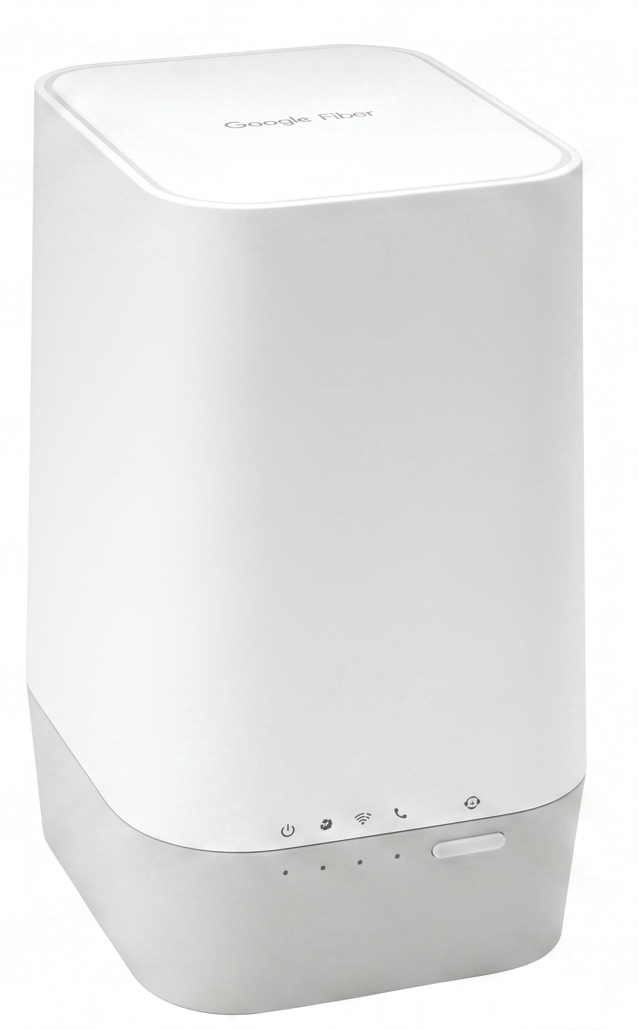
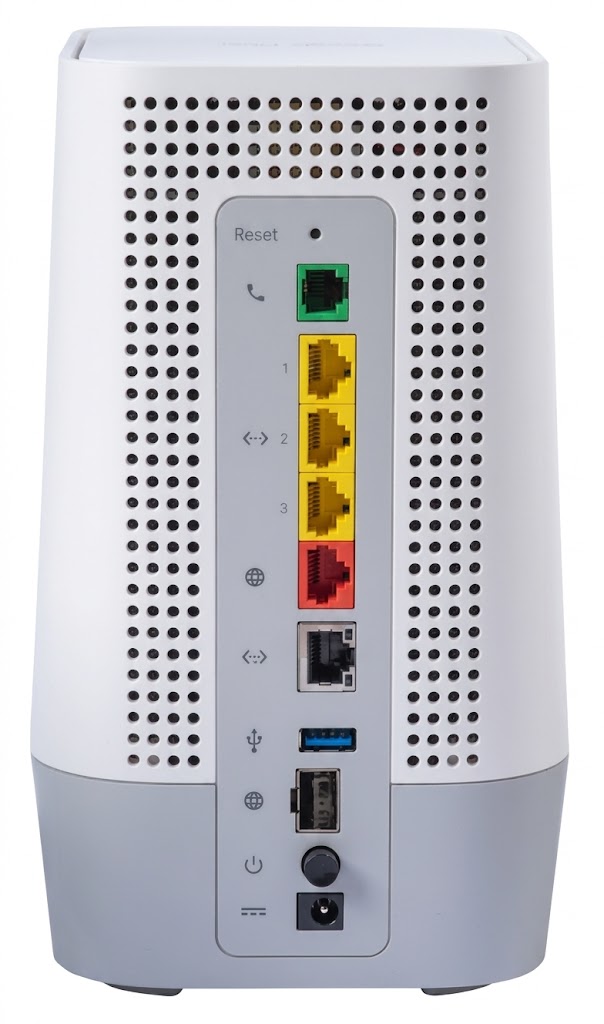
- Make sure the router is plugged in and turned on.
- Use a pen or an unfolded paperclip to push the Reset button on the back of the router for at least 10 seconds, and then release it.
- The router will restart and apply the factory default settings.
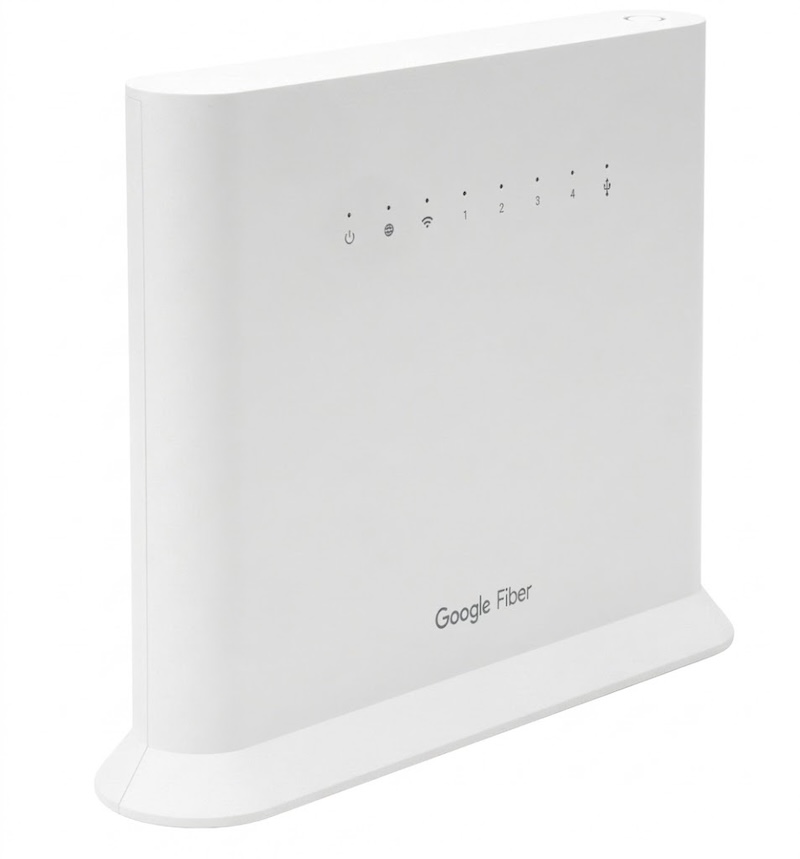
-
Make sure the Mesh Extender is plugged in and turned on.
-
Use a pen or an unfolded paperclip to push the Reset button near the Power button.
 Press the button for less than 5 seconds to restart it to your default settings.Press the button for more than 10 seconds to reset it to factory default settings.
 -
Release the Reset button. The WPS light sequence will indicate Blinking Red > Off (No Light) > Solid Yellow, indicating that it is ready to re-pair with the Wi-Fi 6 Router or Multi-Gig Router.
- Make sure the router is plugged in and turned on.
- Use a pen or an unfolded paperclip to push the Reset button on the base of the router for at least 10 seconds. When the power light on the front of the router blinks red, release the Reset button.
- The router will restart and apply the factory default settings. Wait for the Power and Internet lights to turn solid green. (Please DO NOT unplug the router while the lights are blinking.)
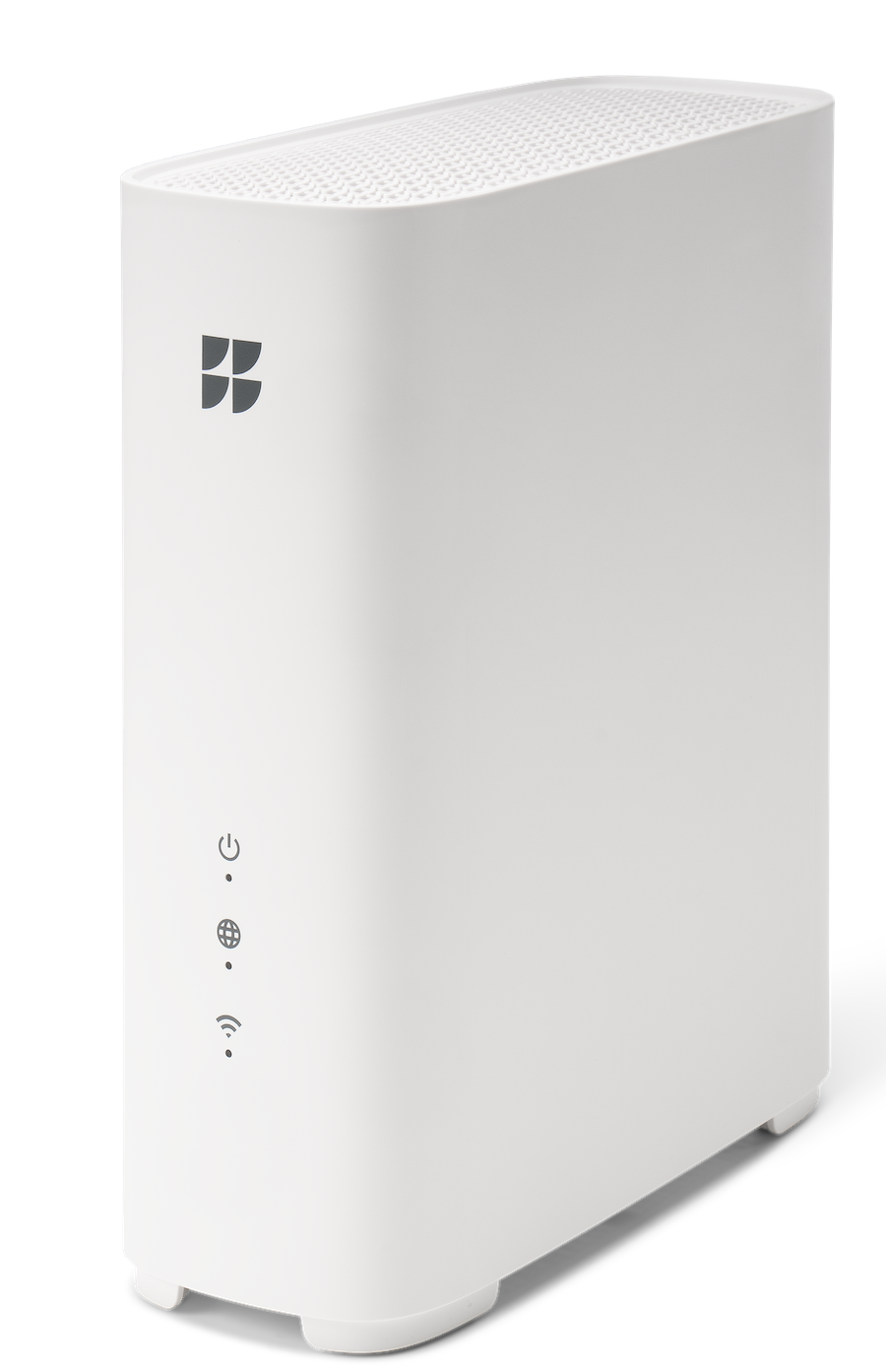
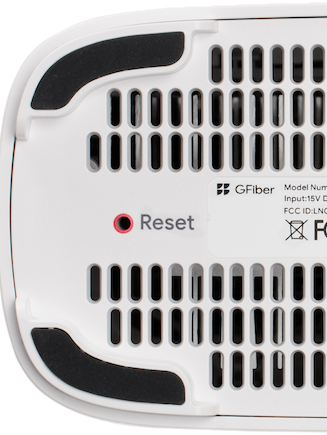
- Make sure the Wi-Fi 6E Mesh Extender is plugged in and turned on.
- Use a pen or an unfolded paper clip to push the Reset button on the base of the Wi-Fi 6E Mesh Extender for at least 10 seconds to reset it to factory default settings.
- The Wi-Fi 6E Mesh Extender will restart and apply the factory default settings. You’ll need to pair it again with the Wi-Fi 6E Router after performing a factory reset.
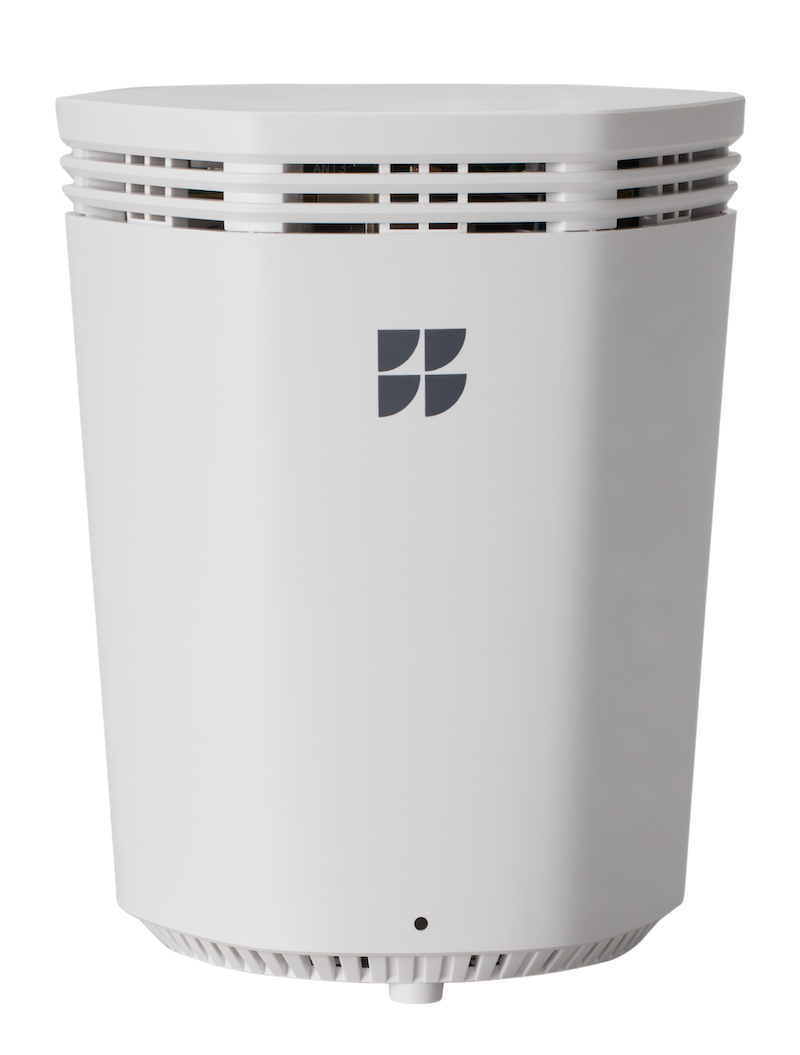
- Make sure the router is plugged in and turned on.
- Use a pen or an unfolded paperclip to push the Reset button on the back of the router for at least 10 seconds, and then release it.
- The router will restart and apply the factory default settings.
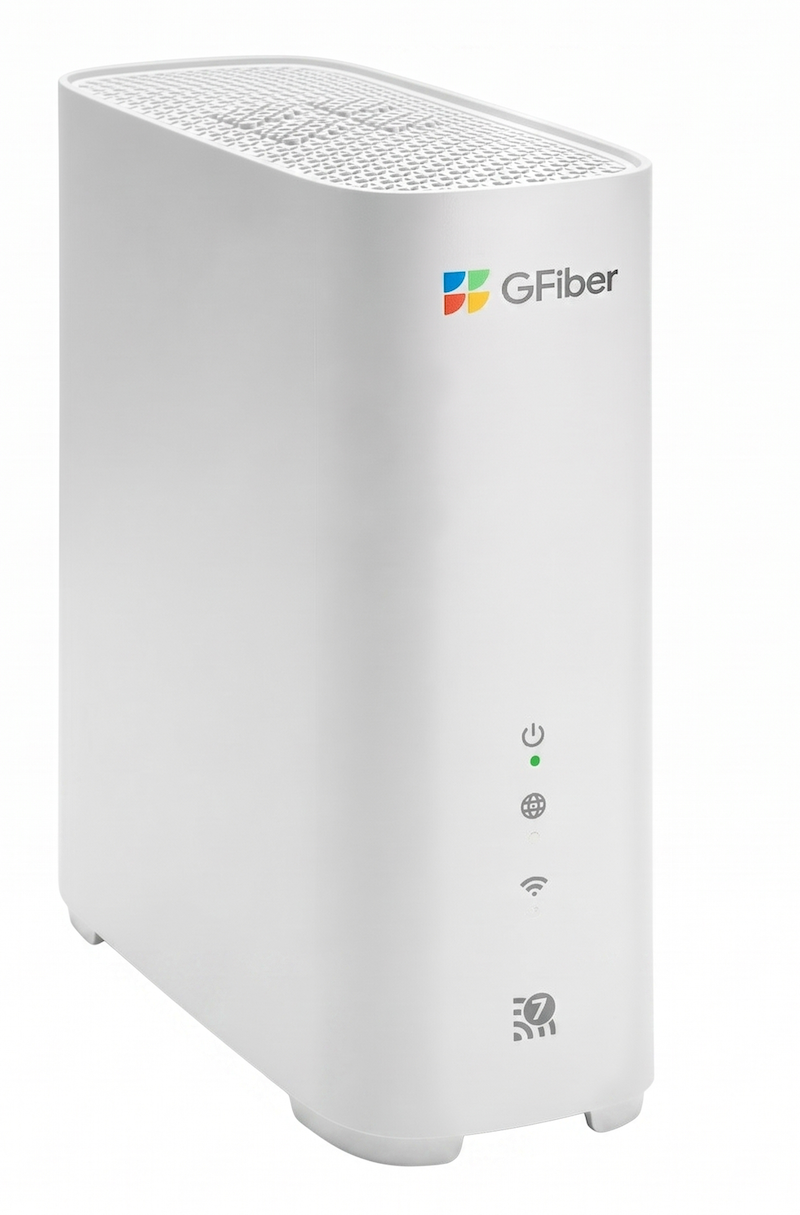
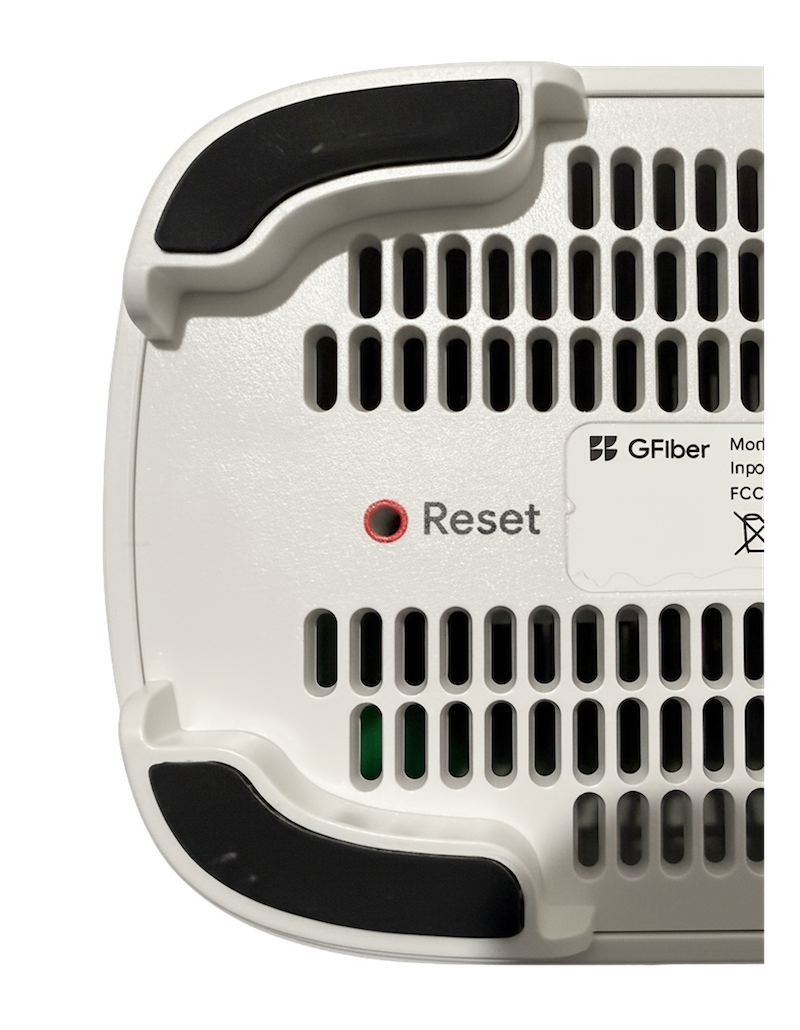
- Use an unfolded paper clip to press and hold the reset button (on the base) for at least 10 seconds.
- The extender will reboot.
- You’ll need to pair it again with your Wi-Fi 7 Router.
- Press and hold the Reset button on the base of the device and wait until the LED starts quickly blinking purple.
- Continue holding down the reset button for 10 seconds (until the LED turns off), then release.
- Allow several minutes for the device to fully reboot and reconnect to the network. The LED will turn solid blue when the Phone Box has restarted and is ready for setup.

- Use a paperclip to press and hold the Reset button on the bottom of the device.
-
Keep holding it down until the LEDs start blinking green.
-
When the Power LED flashes red, release the button.
-
Give it a few minutes to fully reboot and reconnect. Once the Power LED turns solid green, you’re good to go.
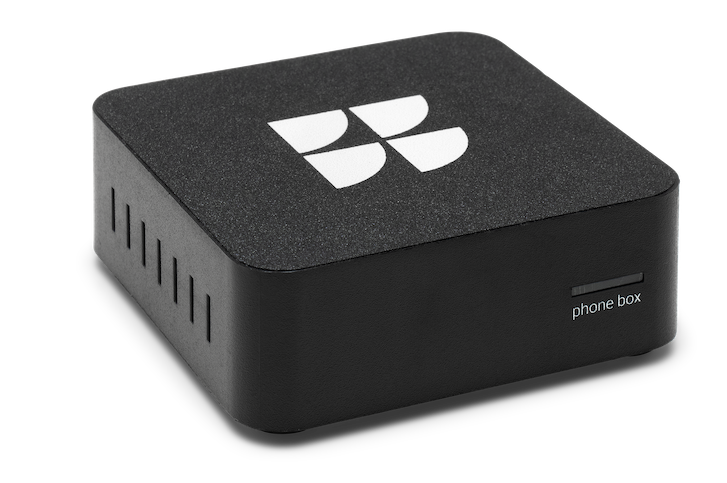
- Press and hold the Reset button on the base of the device for at least 20 seconds:
- The device's LED will flash red for about 10 seconds, then flash purple.
- Once the LED turns off completely, release the button.
- Allow several minutes for the device to fully reboot and reconnect to the network. The LED will turn solid blue when the Network Box has restarted and is ready for setup.
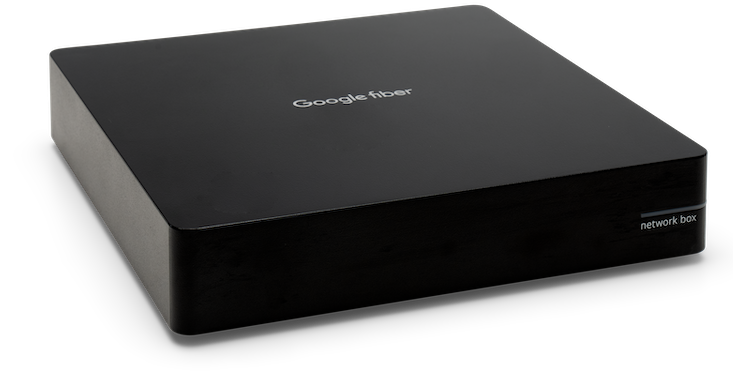

Please follow the instructions in this article about how to factory reset your Wi-Fi device.