Restart Your Mesh Extender With the GFiber App
If restarting your GFiber Mesh Extender fails to resolve an issue, try restarting again. If restarting multiple times still doesn't help, please contact GFiber customer support.
You can use the GFiber App to easily restart your GFiber Mesh Extender.

We regularly update the GFiber App GFiber App with new features to help make it even easier for you to manage your home or business network. We’ll be making improvements throughout 2025 and beyond, so your GFiber App might look different from the examples below.
To restart your Mesh Extender:
- Tap Network.
- Tap Manage extenders.
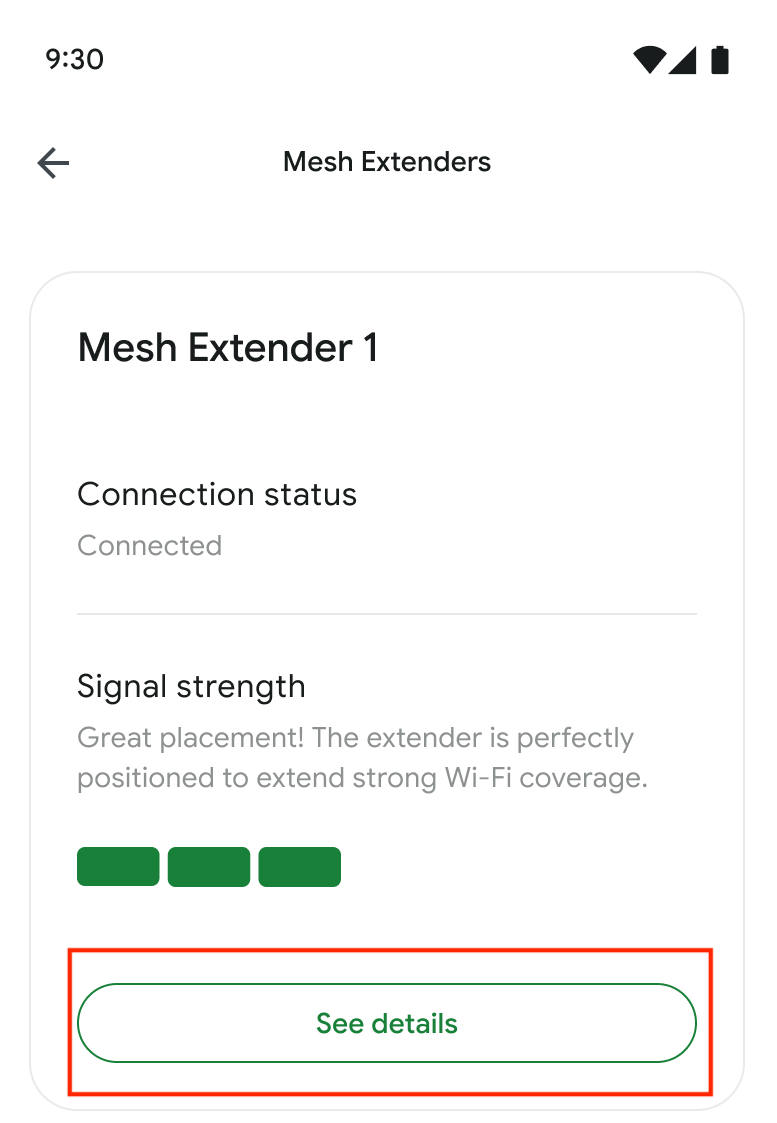
- Select See details.
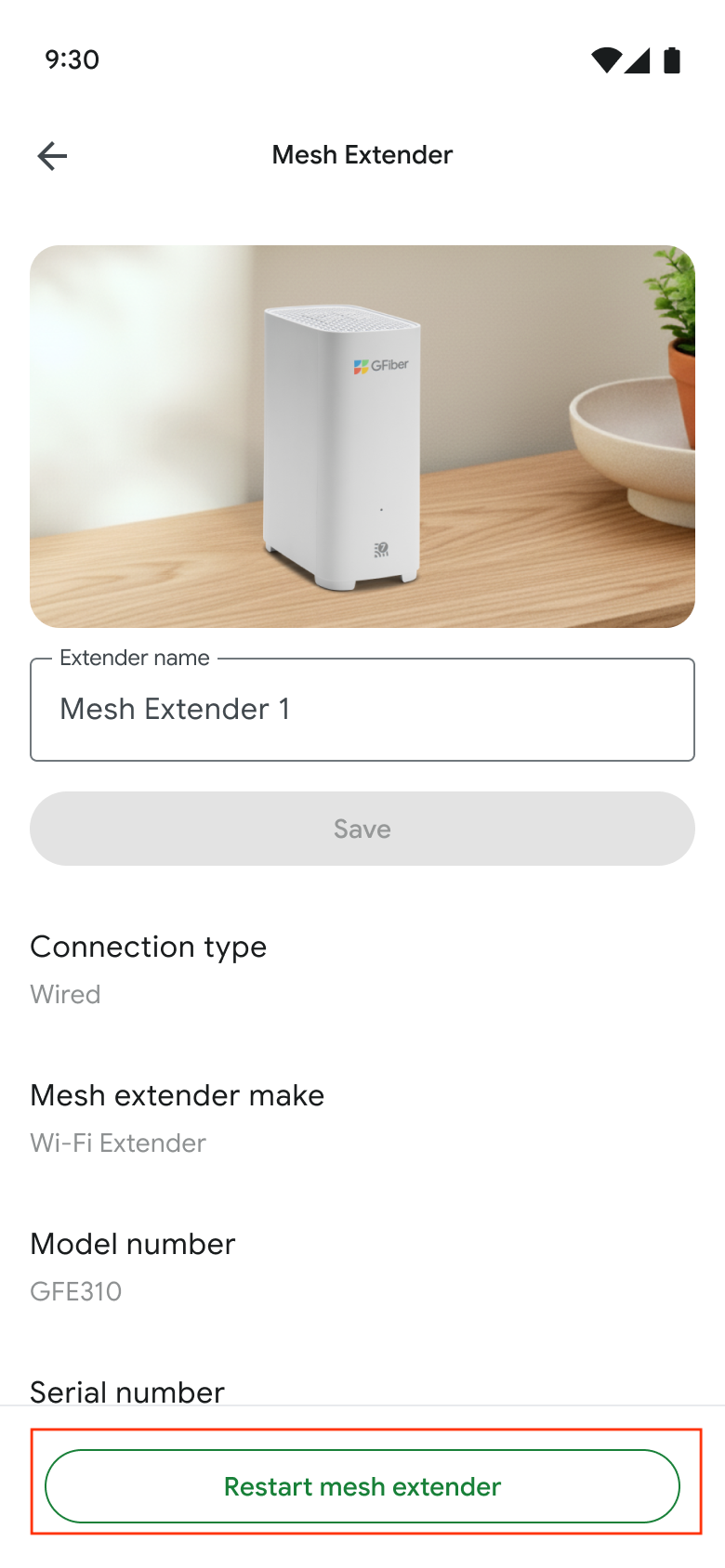
- Touch Restart Mesh Extender.
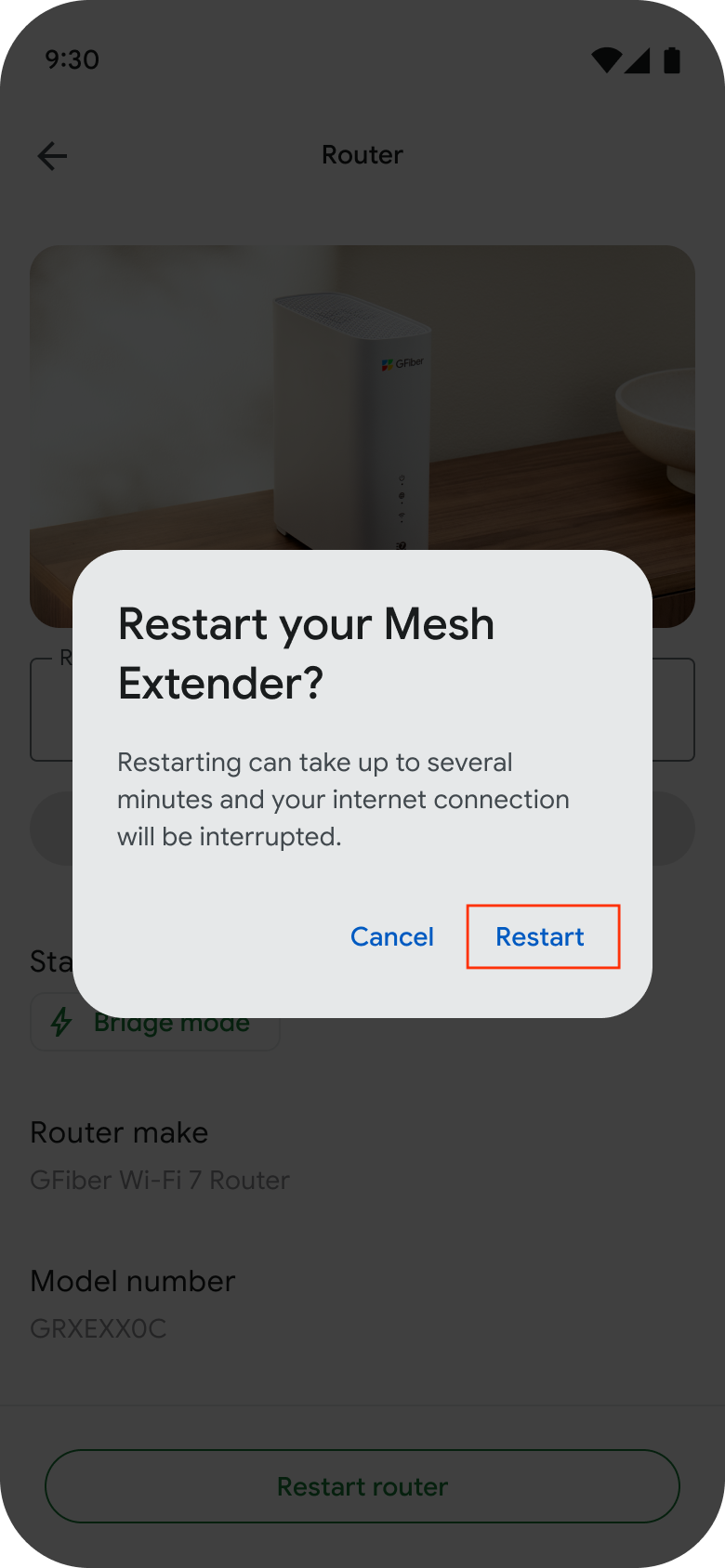
- In the warning alert that appears, touch Restart.
If restarting your GFiber Mesh Extender fails to resolve an issue, try restarting again. If restarting multiple times still doesn't help, please contact GFiber customer support.
Restart Your Mesh Extender Manually
If you don't see the Restart Mesh Extender option in the app, or if you're using an unsupported router or mesh extender, you can restart your equipment manually.
- Unplug the router or Mesh Extender from the power source.
- Wait 30 seconds.
- Plug the device back in.
If your device still isn't working, check out our advanced troubleshooting steps.