Restart Your gFiber Router with the gFiber App
In the gFiber App, tap Network, select Router details, and tap Restart router to reboot your device in up to 5 minutes.
Restart your router with the gFiber App
Restarting your router re-establishes your connection to the gFiber network and can resolve common speed or connectivity issues.

-
Open the gFiber App on your mobile device.
-
In the navigation menu, tap Network.
-
In the Network section, tap Router details.
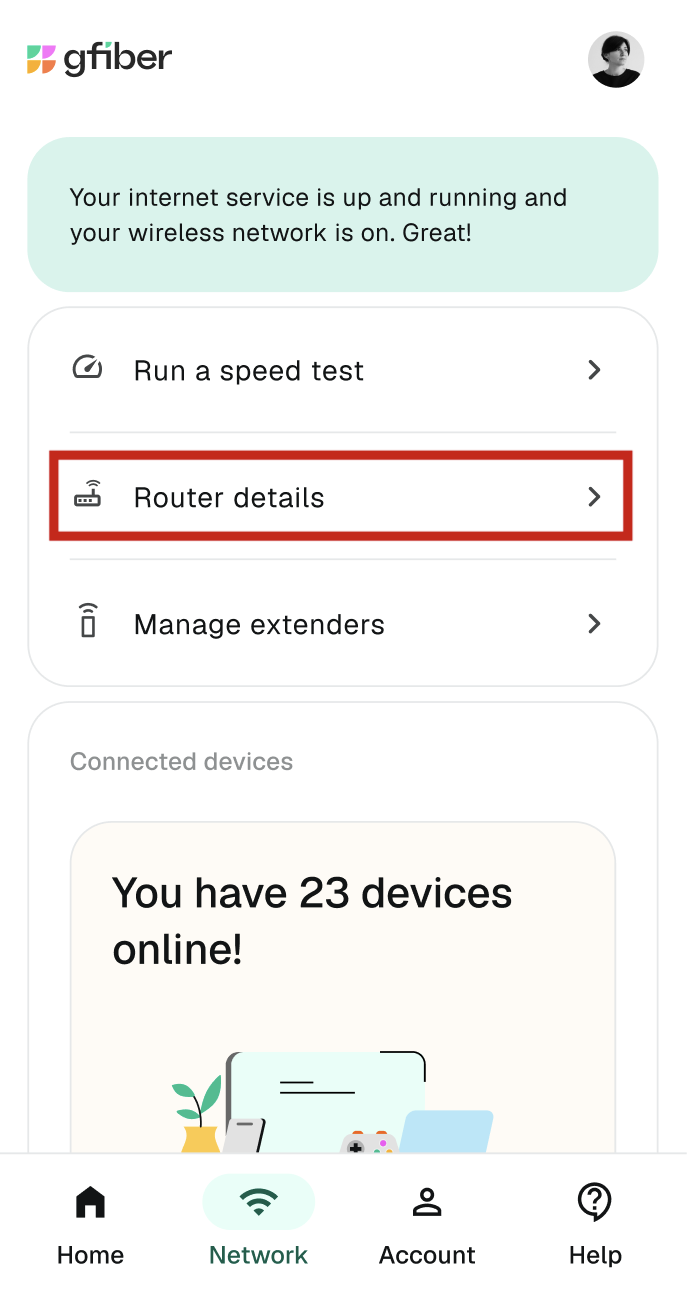
-
Tap Restart router.
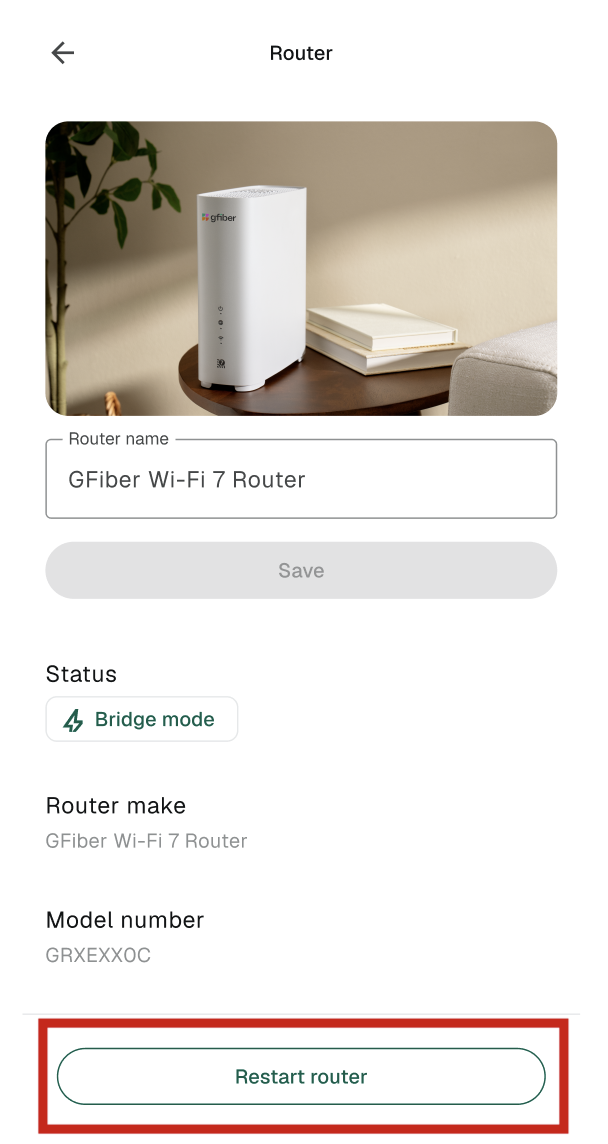
-
Tap Confirm to begin the reboot process.
Your router will go offline and take up to 5 minutes to complete the restart process. When fully powered on, check the status lights using the table below to confirm your connection is restored.
Check status light indicators
Review the expected LED indicator colors to confirm your router or network device is fully online after a restart.
| Device Model | Model Number | Online Status Light Indicator |
| gFiber Wi-Fi 7 Router | GRBE331C | Solid green |
| gFiber Wi-Fi 6E Router | GR6EXX0C | Solid green (Power and Internet lights) |
| gFiber Wi-Fi 6 Router | GRAX210T | Solid blue (Power and Internet lights) |
| gFiber Multi-Gig Router | GFRG300 | Solid blue (Power and Internet lights) |
| gFiber Network Box | GFRG100 / GFRG110 / GFRG200 / GFRG210 | Solid blue |
Frequently asked questions
If you do not see the Restart router option, you are using equipment managed outside the gFiber app. Use the Google Home app for Google Wifi or Nest Wifi Pro 6E devices, or manually unplug third-party routers.
A router reboot typically takes up to 5 minutes. Your internet connection will temporarily disconnect until the status light turns solid blue, solid green, or solid white, depending on your device model.