Run a GFiber Internet Speed Test
A speed test gives you a clear picture of the bandwidth coming into your home and how it’s being shared across your devices. Follow the steps below to test any wired or wireless device.

Use the GFiber Mobile App
The GFiber App offers two types of speed tests to give you a full picture of your network performance:
-
Speed to your home (wired test): Measures the speed coming from the GFiber network directly to your router. This is the most accurate way to confirm the full speed of your service.
-
Speed to your device (Wi-Fi test): Measures the speed between your router and the device you’re using for the test. This helps identify potential Wi-Fi bottlenecks inside your home.
The app is the quickest way to get a baseline measurement of your speed. Before you start, download the GFiber App for Android or iOS.
-
Sign in to the GFiber App.
-
Tap the Network icon in the bottom menu.
-
Tap the Run a speed test button.
Depending on your router and device, you’ll see one or both of the following options:
-
Your router: If this appears, your router supports running a wired “speed to your home” test without plugging in an Ethernet cable.
-
This device: If you only see this option, you’ll run a “speed to your device” test to measure the speed between your router and your device.
Your results will show download and upload speeds for both test types. Ping (latency) will also appear for “speed to your device” tests. Learn more about what these results mean in the section below.
Use a Wired Connection
While the in-app Wi-Fi test is convenient, a wired test will always give you the most accurate reading of your true internet speed — especially for multi-gig speeds like Home 3 Gig, Edge 8 Gig, 5 Gig, or 8 Gig. Wi-Fi and web browsers often can’t process the top speeds of multi-gig service.
Preparation checklist
For the most accurate wired test:
- Connect via Ethernet: Plug your computer directly into a LAN port on your GFiber router.
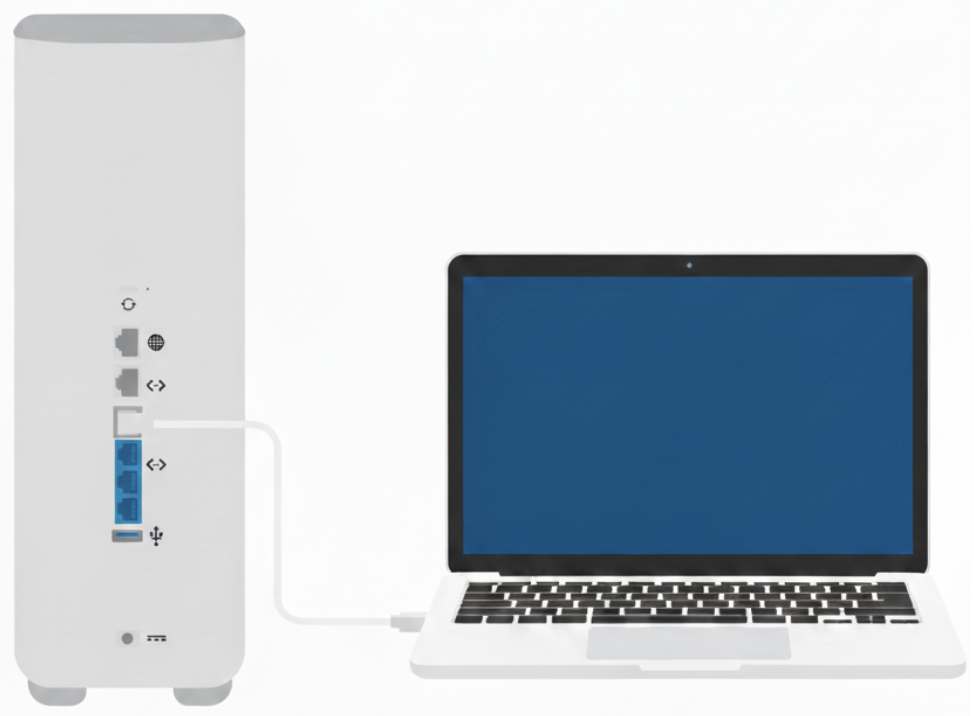
- Stay plugged in: Connect your computer to its power adapter.
- Update your system: Make sure your operating system and web browser are fully up to date.
- Use a private/incognito window: This avoids interference from extensions or cached data.
- Close other applications: Shut down other programs and browser tabs so the test has full access to your device’s resources.
Recommended wired testing tools
-
GFiber web speed test: Visit fiber.google.com/speedtest. This test is optimized for the GFiber network.
-
Ookla Speedtest desktop app: For the most reliable results testing multi-gig speeds (like 2 Gig, Home 3 Gig, 5 Gig, and Edge 8 Gig, and 8 Gig), install the official Speedtest app.
If you have a Wi-Fi 6E Router or a Multi-Gig Router, make sure your device is plugged into the silver 10G LAN port. For multi-gig speeds, we also recommend a computer with a 10 Gbps network interface card or USB adapter.
Understand Speed Test Results
-
Download speed: How fast you can pull data from the internet (streaming, downloading files).
-
Upload speed: How fast you can send data to the internet (video calls, uploading photos).
-
Ping (latency): Measured in milliseconds (ms). Lower ping means faster response time, which is best for gaming and other real-time applications.
-
Jitter: Measures how consistent your ping is over time. Lower jitter means a more stable connection.
Troubleshoot Slow Speeds
If your results are lower than expected, first use your GFiber App results to pinpoint where the slowdown is happening:
-
If the "Speed to your home" test is slow: There may be an issue with the connection coming into your home. Try restarting your router and run the test again.
-
If the "Speed to your home" test is fast but the "Speed to your device" test is slow: Your Wi-Fi connection is likely the bottleneck. Try the steps in our guide to improving your Wi-Fi speeds to boost your wireless performance.
For more detailed help, you can also use the network troubleshooting tools built into the GFiber App.