Internet Battery Backup (Reliability Plus Feature)
How it Works
GFiber delivers internet via light rather than electrical impulses, keeping the core fiber network active during power outages. However, your router and Fiber Jack still require electricity to function.
-
The Solution: The Internet Battery Backup automatically activates during a power outage.
-
Performance: Provides up to 2 hours of full-bandwidth uptime with no speed throttling.
-
Coverage Scope: Powers only your primary router and Fiber Jack (Optical Network Terminal / ONT).
The Internet Battery Backup (a Reliability Plus feature) automatically kicks in during a power outage to provide up to 2 hours of full-bandwidth uptime with no internet slowdowns.1

Pricing, Eligibility & Installation
The Internet Battery Backup is available for specific residential plans and is restricted in buildings with 5 or more units.
GFiber Plan | Monthly Cost | Availability & How to Get It |
Edge 8 Gig | Included at no additional cost (must opt-in) | New Customers: Select during signup. Existing Customers: Upgrade via account portal or phone. (Opt-in required) |
Home 3 Gig | Available for $10 / month (plus applicable taxes & fees) | New Customers: Select during signup. Existing Customers: Upgrade via account portal or phone. (Opt-in required) |
Core 1 Gig | Not available | Not available. |
Professional Installation
-
New Customers: Schedule the installation appointment during your initial service signup.
-
Existing Customers: After upgrading your plan and opting into the backup, you will be prompted to schedule a technician visit.
-
Multi-Room Setups: If your Fiber Jack and router are located in separate rooms, the technician may install two separate internet battery backup units.
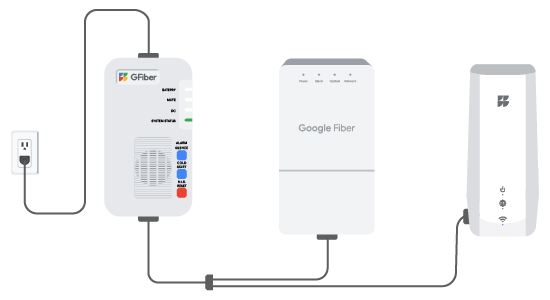
The backup system works automatically once installed, but you can manually test the system using these steps:
-
Check Cables: Verify the battery is connected to the Power Supply Unit (PSU). You should have one power cable running from the wall outlet to the PSU, and another Y-cable with two connectors attached to your router and Fiber Jack.
-
Verify Power: Confirm that the LED status lights on your router and Fiber Jack are illuminated. (Note: The Fiber Jack has a physical power button on the bottom if it needs to be turned on manually).
-
Simulate an Outage: Unplug the AC power cable from the wall outlet. The router and Fiber Jack should remain powered on without interruption.
-
Restore Power: Plug the AC cable back into the wall outlet to resume normal operation and keep the battery charged.
Visual Indicators & Control Switches
Status Lights
| Label | Color | Status & Meaning / Action Required |
| System Status | Green | Normal: The backup is receiving sufficient AC power to operate normally. |
| DC | Green | On Battery: A power outage is active; the battery is powering the Fiber Jack and router. |
| Mute | Yellow | Flashing: Audible alarm is silenced for 24 hours. Solid: Audible alarm is silenced indefinitely. |
| Battery | Red | Fault/Error: Inspect connection to power supply/ONT. Check for physical damage. If the battery shows signs of critical failure (swelling, odor, leaking), disconnect immediately and move to a safe area. |
Physical Control Switches
Label | Action |
Alarm Silence | Disables audible alerts. Press and release to mute for 24 hours. Press and hold for 15 seconds to mute indefinitely. Hold for another 15 seconds to re-enable the alarm. |
Cold Start |
|
N.I.R. Reset | This allows you to reboot your Fiber Jack. Press and hold the switch for 3 seconds to reset it. |
Technical Specifications
Ensure the device is installed in a temperature-controlled indoor space. Excessive heat shortens lifespan and compromises safety.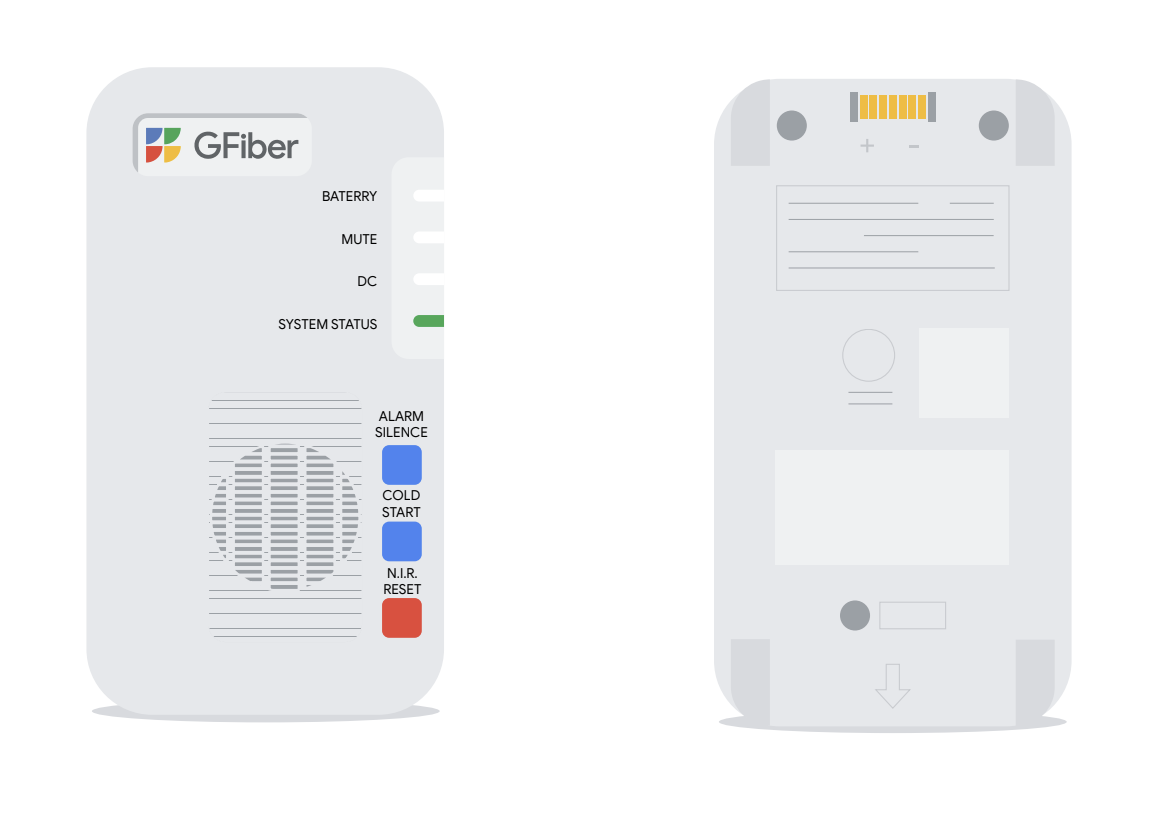
Battery & Power
-
Battery Type: Lithium-Ion Battery Pack (Approved for use only with PowerTec Solutions International packs).
-
Battery Capacity: 14.8V / 5200mAh (Connect only one battery box).
-
Design Life: 10 Years.
-
Typical Recharge Time: Less than 12 hours.
-
Surge Protection: Yes (IEC 61000-4-5 2005 LEVEL D).
Environmental & Physical Limits
-
Operating Temperature: 14°F to 104°F (–10°C to 40°C) at full power.
-
Storage Temperature: –22°F to 149°F (–30°C to 65°C).
-
Operating Humidity: 0–95% non-condensing within enclosure.
-
Max Operating Elevation: 10,000 ft (3,000 m).
-
Dimensions: 155mm × 89mm × 52.5mm.
-
Weight: 1.76 lbs (including battery pack).
Safety, Warnings, & Disposal
Operational Warnings
-
Indoor Use Only: Install in a dry location. Do not expose to damp or wet environments to prevent fire or electrical shock.
-
No User-Serviceable Parts: Do not remove the device cover for any reason.
-
Battery Replacement: Risk of explosion if an improper battery pack is used. Refer to the manufacturer's user manual and use only approved PowerTec battery packs.
-
Do Not: Disassemble the pack, dispose of it in a fire, or store it in temperatures of 65°C (149°F) or higher.
Disposal & Account Cancellation
-
Never throw lithium-ion batteries in the trash or leave them in discarded piles. Always dispose of the battery per your local hazardous waste management guidelines from your municipality and contact us to get a replacement. Keep your power supply and power cords – if you decide to change or cancel your plan in the future, you will need to return these to us following these instructions.
-
Contact GFiber to get a replacement battery if yours is damaged.
-
Note on Plan Changes: If you cancel your GFiber plan or downgrade in the future, you must return the power supply and power cords to GFiber. Keep these components safe!