Check for a gFiber Service Outage and Fix Connection Issues
Check your network connection status in the gFiber App or visit gfiber.com/outage/check. If an outage is active, gFiber technicians are already working to restore service; opt-in to SMS alerts for real-time updates.
Check active outage status
Check if an active service outage is affecting your address using one of these options:
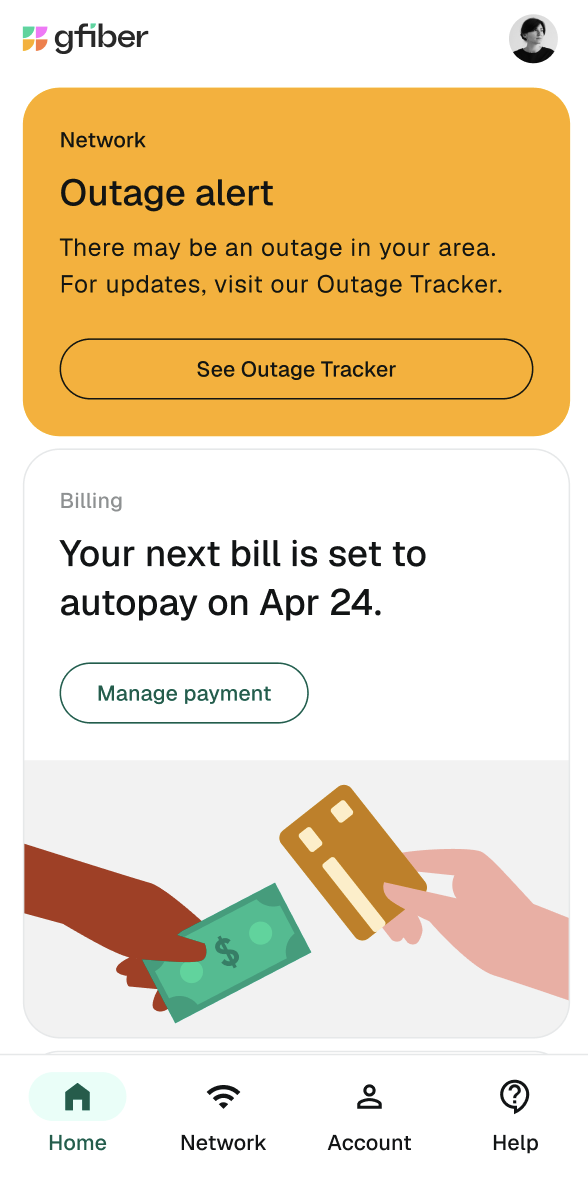
Method 1: Use the gFiber App
Method 2: Use the public outage lookup tool
-
In your web browser, navigate to gfiber.com/outage/check.
-
In the Street Address field, enter your complete address.
-
Click Check Status to view real-time network stability data.
Method 3: Check the gFiber web portal
-
In your web browser, sign in to your account portal.
-
At the top of the Overview section, look for an active alert banner displaying estimated service restoration times.
Known network outage reported
Our engineering teams continuously monitor the fiber network and work quickly to restore service during an outage. You do not need to call customer support to report an active outage.
-
In your online gFiber account portal, go to Account Settings and click Edit under Communication Preferences. Then, check the Text Messages or Phone Call box.
-
Alternatively, text START to 434237 to opt in to mobile status updates.
No outage reported (equipment offline)
If no local network outage is reported but your service is offline, follow these steps in order to restore your connection:
-
Verify account standing: In the Billing section of your gFiber account portal or mobile app, verify that your latest payment processed and that your account is active.
-
Power cycle internet hardware: Unplug the power cords from both your gFiber router and Fiber Jack. Wait 30 seconds, reconnect the power cords, and wait 3 minutes for the status lights to turn solid green or solid blue.
-
Report an unreported outage: If your equipment remains offline after completing steps 1–2 and neighboring properties are also experiencing service drops, contact gFiber Customer Support via live chat or phone to flag a localized issue.
Restoration times vary depending on whether the disruption is caused by a localized line break, equipment power failure, or physical fiber maintenance. Check the gFiber App or your online account portal for the most accurate estimated restoration time for your address.
gFiber proactively credits your account for qualified service disruptions where applicable. You do not need to call or submit a request to receive eligible outage credits.
If the public network status tool shows your neighborhood network is healthy, your offline connection may be caused by a loose power or Ethernet cable, an isolated router error, or an account status issue. Following the power cycle steps above usually restores service.