gFiber AI Assistant Beta Tester Program
Join our beta testing program to test gFiber's new AI-powered assistant features before launch and share your feedback.
Meet the gFiber assistant
The gFiber Assistant is a new AI-powered chat tool built into the gFiber App, designed to help you get things done and find answers faster. For example:
-
Troubleshoot your Wi-Fi and run speed tests.
-
View billing details and manage your account.
-
Track upcoming appointments or self-install shipments.
-
Connect to a live agent if you need more help.
Program participation prerequisites
Before participating in the beta program, keep these key details in mind:
-
You must be an active gFiber customer to participate. Participation is voluntary and uncompensated.
-
Expect occasional bugs, as identifying issues is a key goal of this phase.
-
Do not share sensitive personal, financial, or confidential information in test chats. Conversations may be reviewed to improve the service.
-
Keep updates enabled in your app store to ensure you are always testing the latest build.
-
AI generates responses and may occasionally make mistakes. See the gFiber privacy policy for details on data handling.
Set up on iOS
Requirements
-
An iPhone or iPad running iOS 26.x or later
-
Apple's free TestFlight app
Installation steps
-
Download TestFlight from the App Store — it is Apple's free platform for testing pre-release software.
-
Tap Accept, then select Install and Open. The app will display on your home screen with an orange dot.
-
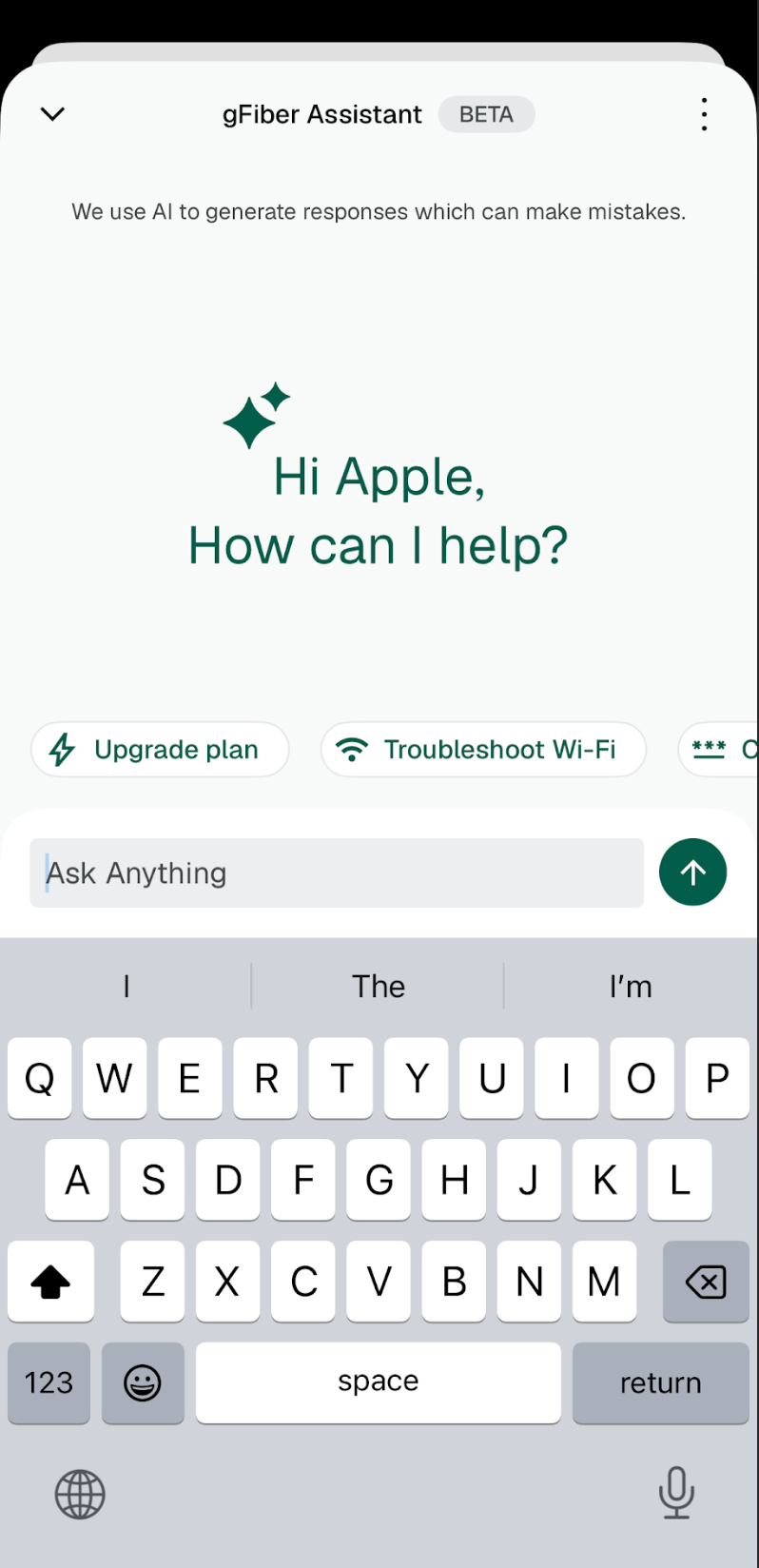
Open and sign in to the app, click Chat with us, and interact with the gFiber Assistant and feel free to ask questions about your service, account or internet.
Submit feedback on iOS
-
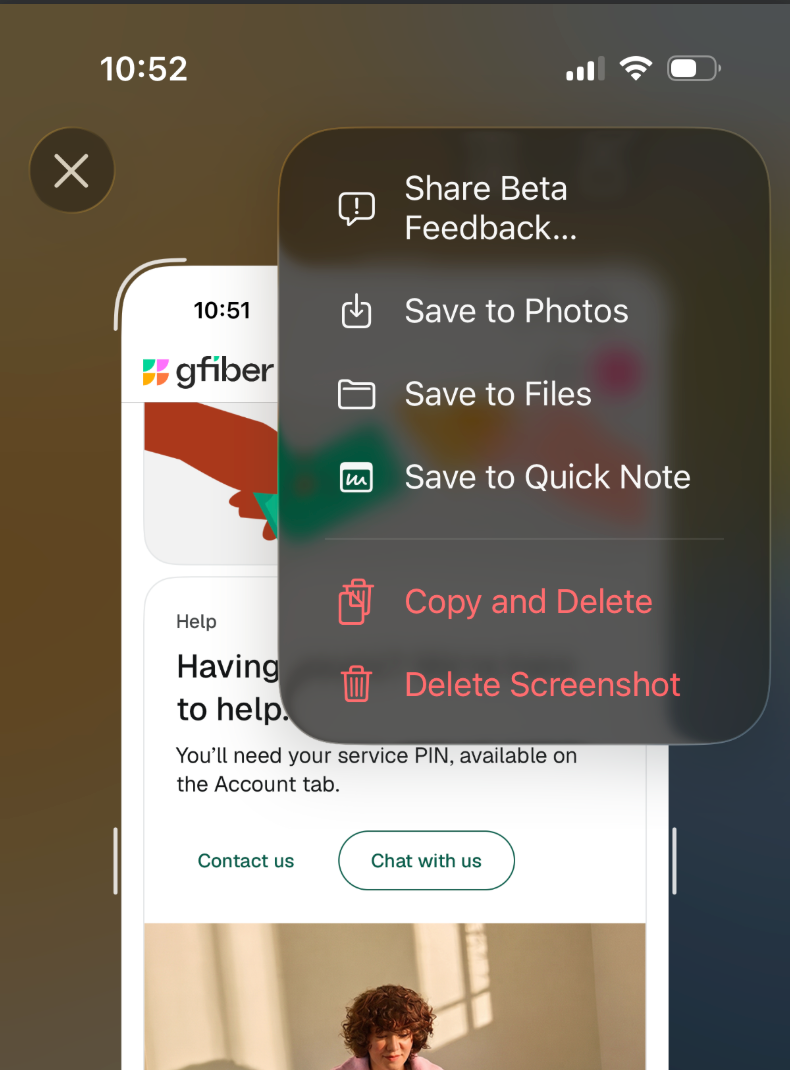
Take a screenshot inside the app while encountering an issue or testing a feature.
-
Tap the screenshot thumbnail in the bottom-left corner of your screen.
-
Select Share Beta Feedback to send your screenshot directly to the development team through TestFlight.
Troubleshooting iOS Installation
If the app doesn't show up or you have installation issues, try these troubleshooting fixes:
-
Open the TestFlight link directly in Safari. In-app browsers (inside Gmail, Slack, or WhatsApp) cannot hand off to TestFlight.
-
Ensure the Apple ID signed into TestFlight matches your main device account (Settings > [Your Name] vs. TestFlight > Account). If they differ, sign out of TestFlight and back in with your main Apple ID.
-
Force-close TestFlight (swipe up from the app switcher), re-open it, and pull down on the list to force a refresh.
-
Verify your version under Settings > General > About > Software Version (requires iOS 26.x or later).
Set up on Android
Installation steps
-
Open the gFiber App Beta Opt In link on your Android device. If the install button appears here, click on it and wait for the download before proceeding
-
Scroll down to the App Support section and look for the Join the beta card and click Join. When the dialog appears with Join the beta?, confirm by clicking Join.
-
Tap Install (or Update if you already have the public app installed).
-
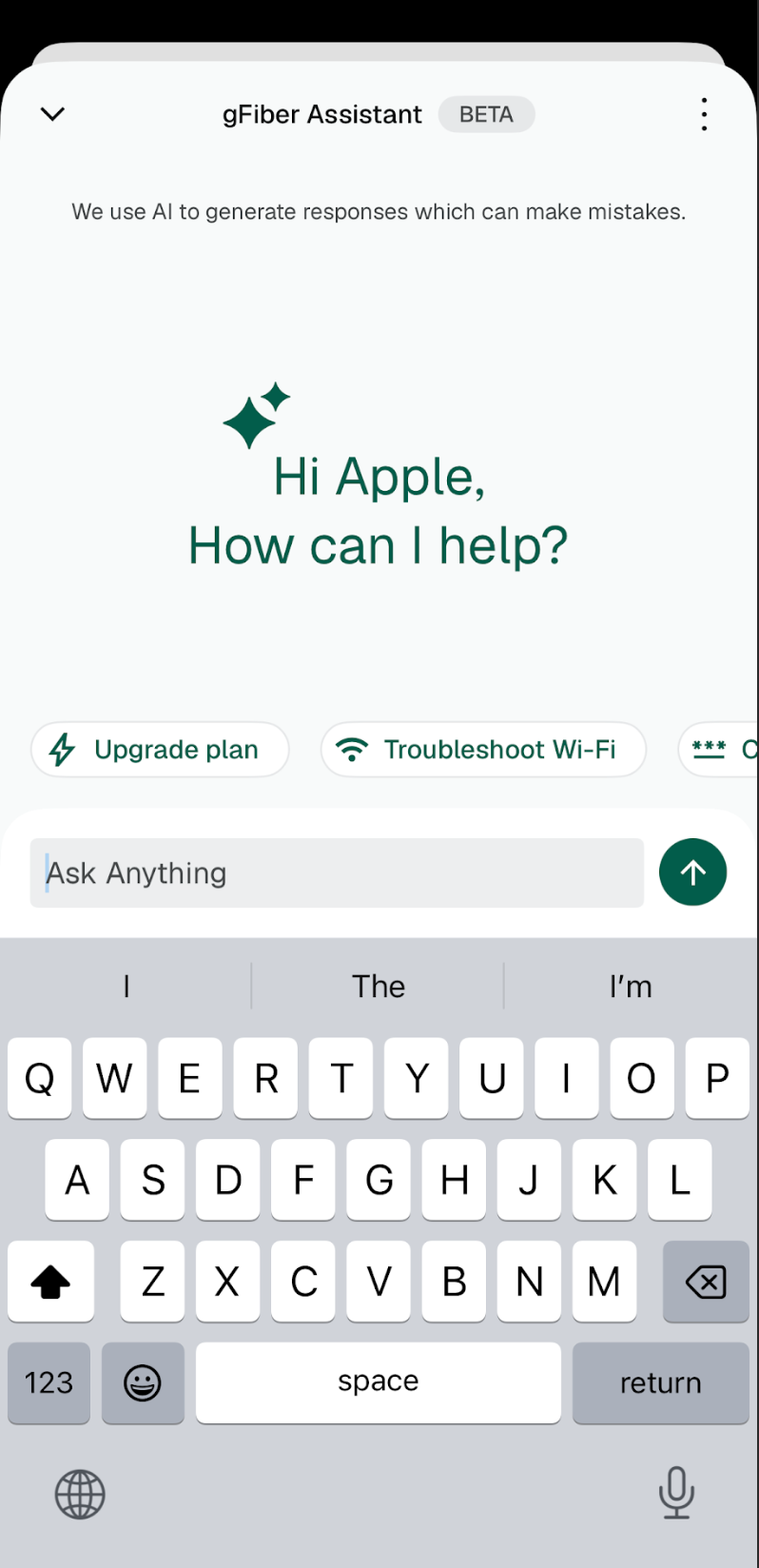
Open the app, click Chat with us, and interact with the gFiber Assistant

Note: The Google Play Store can take anywhere from a few minutes to two hours to process your beta access after you opt in.
How to leave the beta
-
iOS: Open TestFlight, select gFiber, scroll down, and tap Stop Testing.
-
Android: Revisit the opt-in link, tap Leave the program, uninstall the beta app, and reinstall the public gFiber version from the Play Store.
Recommended test scenarios & questions
To help us evaluate the AI assistant's accuracy and speed, try asking a variety of natural questions, such as:
-
Account & Billing: "How do I view my current bill?" or "Where can I update my payment method?"
-
Technical Support: "How do I restart my gFiber Wi-Fi 7 Router?" or "What do the status lights on my Fiber Jack mean?"
-
Network & Troubleshooting: "Why is my Wi-Fi slow in the back bedroom?" or "How do I change my network name and password?"