Find Your Public and Internal IP Addresses
Understand the Differences Between IP Types
Every device on your home network relies on an IP (Internet Protocol) address to send and receive data. Your network handles this by using two different types of IP addresses.
-
Public IP Address: The public IP address of your network is a unique number assigned to your home by GFiber. All incoming and outgoing internet traffic (such as email, video streaming, and web searches) uses that externally facing public IP address to identify your home on the global internet.
-
Internal IP Address: The internal IP address of a device is a unique localized number assigned to your individual phone, laptop, or console by your router when it joins your home network. The router assigns these internal numbers in numerical order (for example, 192.168.1.2, 192.168.1.3, and so on) and reassigns them after they are released by devices that turn off or leave the area.
How to Check Your Public IP Address
You can locate your externally facing public IP address using either the mobile app or any standard internet browser.
Use the GFiber Mobile App
Before you begin, download the GFiber App from the Google Play Store or the App Store.
-
Open the GFiber App and sign in.
-
Tap Network.
-
Tap Router details.
-
Your public identifier is listed under Router WAN IPv4 address.
Use a Web Browser
-
Connect your computer or phone to your GFiber network.
-
Open any web browser of your choice and visit whatsmyip.org or whatismyip.com.
-
These web pages automatically detect and display your active public IP address.
How to Check the Internal IP Address of a Local Device
If you need to know the localized network number assigned to a specific phone, computer, or smart home device, you can view it directly in the app.
Before you begin, download the GFiber App from the Google Play Store or the App Store.
-
Open the GFiber App and sign in.
-
Tap Network, Network settings, and then Advanced network settings.
-
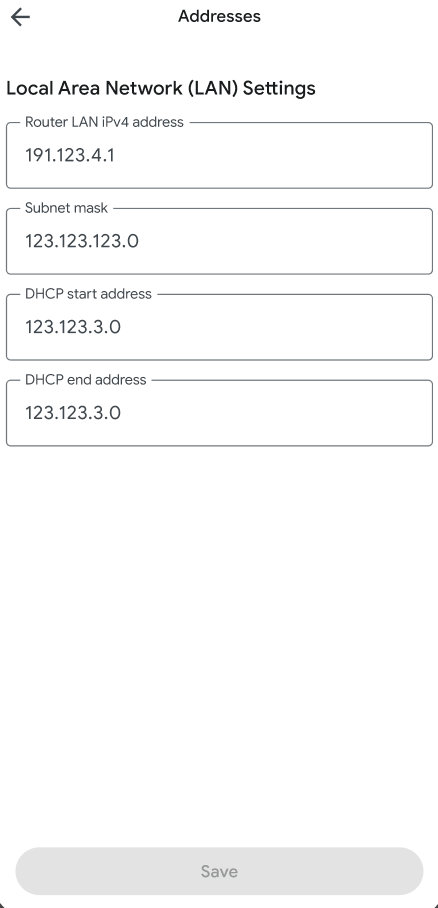
Tap Addresses to view your settings.
-
On this screen, you can view your localized IP addresses alongside your Local Area Network (LAN) subnet details.