Device connection details in the GFiber App
Want to learn more about your Wi-Fi network? The connection details page in the GFiber App can help you understand how your devices (like smartphones, tablets, and gaming systems) are connected and performing.
Find the connection details page
You’ll find details about your connected devices under Connection details in the GFiber App.
To access this page:
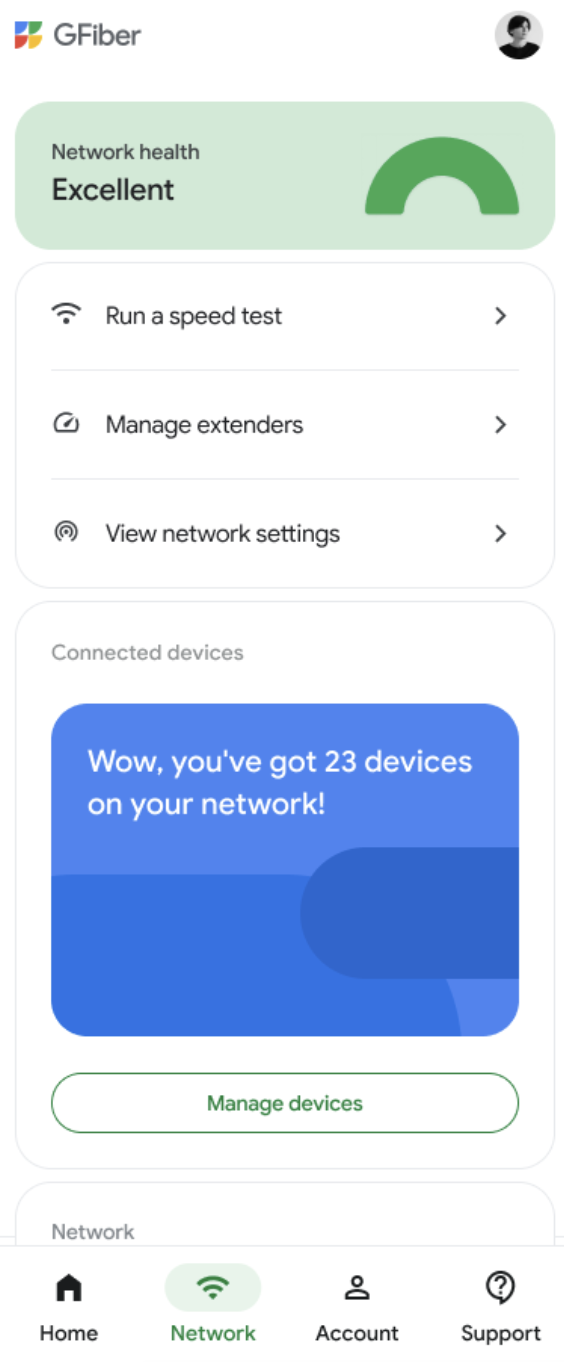
- Navigate to the Network tab. Scroll down and tap the Manage devices button.
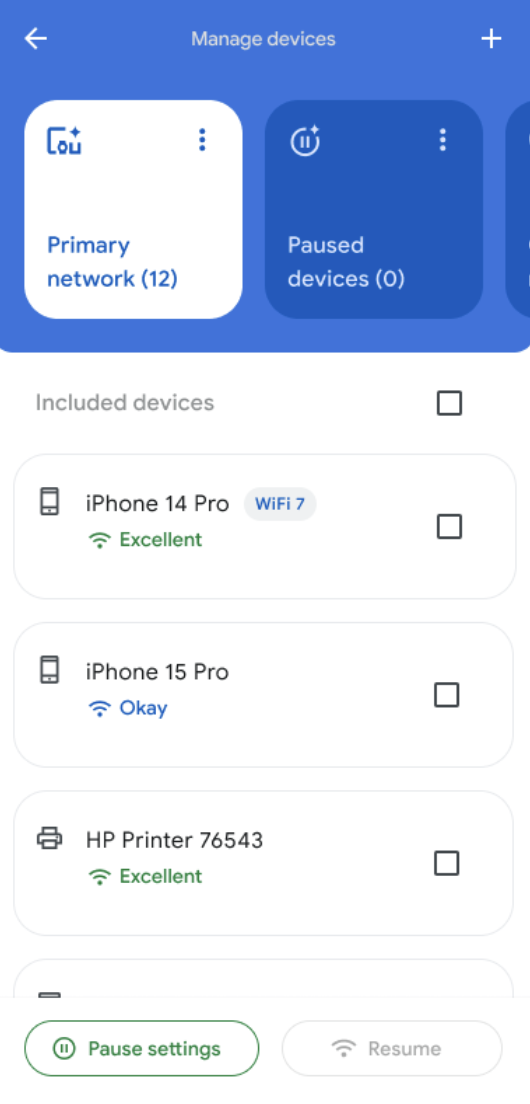
- Tap the device you would like to view details for.
- Scroll down to Connection details.
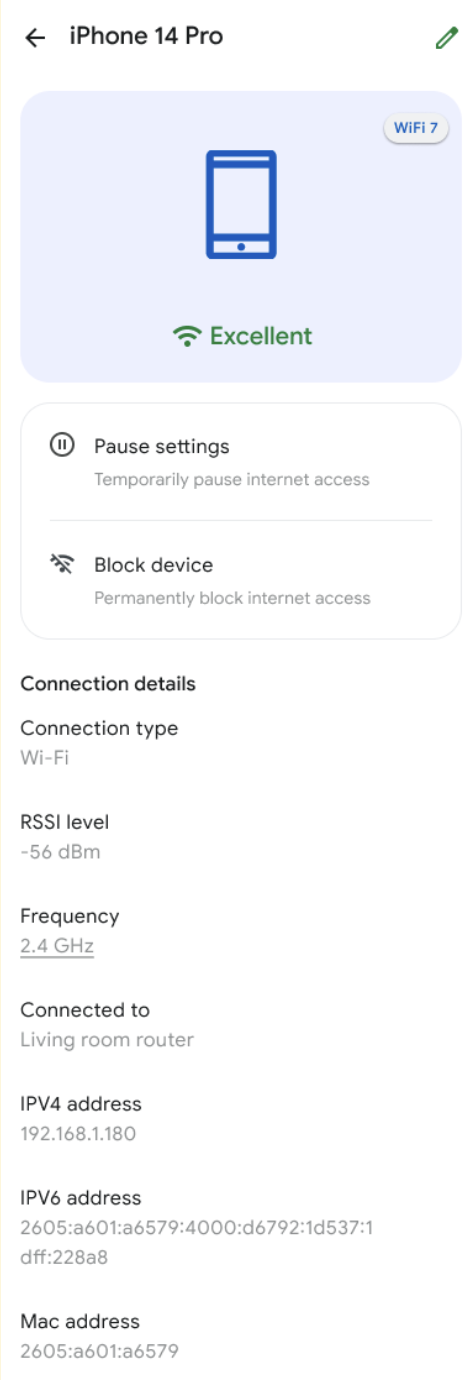
Connection type
The connection type (typically either wired or Wi-Fi) indicates how a device is connected to your network. For example, a desktop computer is usually connected to a router with an Ethernet cable, while a phone or laptop typically connects wirelessly over Wi-Fi.
RSSI level
The RSSI level shows the strength of the Wi-Fi signal between a device and your GFiber router or access point. A high RSSI level indicates a stronger signal. If a device has a weak signal, try moving it closer to the router or mesh extender.

If moving the device closer to the router doesn’t improve the signal strength, consider using a Información sobre el amplificador de malla Wi-Fi 6E de GFiber y cómo configurarlo.
Frequency
Wi-Fi networks use different radio frequencies to transmit data. Your device will automatically connect to the best available frequency, which may change depending on factors like distance and interference.
-
2.4 GHz: This frequency provides wider coverage but slower speeds. It’s ideal for older devices and IoT devices (like smart thermostats, smart speakers, and security cameras).
-
5.0 GHz: This frequency offers faster speeds but has a shorter range. It’s best for devices that require high-speed connections, like computers, phones, and streaming devices.
- 6.0 GHz: This frequency is only available on Wi-Fi 6E routers and offers the fastest speeds.
For more information about Wi-Fi frequencies and router compatibility, check out this blog post.
tip-icon | We typically provide a GFiber Wi-Fi 6 or Wi-Fi 6E Router and, if needed, a GFiber Mesh Extender to support the 6.0 GHz band. However, your device may not be compatible with this frequency. If your device is compatible, it will automatically connect to the best available frequency and display a badge on its device details page. |
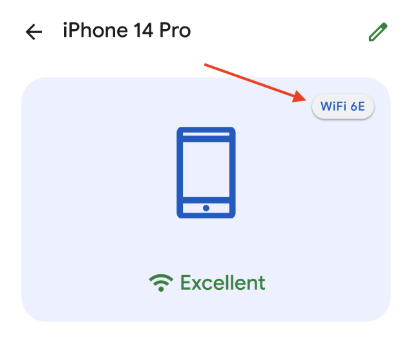

Even if your device supports the fastest Wi-Fi speeds, it may automatically switch to a slower frequency to maintain a stable connection, especially when it’s farther away from the router. You can learn more here about Velocidades máximas de Internet en Google Fiber and device capabilities.
Connected to
This indicates the router or extender that the device is currently connected to. The GFiber network constantly optimizes connections, and will automatically switch your device to the best available router or extender. You can rename routers and extenders on their Personalice el nombre y el icono de un dispositivo en la aplicación GFiber page (e.g., “Living Room Router,” “Kitchen Extender”).
IPv4 and IPv6 addresses
Your GFiber router assigns a unique IP address to each device on your local network. The address is used to route internet traffic to the correct device. You can use this IP address to identify unknown devices by comparing it to the IP address listed in the device’s settings.
There are two main types of IP addresses: IPv4 and IPv6. IPv4 addresses are older and have a limited number of available addresses. IPv6 is a newer standard that offers a much larger number of addresses. While most modern devices have both IPv4 and IPv6 addresses, older devices or IoT devices (like smart thermostats, smart speakers, and security cameras) may only have an IPv4 address.
MAC address
Each device has a unique MAC address, which is displayed on its device details page. You can use this MAC address to identify the physical device — especially if it’s an unknown device.
You may notice that your device’s MAC address changes over time. This is due to [MAC randomization], a privacy feature that changes a device’s MAC address each time it connects to a new network. It can also change a devices MAC address periodically on the same network.
To prevent this from affecting device identification and customization, consider disabling MAC randomization on your primary home network.
You can learn more about Device identification and MAC randomization in the GFiber App and how to enable or disable it.