

Check your network status
Enter your address to see the status of your service.
FAQs
Before unplugging anything, check if there’s an outage in your building. You have two ways to check:Option 1: Check by address (fastest)
- Go to the Webpass Support page.
- Under Check your network status, enter your building address. (You don't need to enter your unit number).
- Log in to your gFiber Webpass account.
- Click Support from the left-side menu to view your network status. You can open a support ticket here. For the fastest help, use live chat or give us a call.
If your building status is Online but you can't connect, try these steps:1. Restart your equipment:
- Unplug your router — and your gFiber Webpass modem, if you have one. Wait 60 seconds, then plug everything back in.
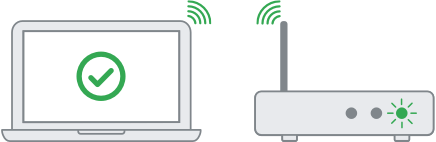
- Wait a few minutes for the router light to turn solid white (pulsing means it's still connecting).
- If you use your own router, look for a solid green or blue light.
- If it works: The issue is likely your router. Try a factory reset. If you’re using a gFiber device, contact us for a replacement. For personal routers, reach out to the manufacturer.
- If it doesn't work: The issue may be the signal coming into your unit. Contact customer support.
A few common things to check:
- Use a wired connection: Plugging directly into your router gives you faster, more stable speeds for gaming or 4K streaming.
- Check your Ethernet cable: An older Ethernet cable can limit your speed. Try using a newer one.
- Move your router: Metal appliances and thick walls block Wi-Fi signals. Place your router in an open, central location off the floor.
- Restart your device: Older devices or too many apps running can slow things down.
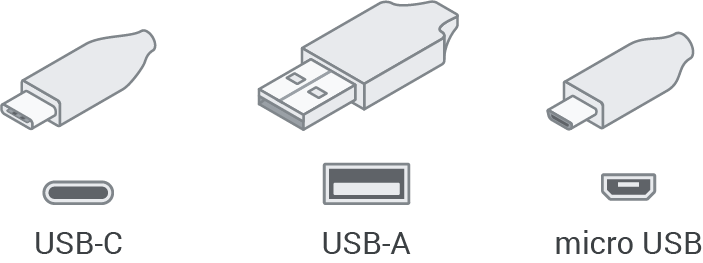
Many modern laptops don't have a built-in Ethernet port. You can use a USB-to-Ethernet adapter to connect — see some common types below:
 If you’d rather connect wirelessly, all you need is a Wi-Fi router.
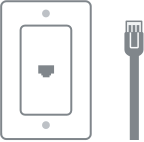
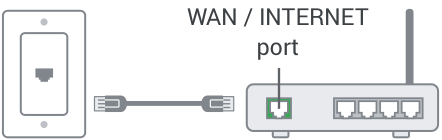
If you’d rather connect wirelessly, all you need is a Wi-Fi router.Usually, no. In most buildings, gFiber Webpass connects directly through your wall jack. If your unit requires a modem, we'll install one for you. All you need is:
- A Wi-Fi router (included with your service), or
- A device plugged directly into the wall jack
Yes. Your service includes a premium Wi-Fi router at no extra cost. You can also use your own router if you prefer. To get the most out of your speeds, we recommend a gigabit-capable router (Wi-Fi 5 or Wi-Fi 6) or a mesh system for larger homes.