Priority Room Optimization setup and troubleshooting
Priority Room Optimization brings dedicated wired internet speeds to high-use rooms by using your home's existing Ethernet or coaxial wiring paired with a 2.5 Gbps Ethernet Switch or MoCA Wiring Adapter installed by a gFiber technician.
Understand Priority Room Optimization
Wired Ethernet connections provide lower latency and consistent speeds compared to wireless connections. Priority Room Optimization is a Reliability Plus feature designed to deliver direct wired connectivity to rooms where performance matters most, such as home offices or entertainment centers.
During an appointment, a gFiber technician evaluates your home layout and existing wiring to build a tailored setup using one of two hardware solutions:
-
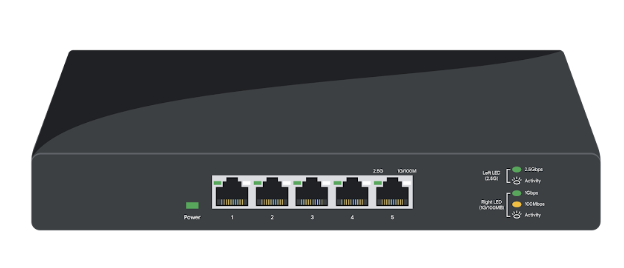
2.5 Gbps Ethernet Switch: Installed when your home has pre-existing Ethernet cabling terminated at a central panel or network closet.
-
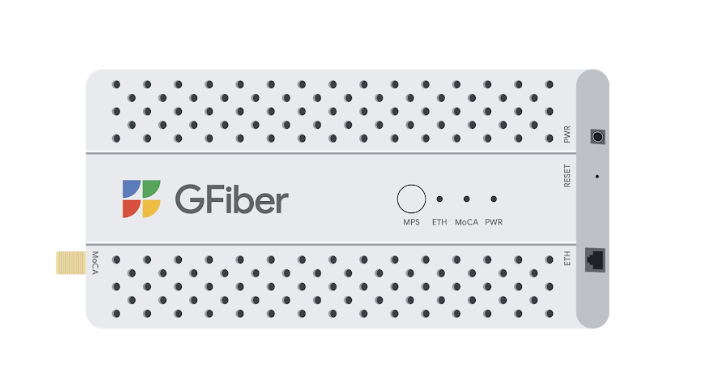
MoCA Wiring Adapter: Installed when your home has coaxial TV wiring, converting coaxial lines into multi-gigabit network lines for up to 3 devices.
Review installation hardware
Your technician selects the optimal hardware configuration based on your existing infrastructure:
| Hardware | Best Suited For | Primary Function | Max Device Support |
| 2.5 Gbps Ethernet Switch | Homes wired with Cat 5e, Cat 6, or higher Ethernet cables | Expands router LAN ports to activate multiple wall jacks simultaneously | 4–8 wired devices per switch |
| MoCA Wiring Adapter | Homes with coaxial wall outlets and no central Ethernet lines | Bridges Ethernet signals across coaxial cable lines | Up to 3 adapters per network |

Set up a 2.5 Gbps Ethernet Switch
Your technician installs your switch during your appointment. If you need to reconfigure or reconnect your switch later, follow these steps:
-
Power off your gFiber router and the 2.5 Gbps Ethernet Switch by unplugging the power cables from the wall outlet.
-
Connect one end of an Ethernet cable to a 2.5 Gbps LAN port (typically blue) on the rear panel of your gFiber router.
-
Connect the other end of that Ethernet cable to Port 1 on the 2.5 Gbps Ethernet Switch.
-
Connect additional Ethernet cables from the remaining open ports on the switch to your computer, gaming console, Wi-Fi mesh extender, or network patch panel.
-
Plug the power cables for both the router and switch back into the wall outlet.
-
Check the LED status lights on the front of the switch to verify that each connected port displays a solid or blinking green light, confirming an active connection.

Set up a MoCA wiring adapter
When coaxial wiring is present, technicians link rooms using MoCA (Multimedia over Coax Alliance) adapters:
-
Connect a coaxial cable from the coaxial wall outlet to the Coax In port on the first MoCA adapter near your gFiber router.
-
Connect an Ethernet cable from a LAN port on the gFiber router to the Ethernet port on the first MoCA adapter.
-
Plug the MoCA adapter power cord into the adapter, and then plug it into an electrical wall outlet.
-
Move to the destination room and connect a second MoCA adapter to the local coaxial wall outlet using a coaxial cable.
-
Connect an Ethernet cable from the second MoCA adapter to your computer, streaming device, or Wi-Fi mesh extender.
-
Plug the second MoCA adapter into the local electrical wall outlet.
-
Confirm the Power, LAN, and MoCA indicator lights illuminate solid green on both adapters. Your technician will perform a speed test confirming at least 850 Mbps symmetrical speeds.
Troubleshoot your equipment
Fix 2.5 Gbps Ethernet Switch issues
Follow these steps if your connected devices are not receiving an internet signal:
-
Inspect all physical cable terminations. Unplug and firmly reseat each Ethernet cable into the switch and connected devices until the plastic clip clicks into place.
-
Verify power delivery. Confirm the power adapter is firmly connected to the switch and a working electrical outlet. If the power light does not illuminate, test the outlet with another device.
-
Inspect port activity lights. If a port light remains unlit while connected to an active device, move the Ethernet cable to an alternate port on the switch to isolate a possible port failure.
Fix MoCA wiring adapter issues
Follow these steps if the MoCA network link disconnects:
-
Verify status lights. Check that the Power, Ethernet, and MoCA lights are illuminated on both adapters.
-
Reseat coaxial and Ethernet connections. Unscrew the coaxial connectors on both adapters, inspect the center copper wire for bends, screw them back on finger-tight, and reseat all Ethernet cables.
-
Power cycle the adapters. Unplug the power adapters for both MoCA units from the wall outlets, wait 30 seconds, and plug them back in.
-
Restore factory defaults. On the rear panel of the adapter, insert a paperclip into the Reset pinhole and hold for 3 seconds, then release.
Frequently asked questions
MoCA adapters deliver up to 1 Gbps to 2.5 Gbps throughput over standard coaxial lines. In gFiber installations, technicians verify that MoCA links achieve at least 850 Mbps symmetrical download and upload speeds. While direct Cat 6 Ethernet cabling provides the lowest possible latency, MoCA delivers performance that significantly exceeds standard Wi-Fi.
Yes. You can add compatible MoCA 2.5 adapters to other rooms that have connected coaxial outlets. Simply attach the adapter to your coaxial wall jack, plug in the power supply, and connect your wired device via an Ethernet cable.
Speed negotiation depends on your Ethernet cables and device network cards. Ensure you are using Cat 5e cabling or higher (such as Cat 6 or Cat 6a) without damaged pins. If your connected computer or device only has a 1 Gbps network interface card (NIC), the switch port automatically negotiates to that device's maximum speed.