Set Up and Manage Your Voicemail

Voicemail is included with your GFiber Phone service. You can set it up in just a few minutes, then manage greetings, messages, and settings anytime by phone or in the GFiber Phone portal.
How to Set Up Your Voicemail
A voicemail box is created automatically when your GFiber Phone service is activated. The first time you access it, you’ll set a secure Personal Identification Number (PIN).
Set up your PIN by phone
-
Dial *98.
-
Enter the default PIN: 1234, then press #.
-
Follow the voice prompts to create a new PIN (at least 4 digits).
 If you forget your PIN, you can reset it to 1234 in the Voicemail Box Details section of the GFiber Phone portal.
Change Your Voicemail Language
-
Sign in to your GFiber account.
-
Click the Phone link to open your GFiber Phone portal.
-
Click the Voicemail tab.
-
In the Voicemail Box Details section, choose a language from the dropdown menu (English, Spanish, or French).
Create Custom Greetings

If you want to transfer your custom greeting from Google Voice:
Go to takeout.google.com.
Click Deselect all (unless you want a massive file of everything you've ever done on Google).
Scroll down to Google Voice and check the box next to it.
Click All Voice data included. In the pop-up, make sure Greetings is selected, then click OK.
Scroll to the bottom and click Next step.
Choose your destination (usually "Send download link via email") and click Create export.
Once the email arrives, download the .zip file. Your greetings will be inside a folder named Google Voice/Greetings as .mp3 or .wav files.
Follow the steps below to upload your greeting file.
You can record greetings using your phone or upload an audio file from your computer.
Record a greeting by phone
-
Dial *98.
-
Enter your PIN, then press #.
-
Press 8 for Personal Options.
-
Press 2 to manage greetings.
-
Choose the greeting you want to update:
- Press 1 for your default greeting.
- Press 2 for your busy greeting.
- Press 3 for your no-answer greeting.
- Follow the prompts to record and save.
Upload a greeting file
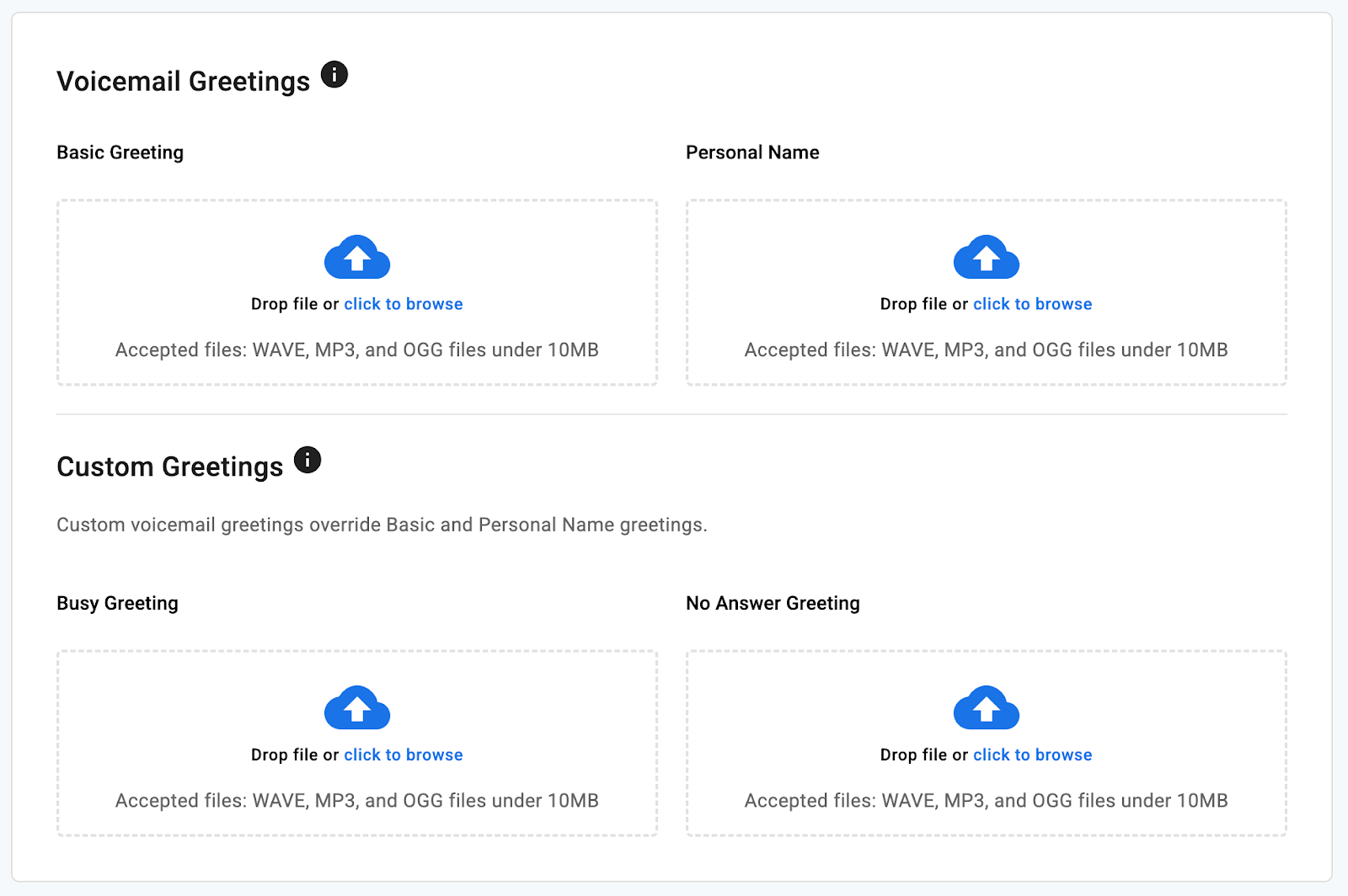
Make sure your file is in .mp3, .ogg, or .wav format and smaller than 10 MB.
-
Sign in to your GFiber account and select Phone.
-
Click the Voicemail tab and scroll to Voicemail Greetings.
-
Select the greeting you want to replace (Busy, Personal Name, Basic, or No Answer).
-
Upload the file from your computer.
Check Your Voicemail
From your GFiber Phone
-
Dial *98.
-
Enter your PIN, then press #.
-
Press 1 to listen to your messages.
From another phone
-
Dial your 10-digit GFiber Phone number.
-
When your greeting starts, enter your PIN, then press #.
-
Follow the prompts and listen to messages.
From the GFiber Phone Portal
-
Sign in to your GFiber account and open the Voicemail tab.
-
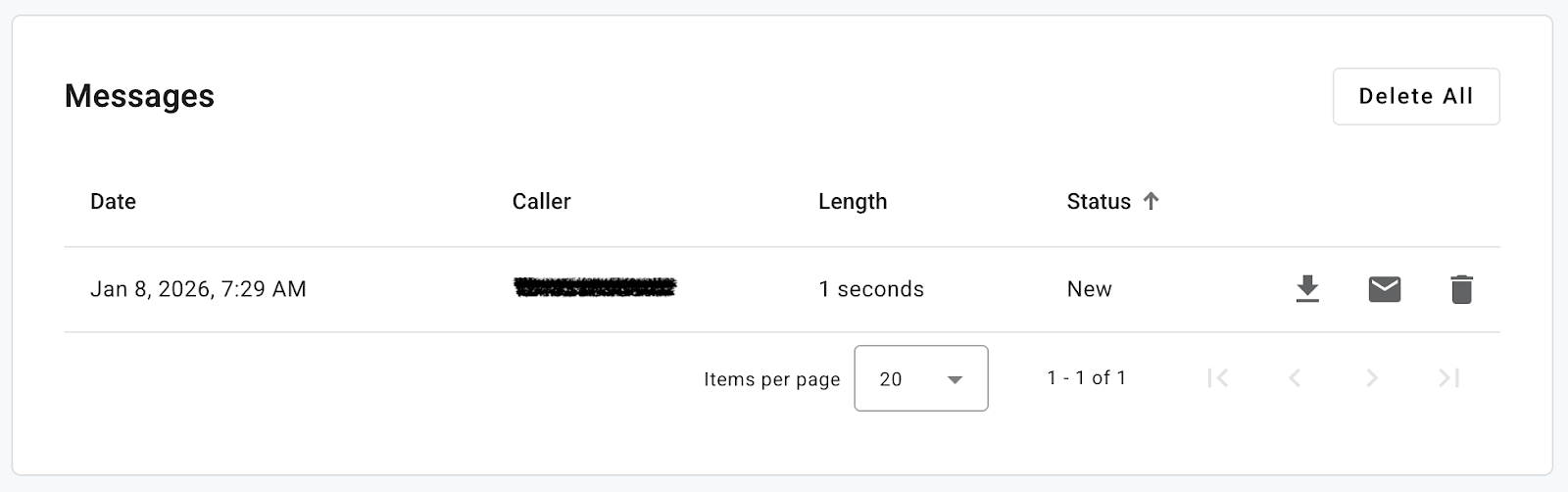
Scroll to the Messages section to view your voicemails.
-
From here, you can select Download to save a message as an .mp3, or click Delete to remove it.
FAQs
Dial *98, enter the default PIN 1234, press #, and follow the voice prompts to create a new PIN of at least 4 digits.
Dial *67, then enter the phone number (example: *67-503-555-5555). Your Caller ID will appear as "Blocked" for that call.
- Forward All: Sends every incoming call to a specific number.
- Simultaneous Ring (SIM Ring): Rings your main phone and other numbers at the same time.
- Find Me: Rings your phones in a specific sequential order.