Set Up Your gFiber Wi-Fi 6E Router
To set up your gFiber Wi-Fi 6E Router (GR6EXX0C), plug your Fiber Jack into power, connect an Ethernet cable from your Fiber Jack to the silver WAN port (globe icon) on your router, and turn on your router. Once powered, open the gFiber App to configure your network name and password. Total setup time is about 10–15 minutes. For step-by-step visual guidance, watch our router self-install video.

Quick setup guide
Your kit includes a printed booklet with these instructions. You can also download the gFiber App from the Google Play Store or App Store to follow along on your phone.
-
Connect your Fiber Jack to power.
-
Plug an Ethernet cable from your Fiber Jack into the silver WAN port (globe icon) on your router.
-
Plug your router power adapter into a wall outlet.
-
Open the gFiber App to set your network name and password.
 If you see a solid yellow Wi-Fi light on your router, complete your network name and password setup in the gFiber App to finalize your connection.
A solid green light on your router confirms you are online.
What’s in your self-install kit
Open your self-install kit and confirm you have all included items:
-
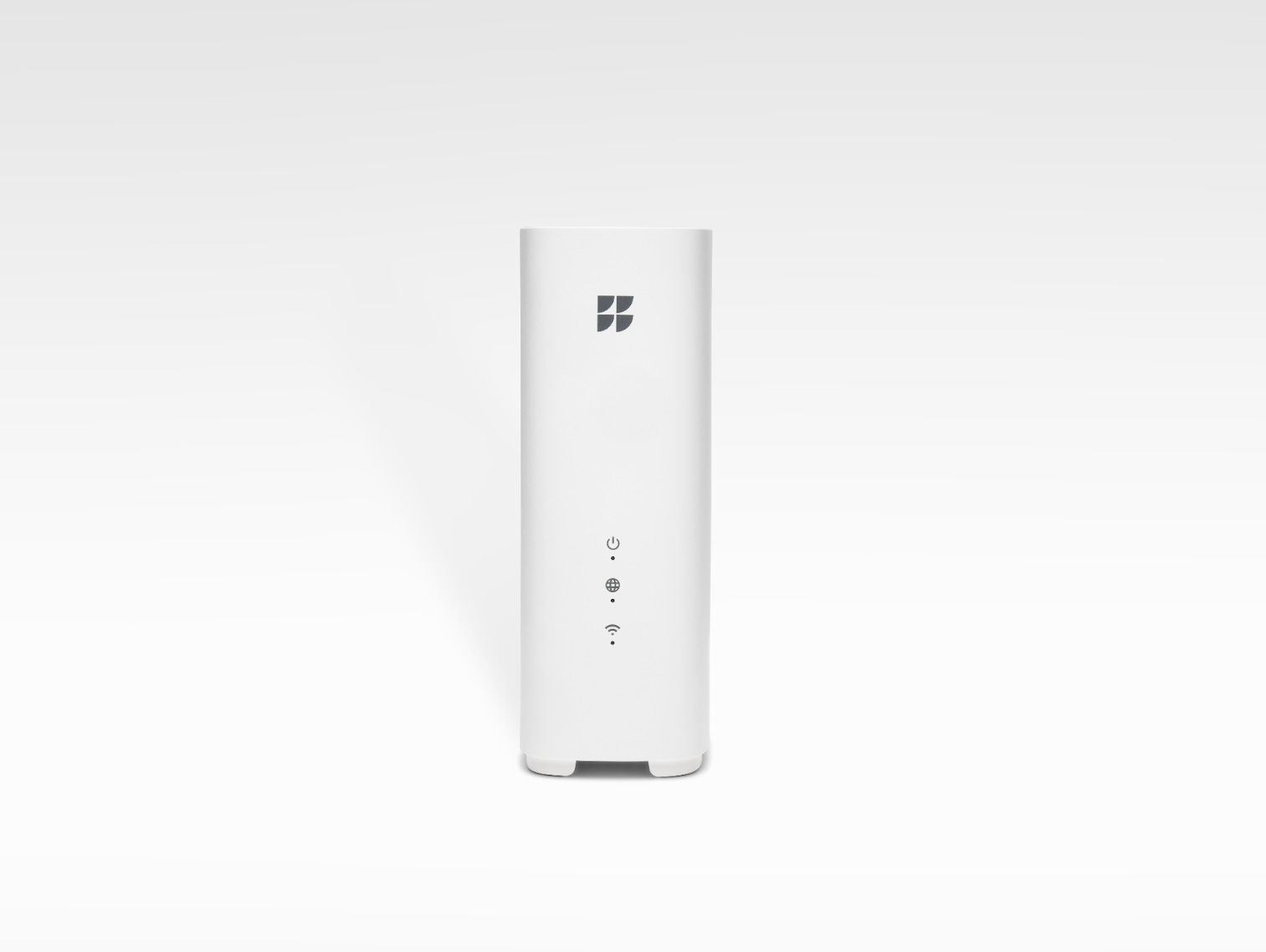
1 gfiber Wi-Fi 6E Router (Model GR6EXX0C)
-
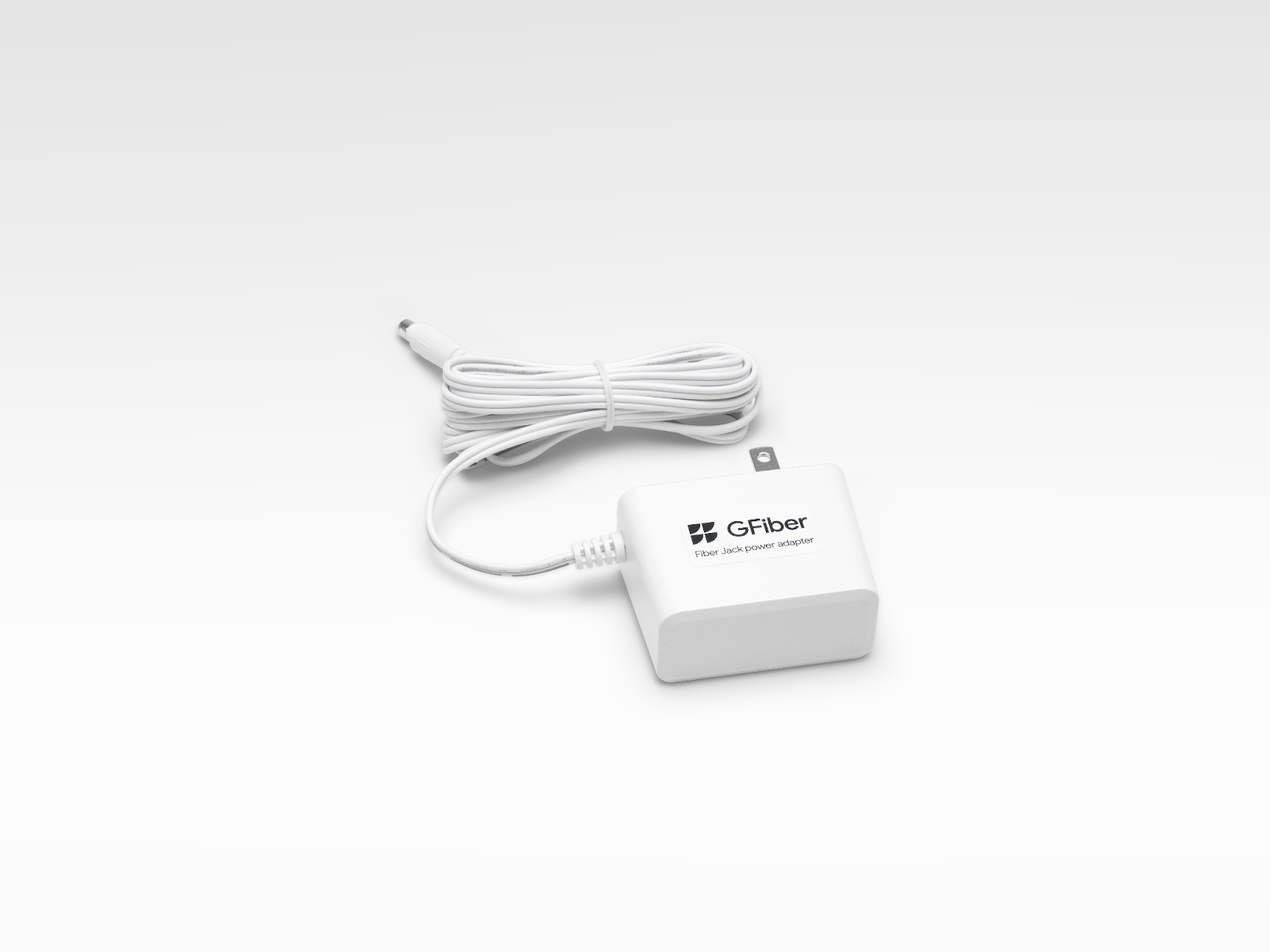
2 power adapters (1 for the router, 1 for the Fiber Jack)
-
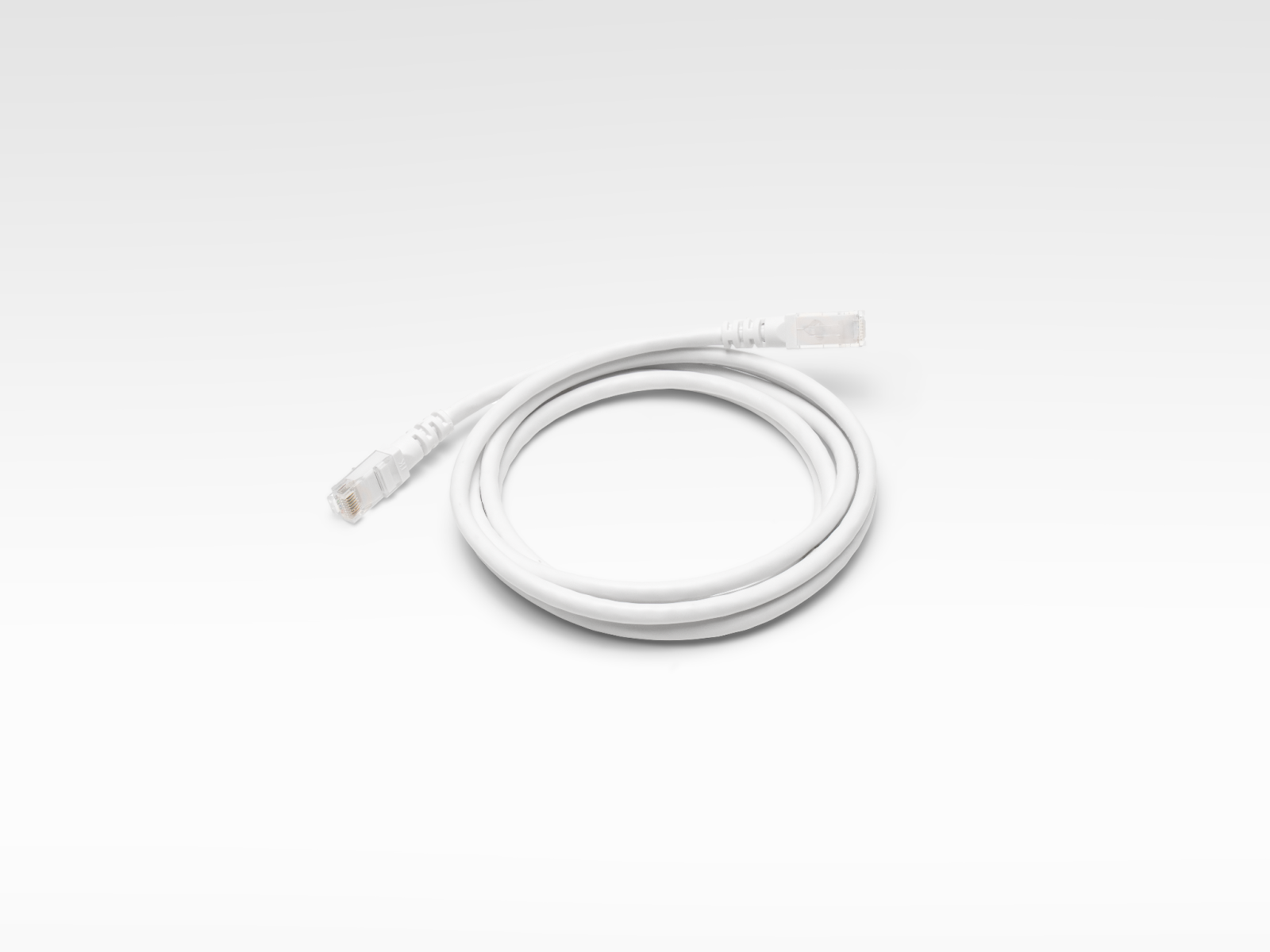
1 Ethernet cable
-
gfiber Wi-Fi 6E Mesh Extender(s) (optional)
Find your Fiber Jack
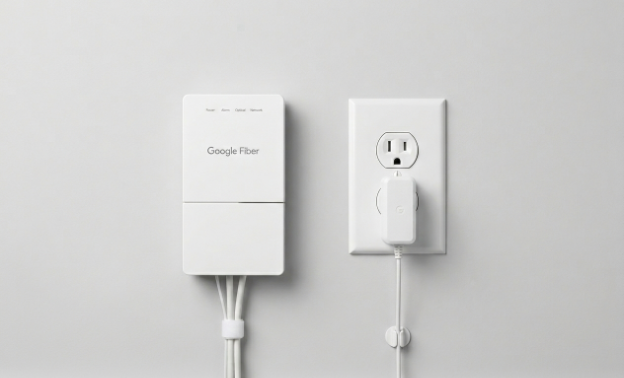
Your Fiber Jack is the small white box mounted on your wall that connects your home to the gFiber network. Look for it where the fiber line enters your home, commonly in these locations:
- Mounted on a wall in a central area or utility closet.
- Inside a plastic media panel in a bedroom closet or behind an entry door.
- Connected to an existing router with an Ethernet cable.
gFiber uses 2 Fiber Jack models:
- Single-light model (blue indicator lights)
- Four-light model (green indicator lights)
Connect your Fiber Jack to power
-
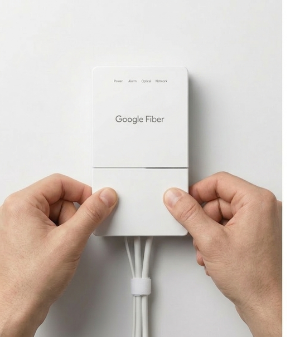
Place your fingers in the side dents of the Fiber Jack and gently pull to remove the bottom cover.
-
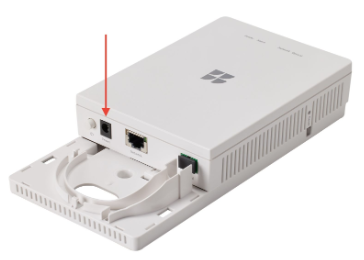
Check if the power cable is connected. If disconnected, connect the power adapter from your kit to the Fiber Jack and plug it into a wall outlet.
-
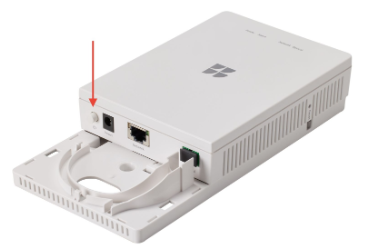
Observe the Power light on the Fiber Jack. If the light does not start blinking, press the Power button located inside the Fiber Jack on the left side.
-
Wait for the light to turn a solid color before proceeding.
Having trouble connecting? See our Fiber Jack troubleshooting guide.
Connect your Fiber Jack to your router
Unplug and disconnect any old router from the Fiber Jack. Check your email for return or recycling instructions for previous equipment.
-
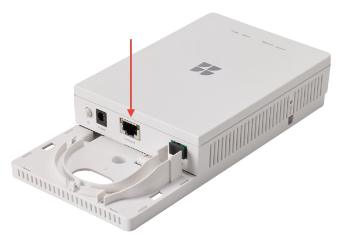
Plug one end of the Ethernet cable into the Ethernet port on your Fiber Jack.
-
Plug the other end of the cable into the silver WAN port (globe icon) on your gFiber Wi-Fi 6E Router.
-
Connect the router power adapter to a wall outlet.
-
Reattach the bottom cover to your Fiber Jack by sliding it back into place.
The light on the router will flash yellow or green while connecting, then turns solid green once your internet connection is active.
Using the gFiber Mobile App
- Download and open the gFiber App on your Android or iOS device, then sign in.
-
In the bottom navigation bar, tap Network.
-
Tap Network settings.
-
Tap Primary network settings.
-
If the Primary network Wi-Fi toggle is set to Off, switch it to On.
-
In the Network name field, type your network name.
-
In the Password field, type your primary network password.
-
Tap Save.
The gFiber App will display a confirmation message, and your router indicator light will turn solid green.
Using the gFiber web portal
-
Open a web browser and sign in to your gFiber account.
-
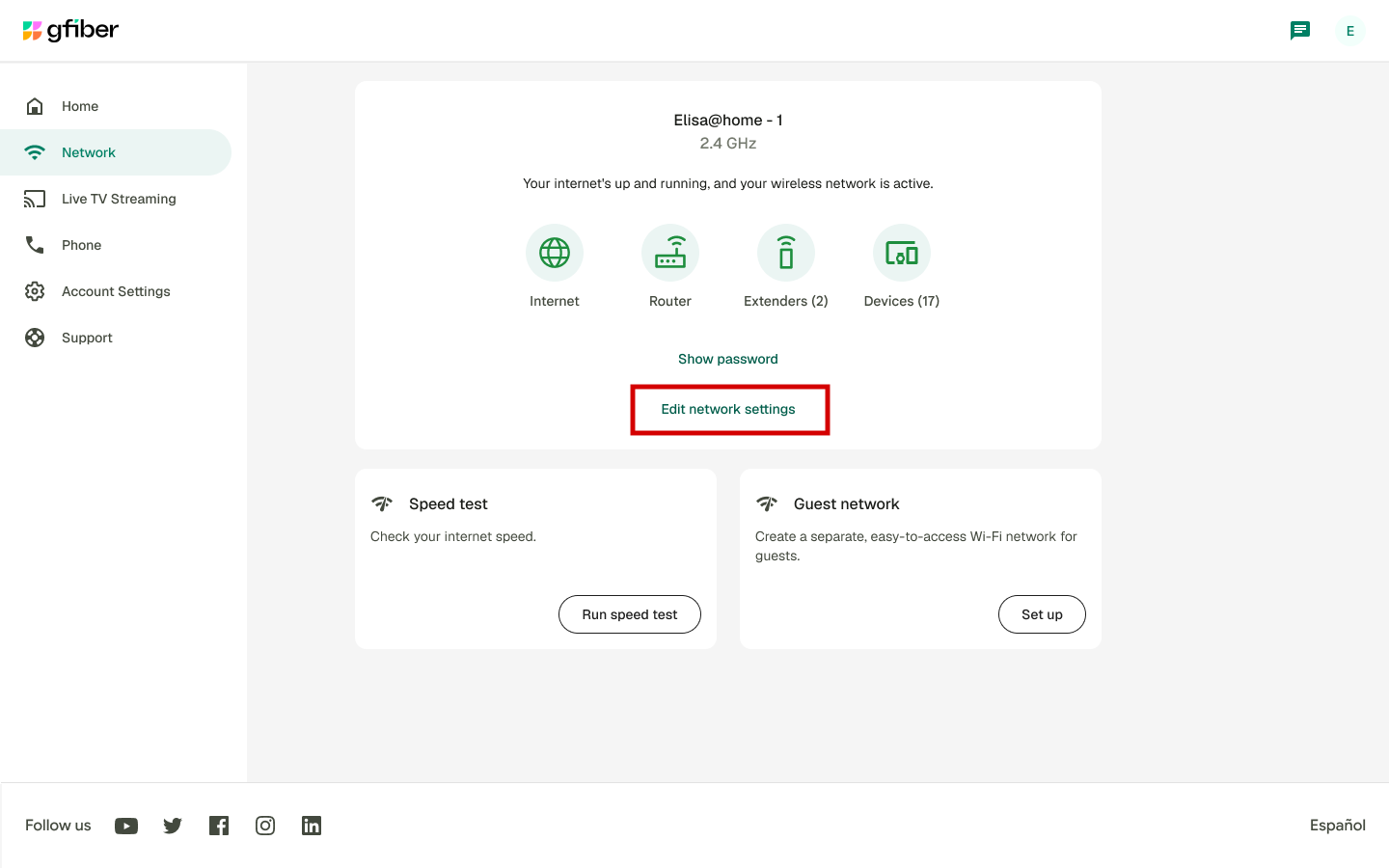
In the top-left corner, click Network.
-
Click Edit network settings.
-
If the Wi-Fi network toggle is set to Off, switch it to On.
-
In the Network name field, type your network name.
-
In the Password field, type your primary network password.
-
Click Save.
A confirmation banner will appear at the top of your account.
Add a mesh extender (optional)
A mesh extender expands your Wi-Fi coverage across larger homes or areas with signal obstacles.
-
Place the mesh extender in the same room as your router during initial pairing.
-
Pair the device following our standard mesh extender setup steps.
-
Once paired, move the extender to a wall outlet located roughly halfway between your router and the area needing stronger coverage.
Check router status lights
| Light Color | Icon | Status Meaning | Recommended Action |
| Solid Green | Power / Internet | Connected | No action needed. Your connection is ready. |
| Solid Yellow | Wi-Fi | Wi-Fi is turned off or unconfigured | Follow the network setup steps to set your network name and password. |
| Solid Red | WAN / Internet | No internet connection | Check Ethernet cable connections and restart your router using the Power button. |
| Blinking Red | Wi-Fi | Factory reset in progress | Do not unplug. Wait 5 minutes for the reset process to finish. |
A solid yellow Wi-Fi light indicates that your Wi-Fi network name and password have not been configured yet. Open the gFiber App or web portal and complete step 4 of this guide to finish network setup.
Self-install kits typically arrive within 1–3 business days after placing your order. gFiber ships kits Monday through Friday, with Saturday delivery available in select areas. Orders placed after Friday at 7:00 AM ship on the following Monday.
If any item listed in the kit contents section is missing from your shipment, contact gFiber customer support immediately to request a replacement shipment.
Check common installation spots like utility closets, wall mounts in central living areas, plastic media panels in bedroom closets, or near existing router wiring. If you still cannot locate your Fiber Jack, contact gFiber customer support for assistance.
Run a speed test to check connection performance. Speeds can vary based on device hardware age, distance from the router, and physical wall obstacles. For maximum wired speed, connect your high-demand devices directly to the 10G LAN port on the back of the router.
Wi-Fi 6E compatible devices can achieve wireless speeds up to 1.6 Gbps. For highest performance wired connections, use the dedicated 10G LAN port on the back of the router.
No. Connection speeds depend on each device's hardware capability. Only devices with Wi-Fi 6E hardware support can access the 6 GHz frequency band. Older devices connect using 2.4 GHz or 5 GHz bands at their maximum supported hardware speeds.
Your router automatically steers connected devices to the optimal frequency band:
-
2.4 GHz: Longest signal range through walls with standard wireless speeds.
-
5 GHz: Strong balance of high speed and coverage for most daily devices.
-
6 GHz: Fast speeds with lowest signal interference for nearby Wi-Fi 6E compatible devices.
No. The router automatically manages band selection and connects each device to the optimal frequency based on distance and device capabilities.
| Feature | Technical Specification |
| Wi-Fi Technology | Tri-band Wi-Fi 6E (802.11ax): 2.4 GHz (4x4), 5 GHz (4x4), 6 GHz (4x4) |
| Network Management | Proactive band and client steering, gFiber App management, automatic security updates |
| Wireless Standards | 802.11ax (Wi-Fi 6, 6E), 802.11ac (Wi-Fi 5), 802.11a/b/g/n |
| Memory | 4 GB eMMC flash, 1 GB DDR4 RAM |
| Hardware Ports | 1 x 10G WAN/Ethernet port (top silver port), 1 x 10G LAN port (second silver port), 3 x 2.5G Ethernet ports (blue ports), 1 x USB-A port |
| Security | WPA3 encryption |
| Guest Network | Separate guest network management via gFiber App |
| Dimensions | Height: 9.9 in, Width: 3.2 in, Depth: 7.8 in |
-
Unplug the power adapter from the back of your router or the wall outlet.
-
Wait at least 10 seconds.
-
Plug the power adapter back into the wall outlet.
-
Wait up to 5 minutes for the Power and Internet lights to return to solid green.
A factory reset erases customized settings and restores default factory configurations.
-
Ensure your router is powered on.
-
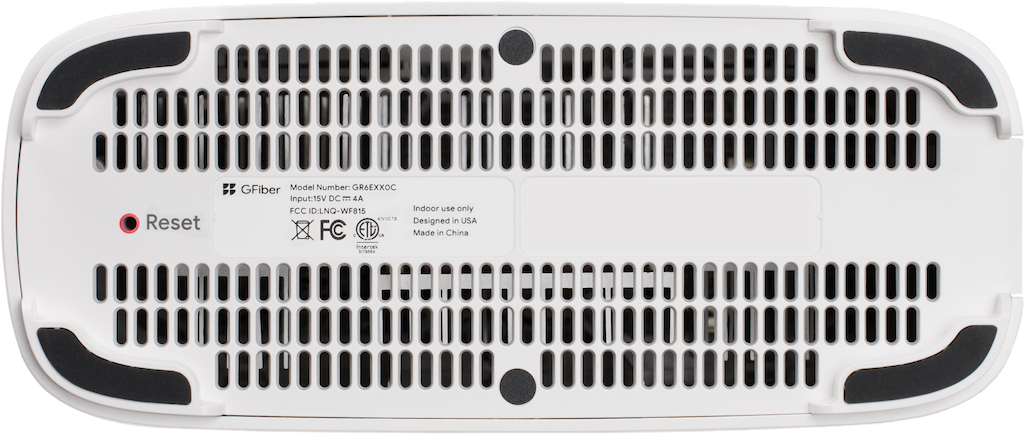
Locate the Reset button on the base of the router.
-
Use a pin or paperclip to press and hold the button for at least 10 seconds.
-
Release the button when the front light begins blinking red.
The router will restart automatically and returns to solid green once reset is complete.