gFiber App Features and Network Management Guide
Discover how to manage Wi-Fi, run speed tests, and control your network with the gFiber App.
Download the gFiber app on iOS or Android, then sign in with your gFiber email and password to manage your home Wi-Fi network, check connection speeds, set up guest access, or troubleshoot network issues directly from your mobile device.
Check account requirements
Before setting up or signing in to the mobile app, confirm you have the following ready:
-
An active gFiber internet account.
-
The email address and password associated with your gFiber account.
-
A mobile device connected to your home network.

The gFiber app is available for gFiber customers. If you have gFiber Webpass, please use the gFiber Webpass portal to manage your account.
Download the gFiber app
Get the app for your mobile device:
- Android: Download from the Google Play Store.
- iOS: Download from the App Store.
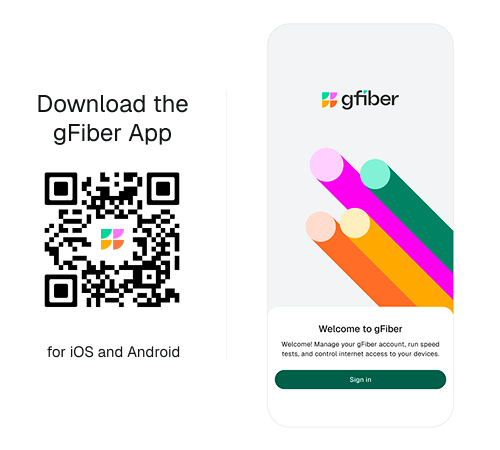
You can also point your mobile device's camera at the QR code on the gFiber website to go straight to the download page.
Sign in to your account
-
On your mobile device, open the gFiber app.
-
In the email address and password fields, enter your gFiber account credentials. If you cannot access your account, review our complete guide to signing in to your gFiber account.
-
Tap Sign in.
The gFiber app will automatically detect your gFiber service and display your network dashboard and available management features.
Manage network settings and features
Use the gFiber app to monitor and configure your network:
-
Check your network speed: Run an instant speed test to measure your current upload and download performance.
-
Check for outages: Instantly review local network status to identify service interruptions.
-
Monitor Network Health: View the real-time status of your router and connected hardware to verify your internet connection.
-
Manage Wi-Fi settings: Update your Wi-Fi network name or password to maintain network security.
-
Create a guest network: Enable a secondary, isolated Wi-Fi network for visitors to protect your primary home network.
-
Organize devices: Rename connected equipment, assign devices to customized groups, or pause and block access for specific devices.
- View device connection details: Check Wi-Fi signal strength, frequency bands, connection type, IP addresses, and MAC details for connected equipment.
-
Update advanced settings: Custom-configure network features including DNS, port forwarding, UPnP, DHCP, and WPA security protocols.
Frequently asked questions
No. gFiber Webpass customers manage their service through the gFiber Webpass web portal rather than the mobile app.
In the Network tab of the gFiber App, select your primary router or mesh extender and tap Restart Device.
Yes. In the Account section, tap Manage payments to view current statements, update payment methods, or make a payment.