Set Up and Configure Your Wi-Fi Network With the gFiber App
Step-by-Step Instructions by Equipment Type
Select the equipment setup that matches your home or business installation:
gFiber Wi-Fi 6 Router, Wi-Fi 6E Router, or Wi-Fi 7 Router
Follow these steps to configure your primary Wi-Fi settings in the app:
- Open the gFiber App on your mobile device and sign in to your account.
- Tap Network.
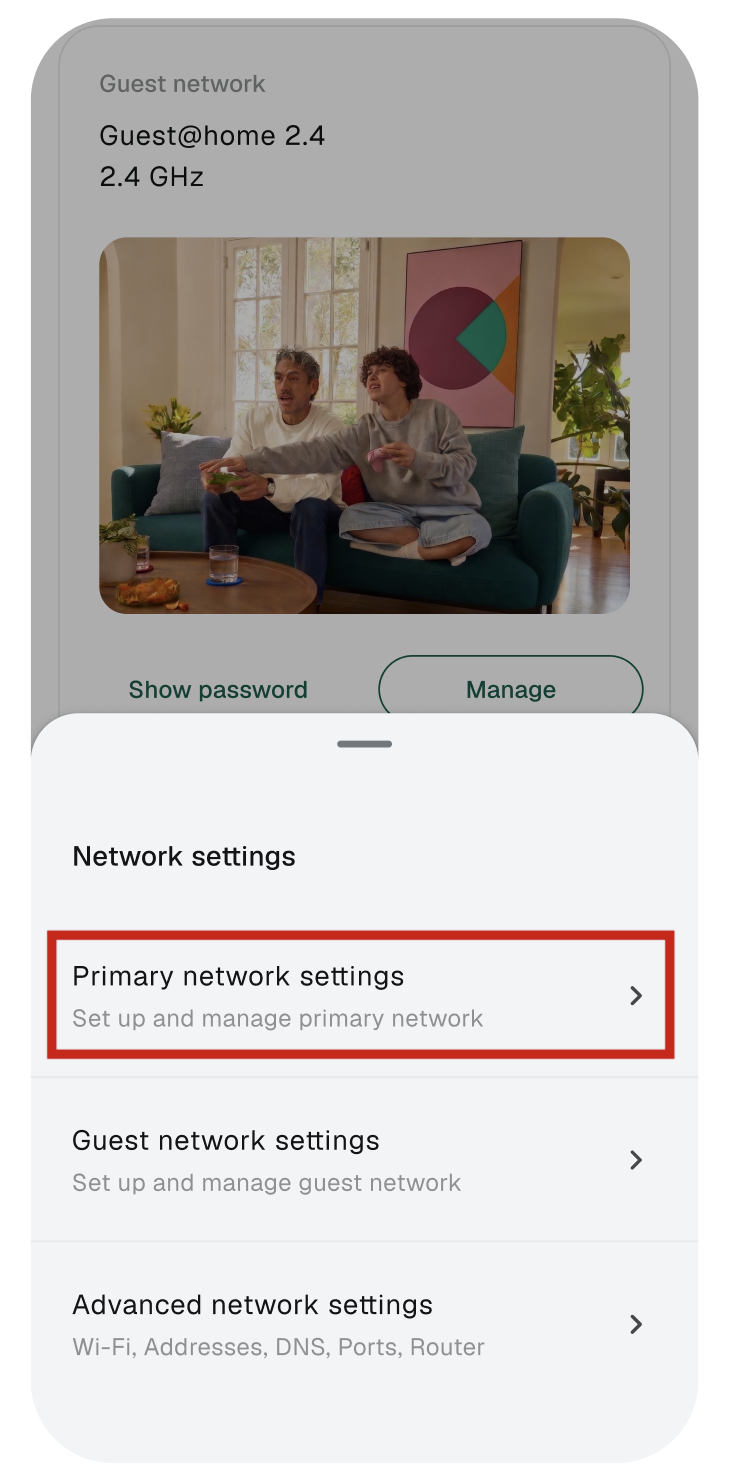
- Scroll down to More resources and tap Network Settings.
- Tap Primary network settings.
- Ensure the Wi-Fi toggle is set to On. Wi-Fi must be active to configure network preferences.
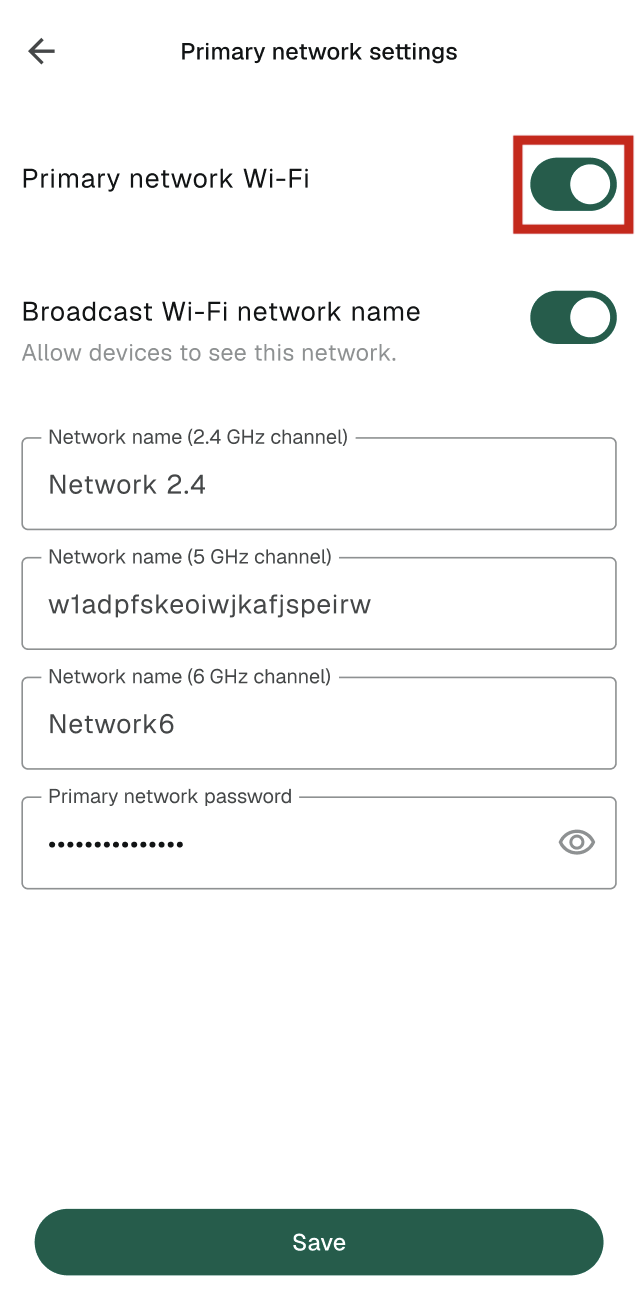
- Enter or edit your Network name.
- Must be 1 to 32 characters long.
- SSIDs are case-sensitive.
- By default, your network broadcasts its name publicly.
- Enter your new password in the Primary network password field, then tap Save.
Settings usually update immediately. If your network does not update right away, restart or reboot your gFiber router through the app.
Google Wifi, Nest Wifi Pro, or Network Box
If your installation uses standard Google Wifi points or a Nest Wifi Pro, setup and network configuration are handled directly through the Google Home app setup flow.

Using Your Own (Third-Party) Router
If you are using your own personal router:
-
Hardware settings and SSID setup must be completed using the third-party manufacturer's official app or web portal (e.g., ASUS, Netgear, TP-Link).
-
gFiber customer support cannot assist with third-party router interface management.
Important Post-Setup Checklist
-
Reconnecting Devices: Changing your network name (SSID) or password disconnects all previously connected devices (phones, smart TVs, laptops, IoT gear). You must update the Wi-Fi credentials on each device individually.
-
Guest Networks & Security: Use strong, unique passwords to protect your primary network from unauthorized access.