Change Your GFiber Wi-Fi Password
GFiber Wi-Fi Password Requirements
Google Fiber network security protocols enforce the following criteria for all primary Wi-Fi passwords:
-
Character Length: Must be between 8 and 63 characters long.
-
Case Sensitivity: Passwords strictly differentiate between uppercase and lowercase letters.
-
Dual-Band Consistency: The password applies globally to both 2.4 GHz and 5 GHz network bands, even if you configured different network names (SSIDs).
-
Whitespace Warning: Avoid leading or trailing spaces, which trigger authentication errors on connecting devices.
Use the GFiber Mobile App
Before you begin, download the GFiber App for Android or iOS.
-
Tap Network.
-
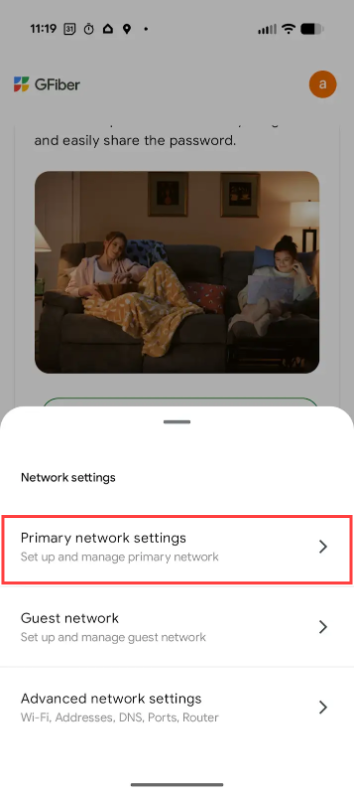
Tap Network Settings.
-
Tap Primary network settings.
-
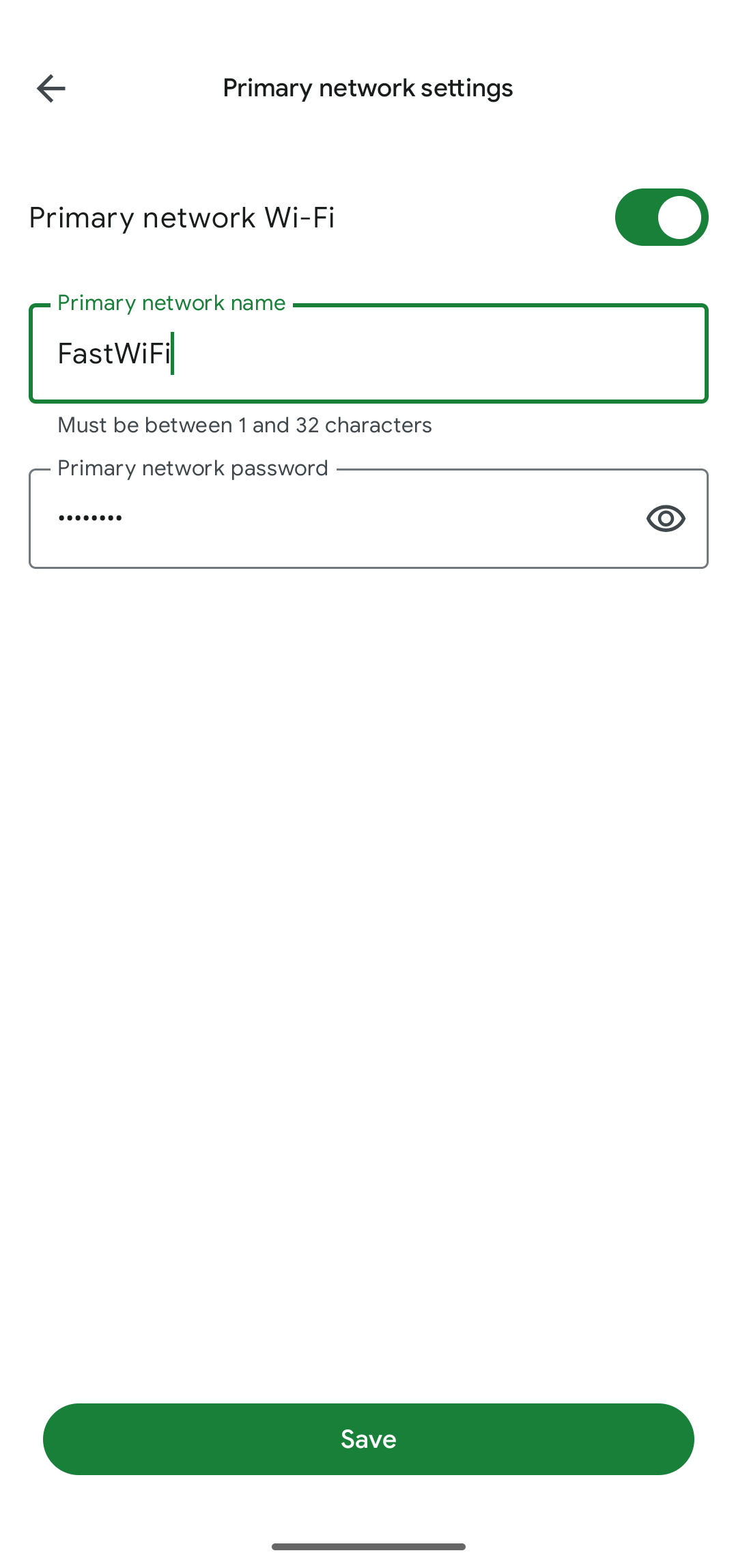
Select the Primary network password field, enter your new password and tap Save.
Use the GFiber Web Portal
Follow these steps to modify your GFiber Wi-Fi settings using a standard web browser on a desktop or mobile device.
- Open your web browser and go to your GFiber account page, then Sign In.
- Select the Network option in the top-left corner of the page.
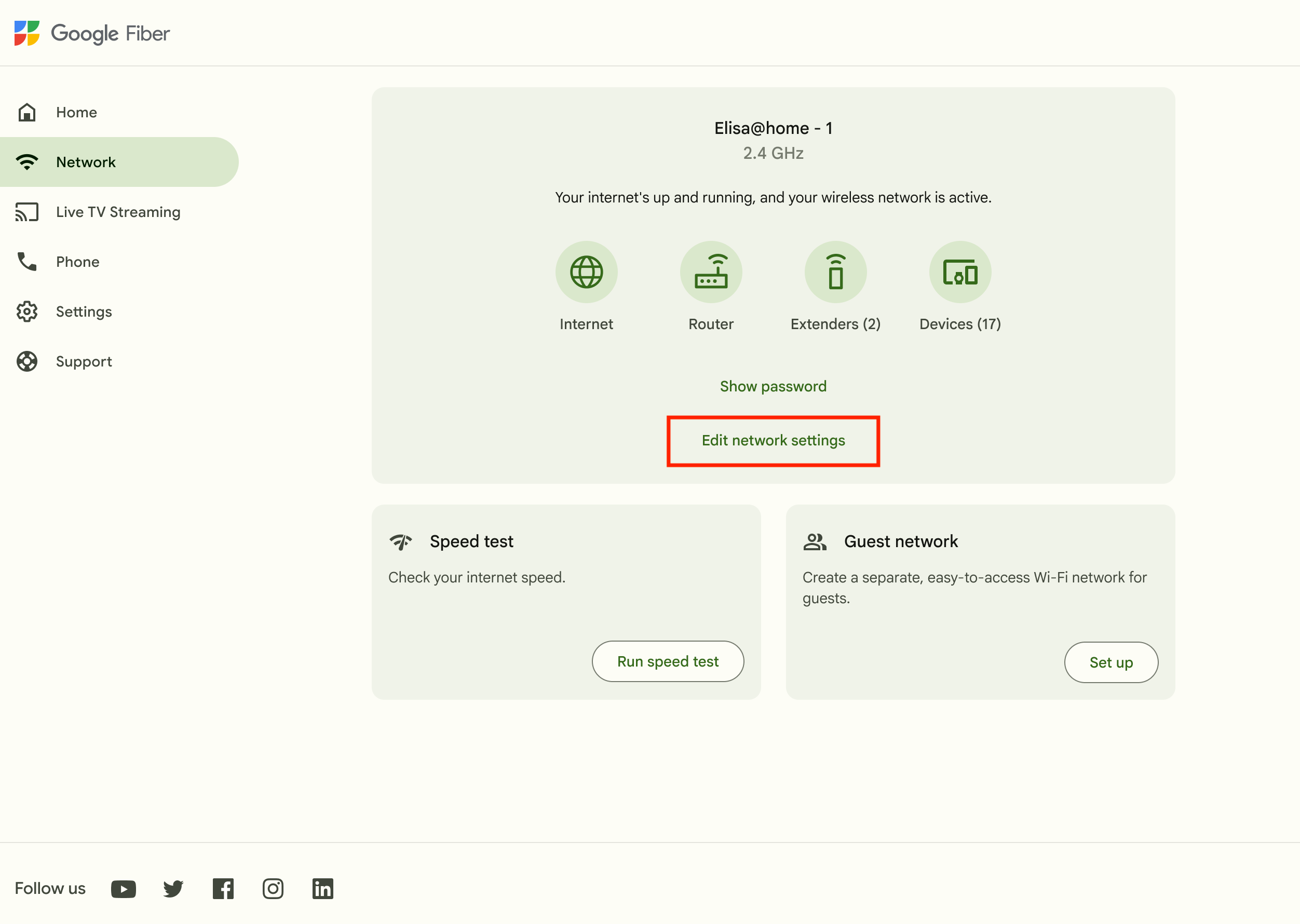
- Select Edit Network Settings in the center of the page.
- In the "Primary network password" field, enter your desired new password.
- Click the Save button. The new settings take effect immediately.
Post-Update Network Expectations
Modifying your GFiber router credentials triggers immediate downstream network changes:
- Immediate disconnection: Any device that was connected wirelessly to your GFiber network will immediately be disconnected.
- Reconnect devices: You must manually reconnect all wireless devices (laptops, phones, smart TVs, smart home devices, etc.) to your Wi-Fi network using the new password you just created.
- Safeguard your password: We recommend writing down your new Wi-Fi password and storing it in a safe, easy-to-find place.