Fix Fiber Jack Connection Issues
To fix gFiber connection issues, check the lights on your Fiber Jack. If you see a red light or no light, disconnect its power source (unplug the AC adapter or the Ethernet cable), wait 30 seconds, and plug it back in. Allow 2 to 3 minutes for the Fiber Jack to restart and show a solid blue or green status light.
Locate your Fiber Jack
The Fiber Jack is a wall-mounted device that connects your home to the gFiber network, translating optical light signals into internet data for your Wi-Fi router. To find your device:
-
Location: Look low on an interior wall, typically where utility lines enter your home.
-
Cabling: Check for an Ethernet cable connecting the Fiber Jack directly to your main gFiber router.
-
Power source: Identify whether it uses an AC power adapter plugged into a wall outlet or receives power directly through the Ethernet cable.
Identify your Fiber Jack model
Your Fiber Jack model determines how network status and power issues are displayed:
-
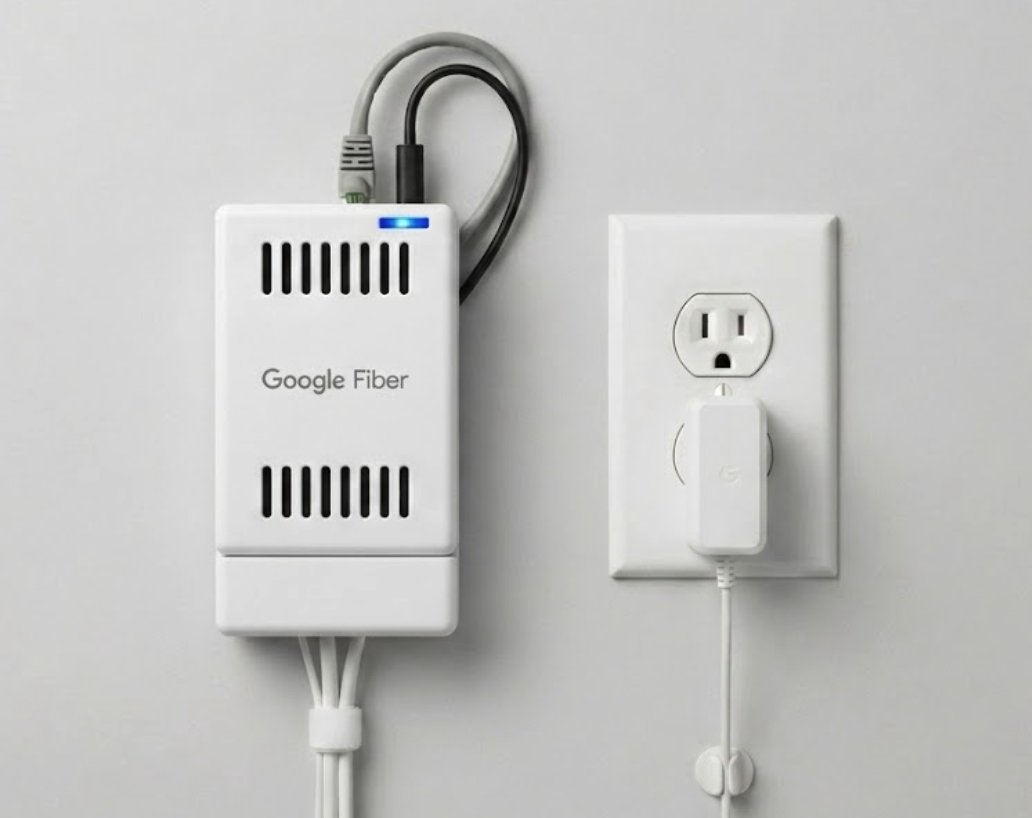
Single-light models: Feature 1 LED light on the front panel that changes color and blink patterns.
-
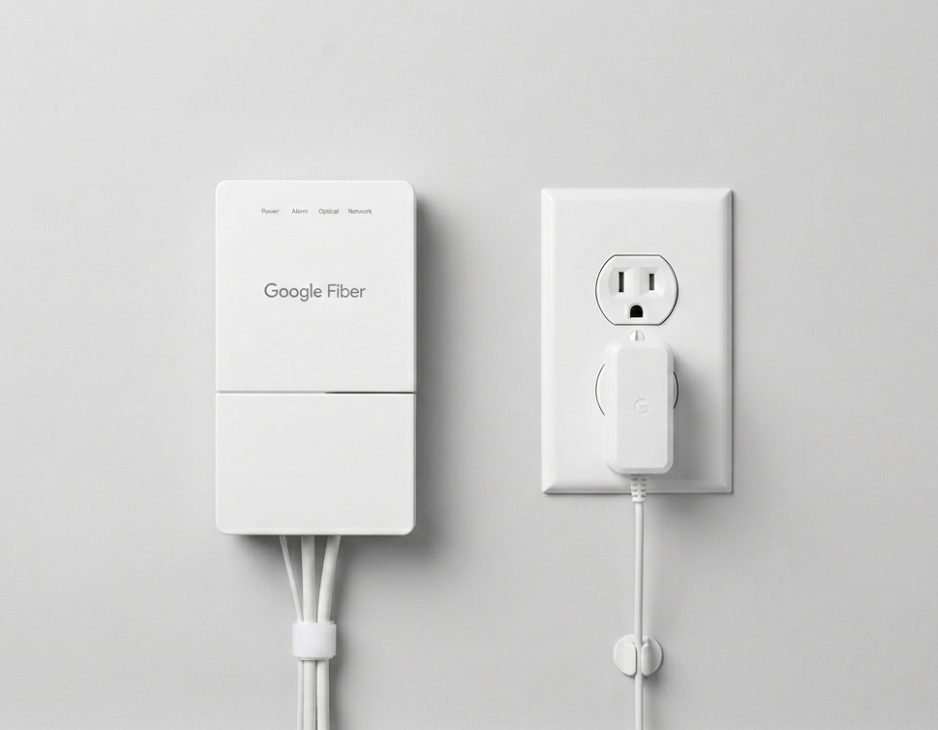
Four-light models: Feature 4 separate LED indicators labeled Power, Optical, Network, and Alarm.
Troubleshoot status light indicators
If your Fiber Jack goes offline, check the gFiber App for real-time network alerts.
Troubleshoot single-light status indicators
Use this guide to identify status codes on single-light Fiber Jack models:
| Light LED | Meaning | What to Do |
| 🔵 Solid blue | Normal operation | Your Fiber Jack is online. If internet access is down, inspect your gFiber Wi-Fi router or mesh points. |
| 🔵 Blinking blue | Booting or updating | The device is starting up or downloading a software update. Wait 5 minutes for the light to turn solid blue. |
| 🔴 Solid or blinking red | Line or hardware fault | Disconnect power from the Fiber Jack for 30 seconds, then reconnect it. If the light remains red, contact gFiber Support. |
| ⚪ Off (No light) | No power | Verify that the cable is firmly connected to the Fiber Jack and power outlet. Test the wall outlet with another electronics device. |
Troubleshoot four-light status indicators
Use this guide to diagnose status and connectivity issues on four-light Fiber Jack models:
| Indicator name | Normal state | Problem state | Action required |
| Power | 🟢 Solid green | ⚪ Off | Verify that the AC power adapter is securely connected to the wall outlet and the Fiber Jack. |
| Alarm | ⚪ Off | 🔴 Solid red | The unit is not receiving an optical light signal. Check the fiber line for bends or physical damage, or check the gFiber App for service outages. |
| Optical | 🟢 Solid green | 🟢 Blinking green or ⚪ Off | Blinking indicates initial boot sequence; Off indicates no light signal. Wait 5 minutes. If status does not update to solid green, restart the device. |
| Network | 🟢 Solid or pulsing green | ⚪ Off | The Fiber Jack is online, but communication with your Wi-Fi router has stopped. Inspect the Ethernet cable connecting the Fiber Jack to your router. |
Reset Your Fiber Jack
-
Disconnect the power source:
-
Single-light models: In the room where your device is mounted, disconnect the Ethernet cable directly from the Fiber Jack or from the WAN port on the back of your main gFiber router.
-
Four-light models: Unplug the AC power adapter from the wall outlet or pull the power pin directly from the bottom power port on the Fiber Jack.
-
-
Leave the device completely disconnected for 30 seconds.
-
Plug the power adapter or Ethernet cable securely back into your device.
-
Wait 2 to 3 minutes for the hardware to finish its boot sequence and register on the gFiber network.
-
Observe the front panel lights.
-
Single-light models: Confirm the indicator turns solid blue.
-
Four-light models: Confirm Power, Optical, and Network lights display solid green, and Alarm remains off.
-

Frequently asked questions
If you received a self-install kit but cannot locate a wall-mounted Fiber Jack, contact gFiber support. We will update your order to a professional installation and dispatch a technician to fit a new unit.