Set Up Your Own Router at Your Business
The router included with your internet service plan was specially selected by the GFiber Team to deliver the best performance to your business’ network with your GFiber connection. However, you can choose to use your own router instead of the one that comes provided with your service.
Do you need to use your own router?
If you’d like to add or remove static IPs to your GFiber internet, you must use your own router. If you have zero or one static IP, you can choose to use your own router if you want features that are not available in GFiber routers.
The technician who installs your GFiber service will make sure your Fiber Jack is working and that GFiber service is being delivered to your business, but they will not be able to install and set up a non-GFiber router. We recommend consulting with your IT expert for help selecting and setting up a router that will work best for your business.

If you want to use your own router, here are some things to keep in mind:
- Connecting your own router requires advanced networking experience. If you don't consider yourself an advanced user, we recommend using the router provided by GFiber with your internet service or talking to your IT expert.
- Any externally facing network configurations (such as port forwarding and firewalls) need to be configured on your own router. Learn more about configuring port forwarding and configuring your firewall.
- Any internally facing network configurations (such as specifying your Wi-Fi network name or password) can be configured on your router.
The Fiber Jack is what allows GFiber's fiber optic signal to come into your business. It’s a small white box that’s usually installed on the wall in your office. If it isn't there, you might find it in some out-of-the-way spot like a closet, behind some furniture or in a storage room.
Once you’ve found it, you can connect the power adapter from the Fiber Jack to a wall outlet. When it’s connected properly, your Fiber Jack will flash red before turning blue. If the light doesn’t turn blue after 15 minutes, please contact us.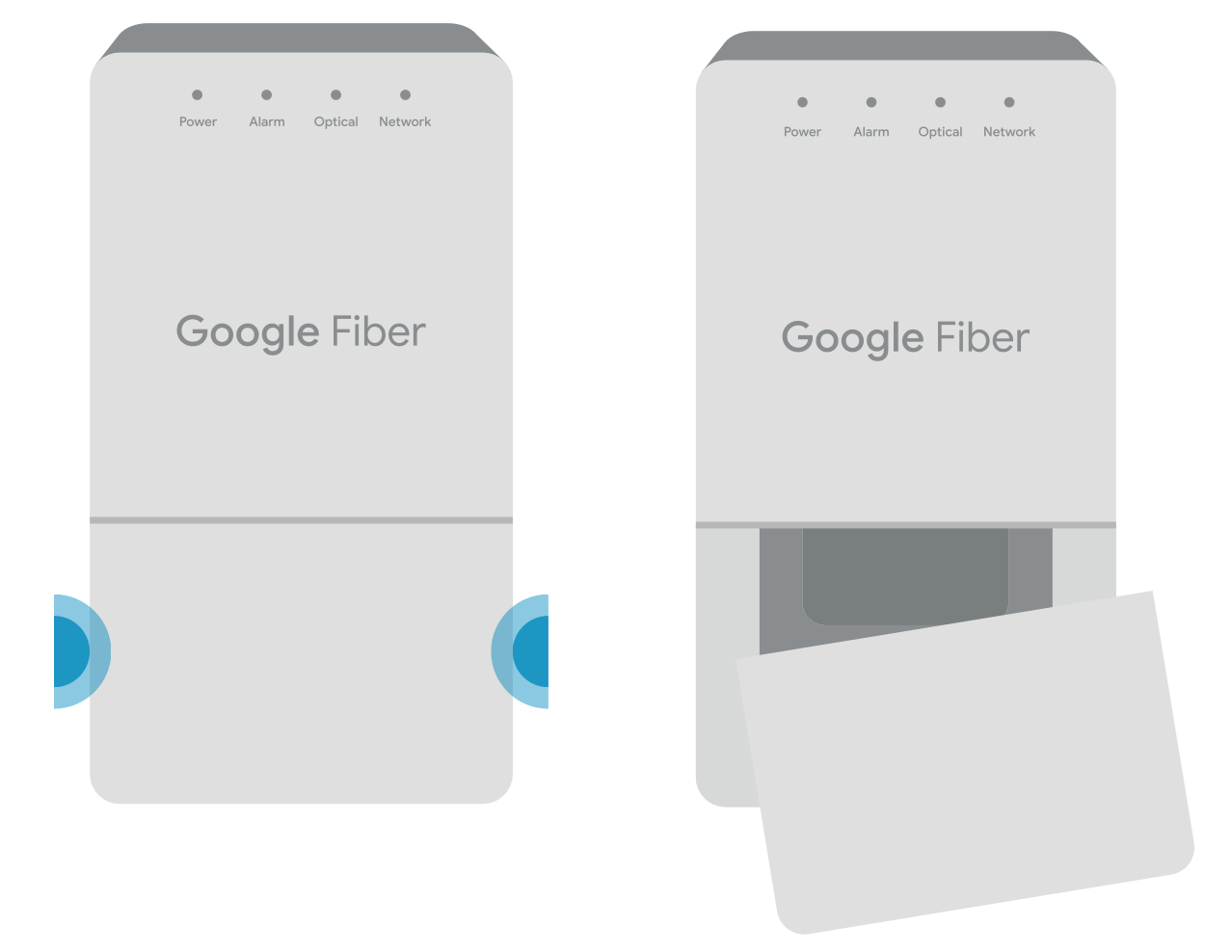
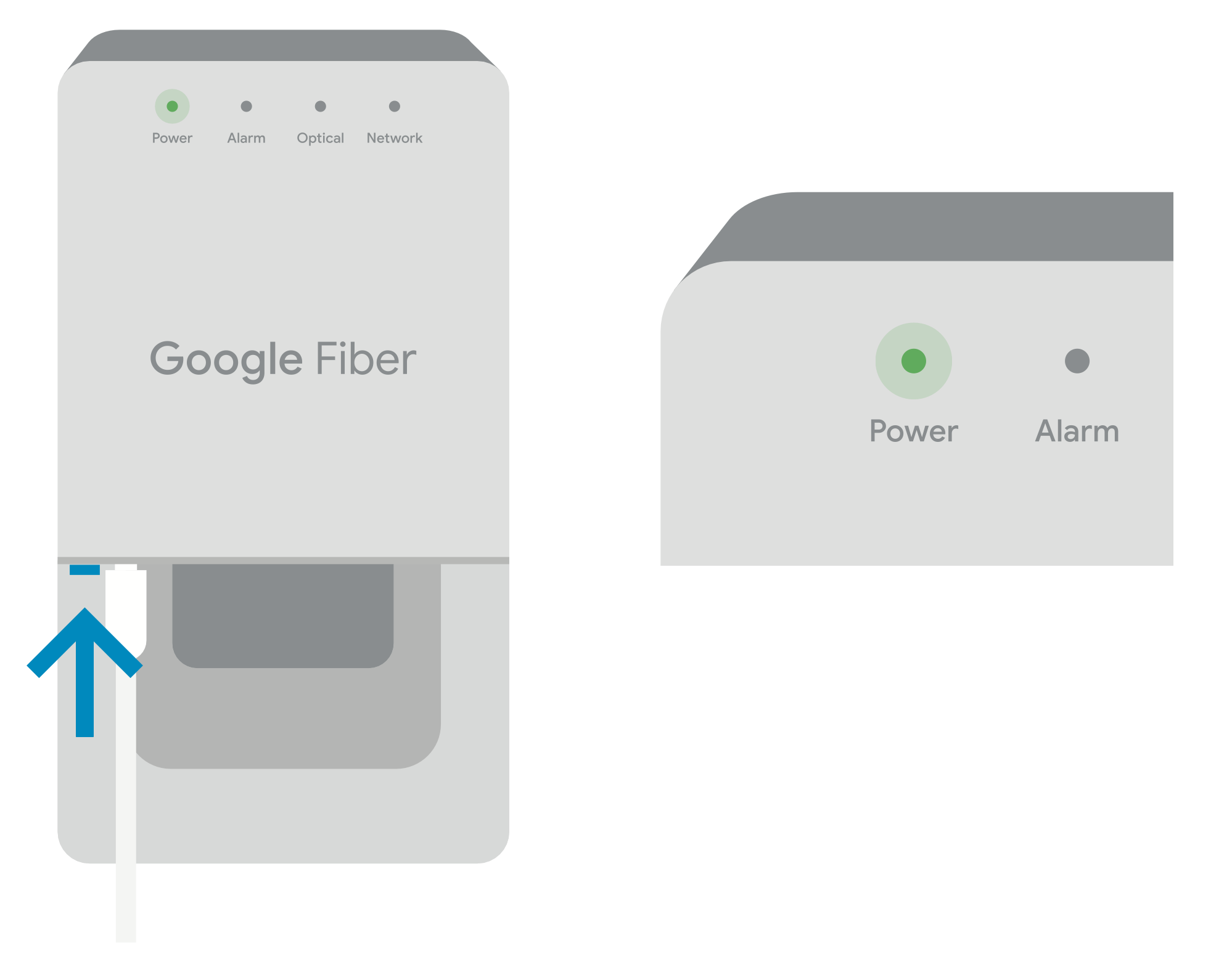

Follow the router manufacturer’s instructions to get set up. We’re always happy to help you with connection issues, but since it’s your router, we’re not able to help with questions about how to set it up.
When you use your own router, you must request a dynamic WAN address via DHCP. Learn more about static IP addresses.
- DHCPv4: You receive the WAN IPv4 address via DHCP. This address will not change. The static IP allocations are tied to your account and physical address. They will remain the same unless you modify your service or move locations. Despite the fact that you have a static IP, you still must configure your 3rd party router to use DHCP.
- DHCPv6 (optional): GFiber supports and encourages you to use IPv6. When you enable DHCPv6 on the WAN interface, we delegate you a /56 prefix of public addresses for use on your LAN.
Want to manage your network and account all from one place? With the Google Fiber app, you'll be able to view and pay your bill, run speed tests, see plan details, and find answers via our Help Center.
Download it for free on the Google Play Store or Apple App Store.