Multi-Gig Router Device Information
Multi-Gig Router Overview
The GFiber Multi-Gig Router (Model GFRG300) is included with 2 Gig, 5 Gig, or 8 Gig GFiber service. A technician installs it along with a Fiber Jack to provide an internet connection for your home network.
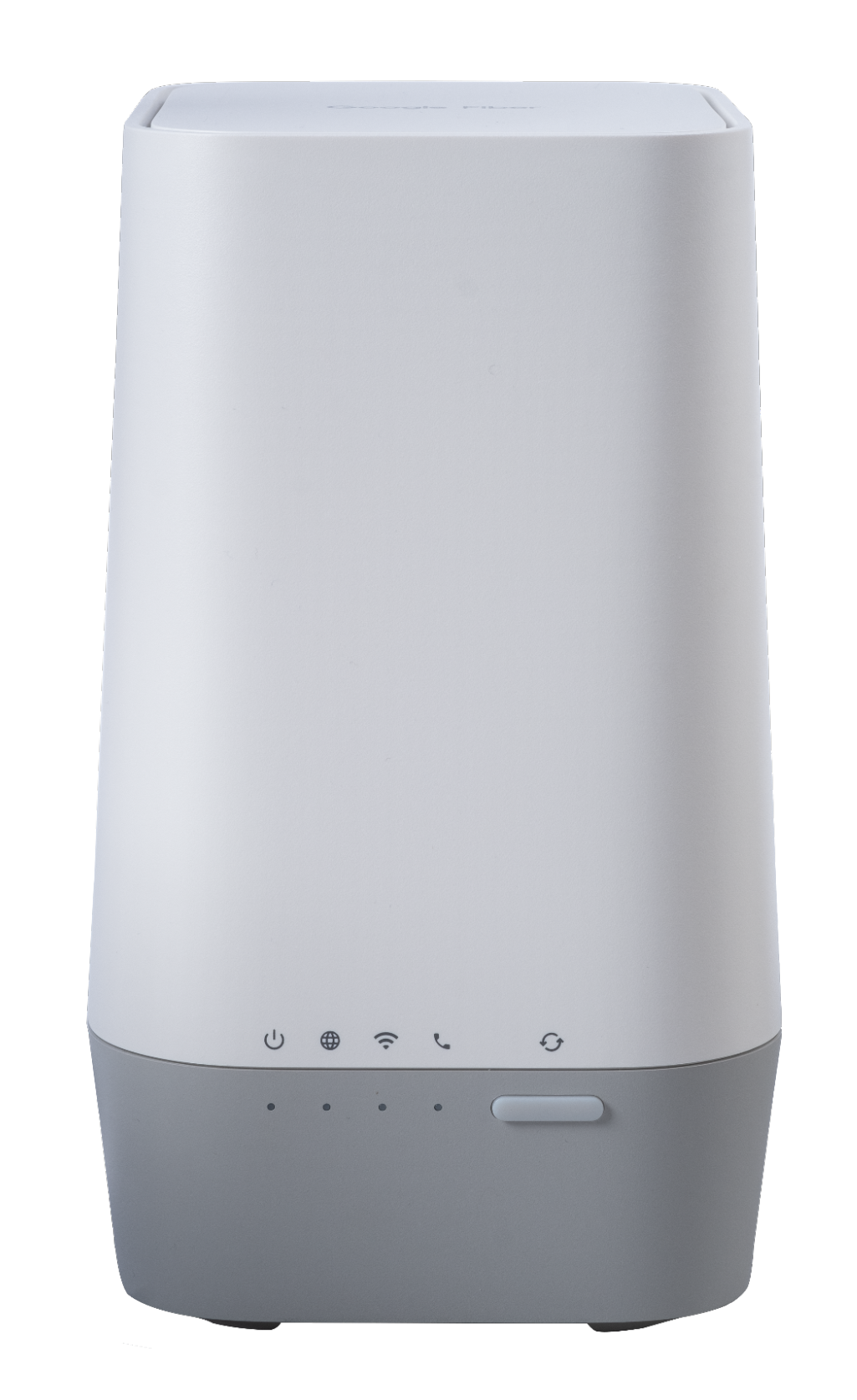
Light Status Guide
When your router is on and connected normally, the Power and Internet lights will be solid blue.
| Light | Status | What it means | What to do |
|---|---|---|---|
| Power / Internet | Solid blue | Connected and working normally. | Nothing — you're all set. |
| WPS | Blinking blue > Solid blue (about 3 minutes) > Off | Starting up or successfully paired to a mesh extender. | Nothing — you're all set. |
| WPS | Solid blue (about 3 minutes) | Mesh extender paired successfully. | Nothing — you're all set. |
| WPS | Blinking blue > Fast blinking blue > Off | Unable to pair to a mesh extender. |
|
| Wi-Fi | Off > Solid blue | Wi-Fi is turned on. | Nothing — you're all set. |
| Wi-Fi | Off | Wi-Fi is turned off. | Connect your mesh extender to the Wi-Fi network and pair it with your router. |
Connect Your Devices
You can connect devices wirelessly over Wi-Fi or with an Ethernet cable for the fastest speeds.
Mesh Extenders
Use the WPS button on your router to pair a mesh extender and extend your Wi-Fi coverage throughout your home.
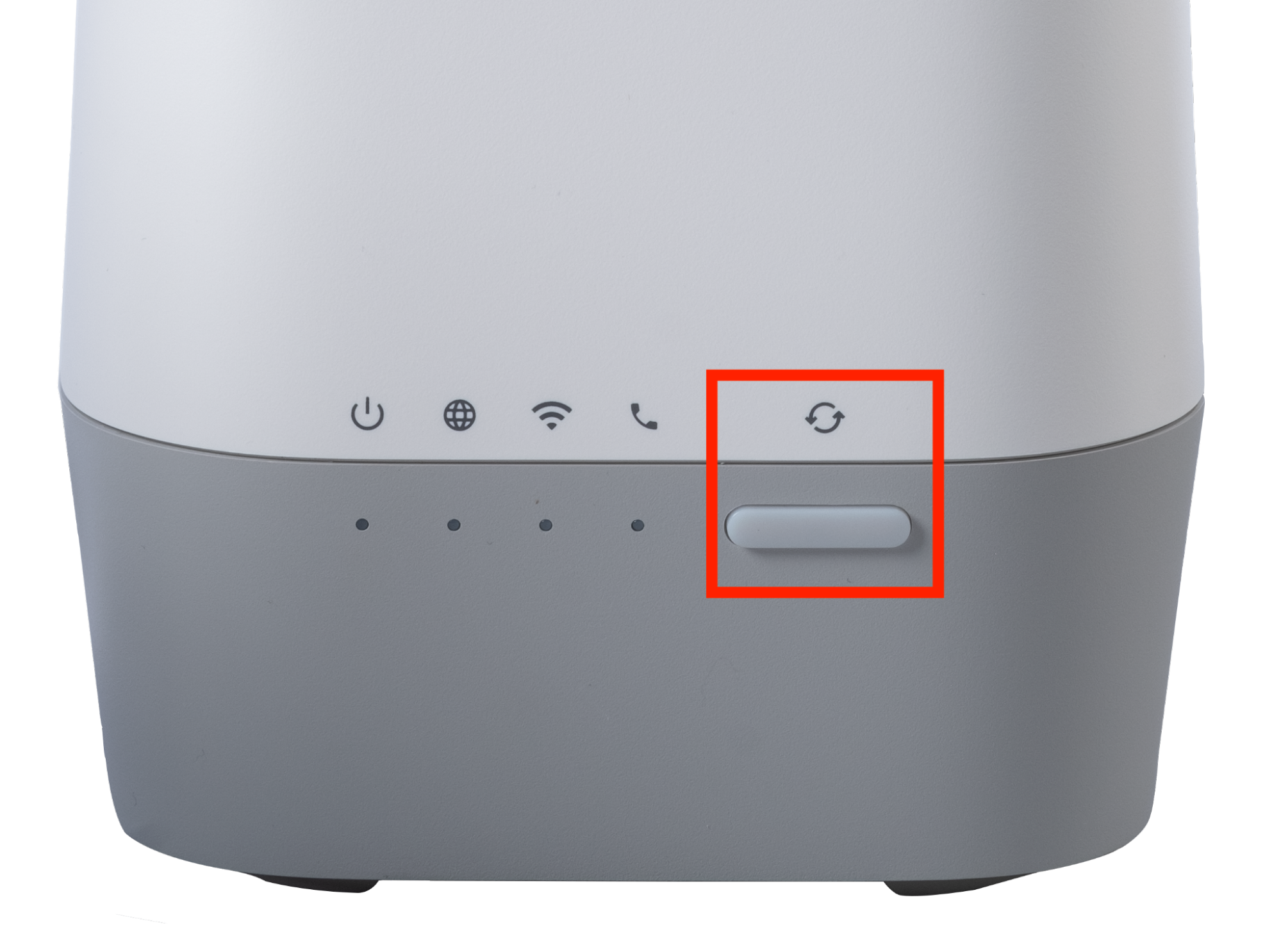
Need more coverage?
Connect up to 6 mesh extenders total. Purchase additional extenders for $85 each by contacting customer support or visiting a local GFiber Space.
Check your online account details to see how many extenders are included with your service.
Equipment returns
Return all GFiber-owned mesh extenders if you cancel your service to avoid unreturned equipment fees.
Manage Your Network
Manage your network settings from the Network tab in the GFiber App or by signing in to your GFiber account.
Troubleshooting
For connection issues, try restarting your router first. If that doesn’t help, see our guide on troubleshooting your GFiber internet connection.
To restart or powercycle your device:
- Press the Power button to turn the router off.
- Unplug the power cable and wait 10 seconds.
- Plug it back in and press the Power button to turn it on.
To factory reset your device:

- Make sure the router is powered on.
- Use a pen or an unfolded paperclip to press and hold the recessed Reset button for at least 10 seconds.
- Release the button. The router will restart and apply the default settings.
Technical Specifications
- Router Model: GFRG300.
- Wi-Fi Technology: Wi-Fi 6 (802.11ax), speeds up to 800 Mbps on compatible devices.
- Wi-Fi Bands: Simultaneous dual-band — 2.4 GHz (4x4) and 5 GHz (4x4) — with automatic band steering to keep your devices on the best available signal.
- Ports:
- Silver 10 Gbps Ethernet Port: The fastest port on the router. Use a Cat 5e or higher cable for maximum speeds — up to 2 Gbps, 5 Gbps, or 8 Gbps depending on your plan.
- Red Multi-Gig Ethernet WAN Port: Supports symmetrical upload and download speeds up to 1 Gig with a direct connection.
- 3x Yellow Gigabit Ethernet Ports: Support wired connections up to 1 Gig. Also compatible with GFiber Phone service.
- USB 3.0 port: For charging devices.