Set Up Your GFiber Wi-Fi 6 Mesh Extender
Your GFiber Wi-Fi 6 Mesh Extender is designed to be used along with your GFiber Wi-Fi 6 Router to help expand your Wi-Fi coverage so you can stay connected throughout your home.
Setting it up is simple — you’ll pair it with your router (either wirelessly or with an Ethernet cable), then move it to the area where you need a stronger signal.
Follow these steps to pair your GFiber Wi-Fi 6 Mesh Extender.
Quick Setup Guide
To pair your GFiber Wi-Fi 6 Mesh Extender (GFEX310):
- On the back of your mesh extender, press the black Power button to turn it on.
- Press the WPS button on your mesh extender.
- Press the WPS button on your router.
- Move your mesh extender to its permanent location and plug it back in.
Total setup time: about 5–10 minutes.
What’s in Your Self-Install Kit
Your mesh extender either came with your router in a self-install kit, or in its own separate kit. If it came in its own kit, make sure you have everything before you start:
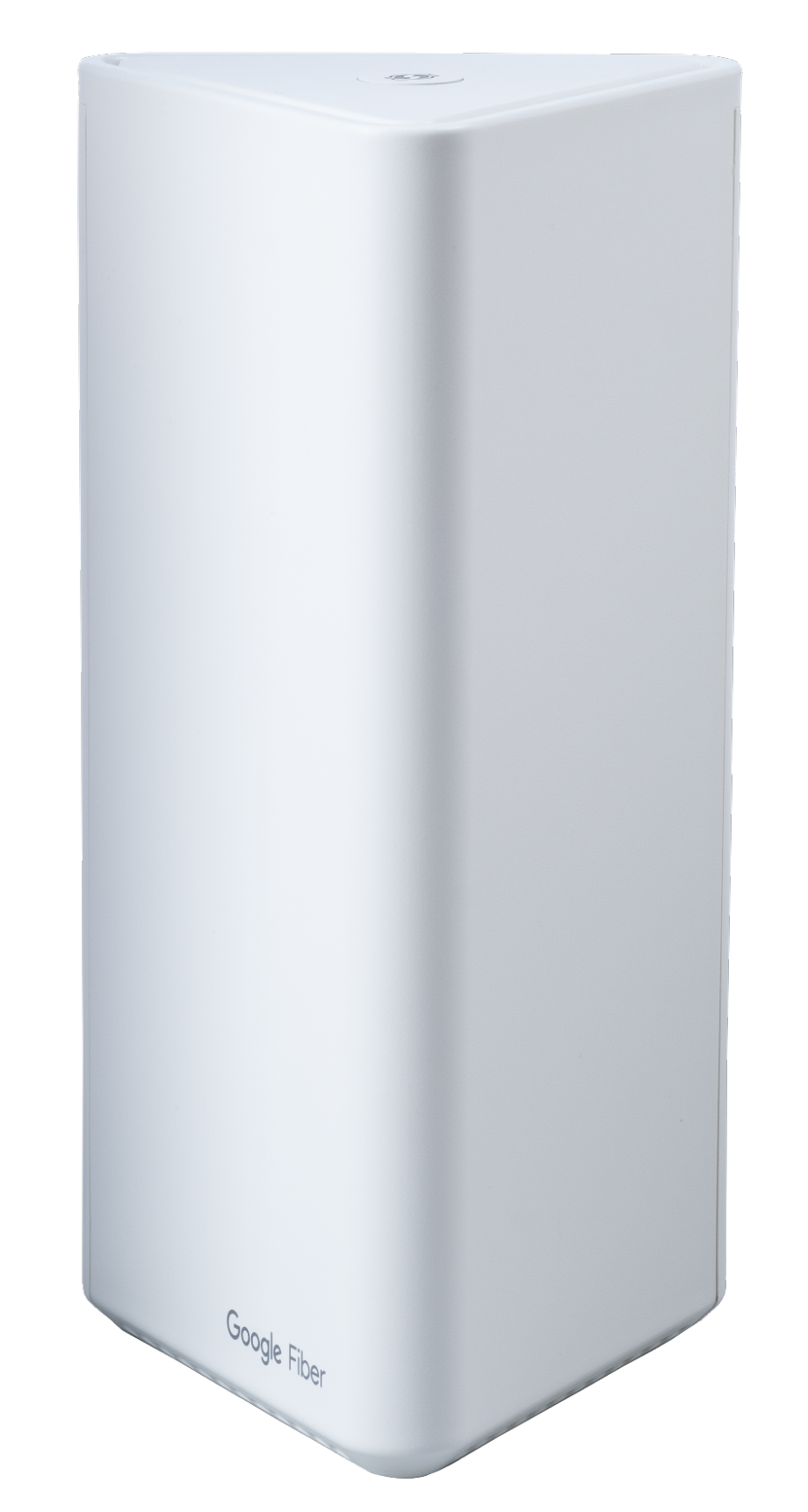
- GFiber Wi-Fi 6 Mesh Extender (Model GFEX310)
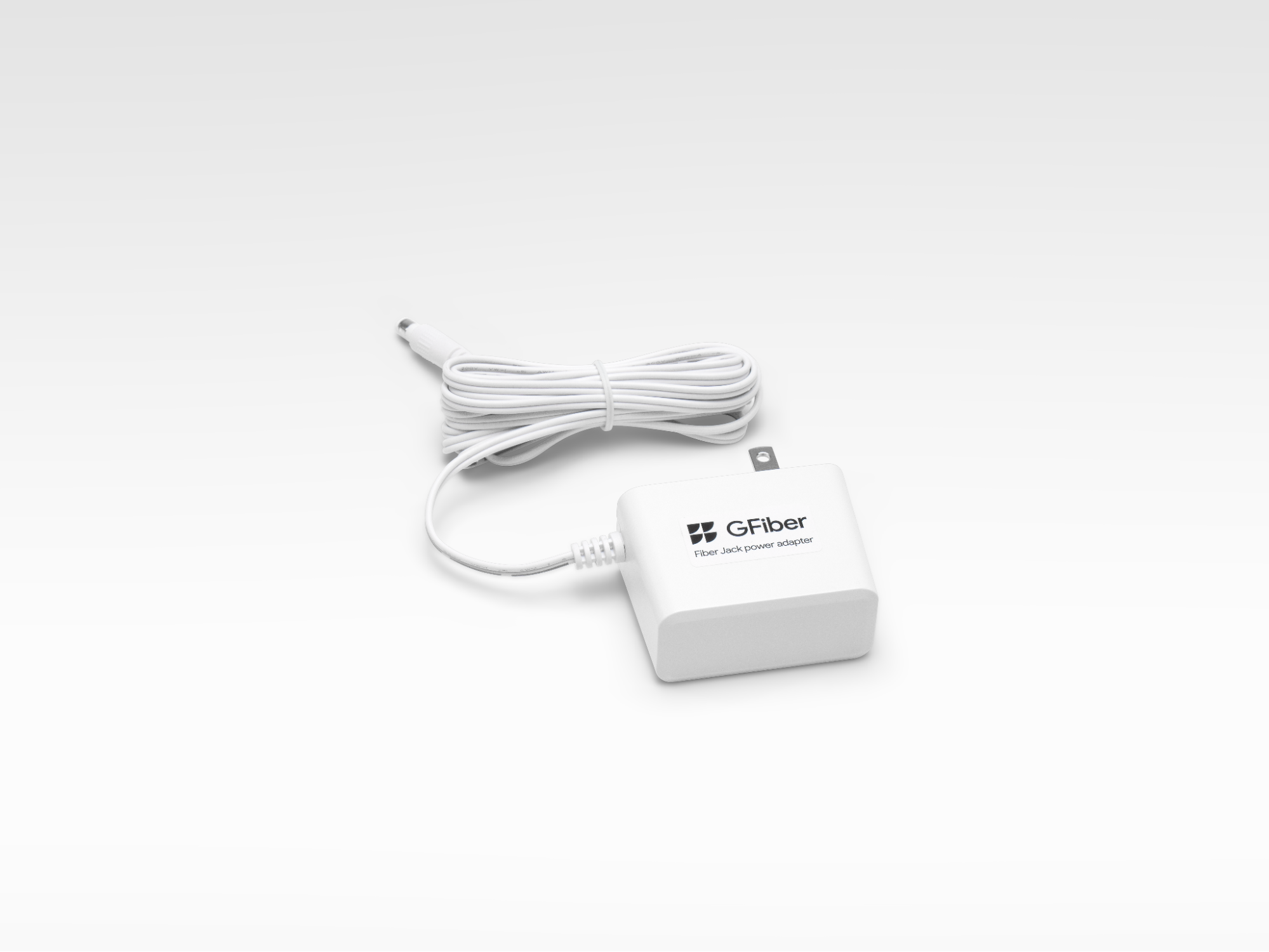
- 1 power adapter cord
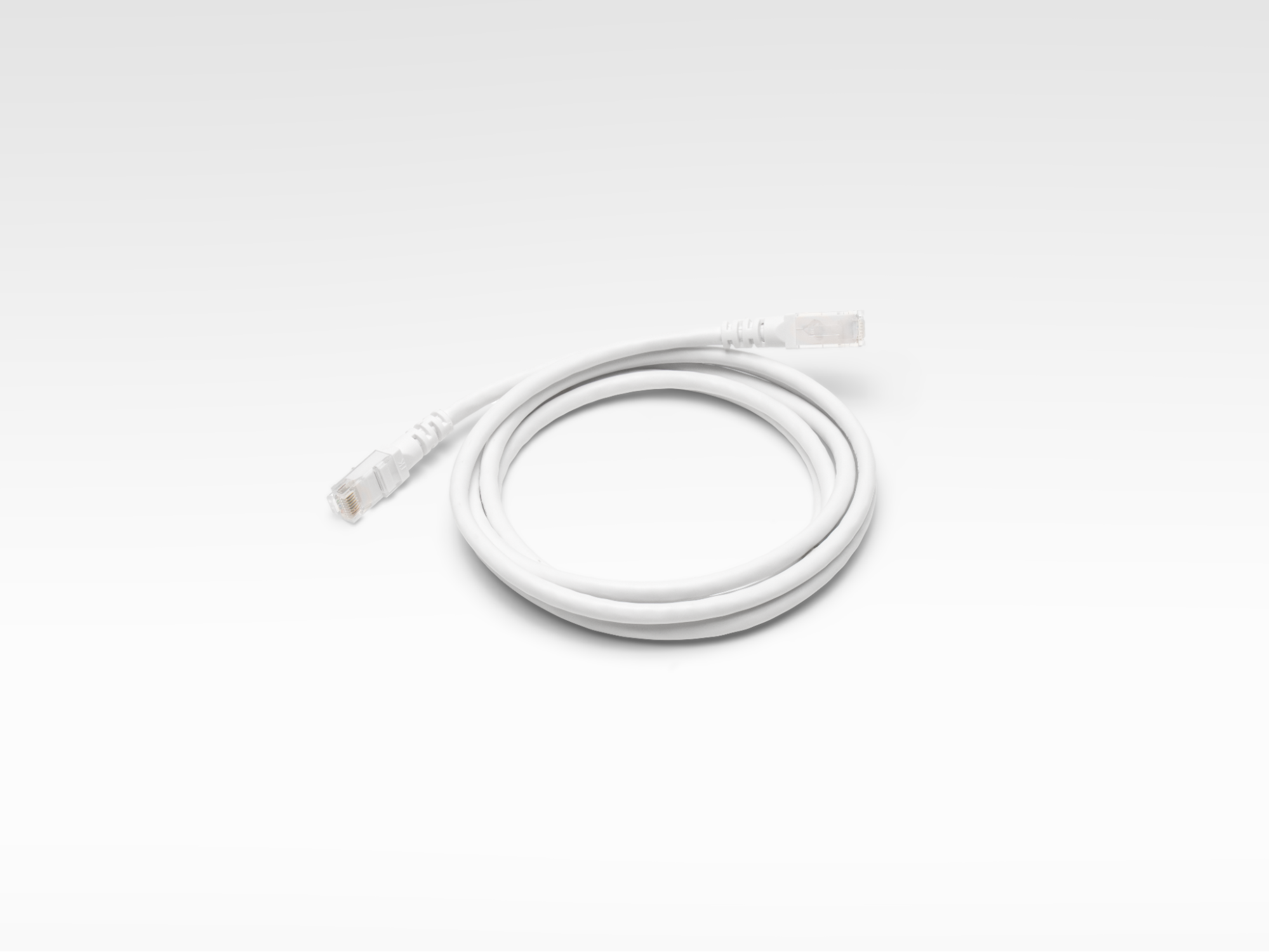
- 1 ethernet cable
Step 1: Turn on Your Mesh Extender
- Place your mesh extender within 5 feet of your router.
- Plug it into a power outlet using the power adapter cord.
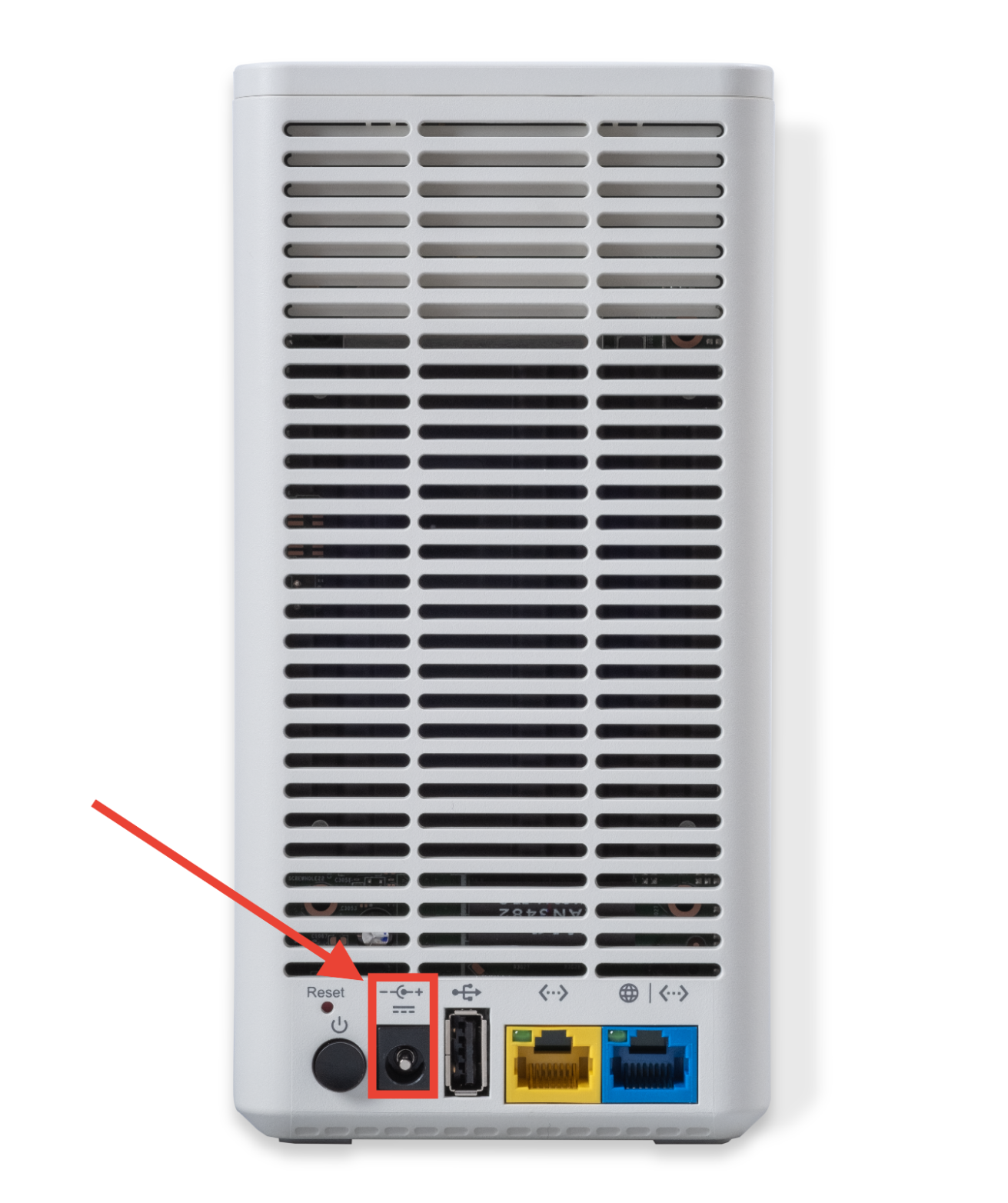
- Press the power button on the back to turn it on. The status light will turn solid yellow.
Step 2: Pair the Mesh Extender with Your Router
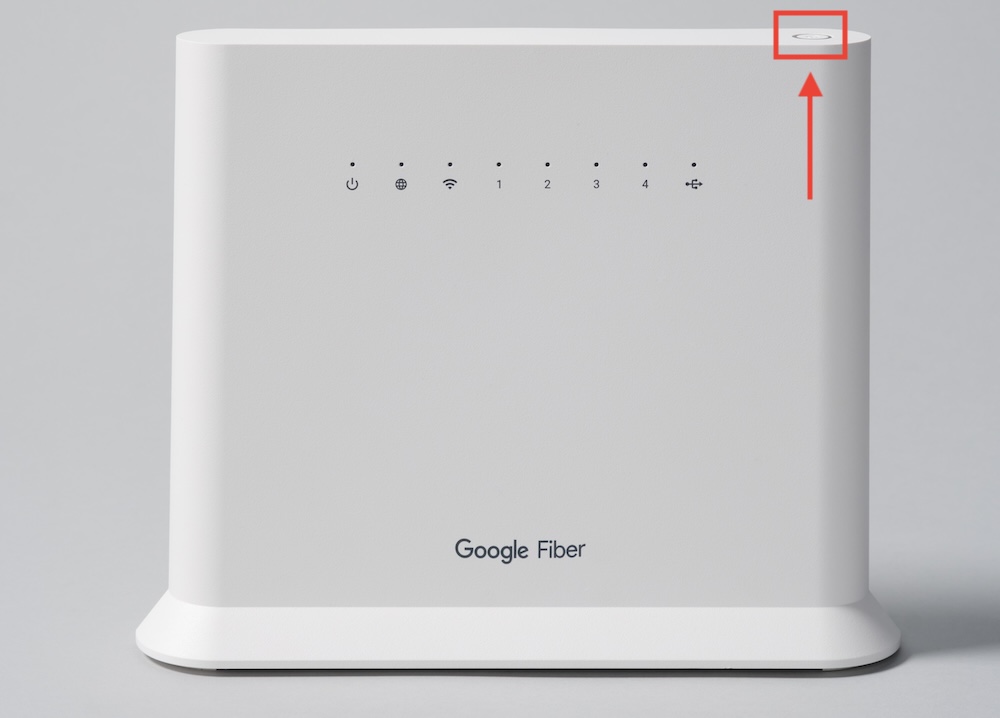
- Press the WPS button on the top of your Wi-Fi 6 Router. The light will start blinking blue.
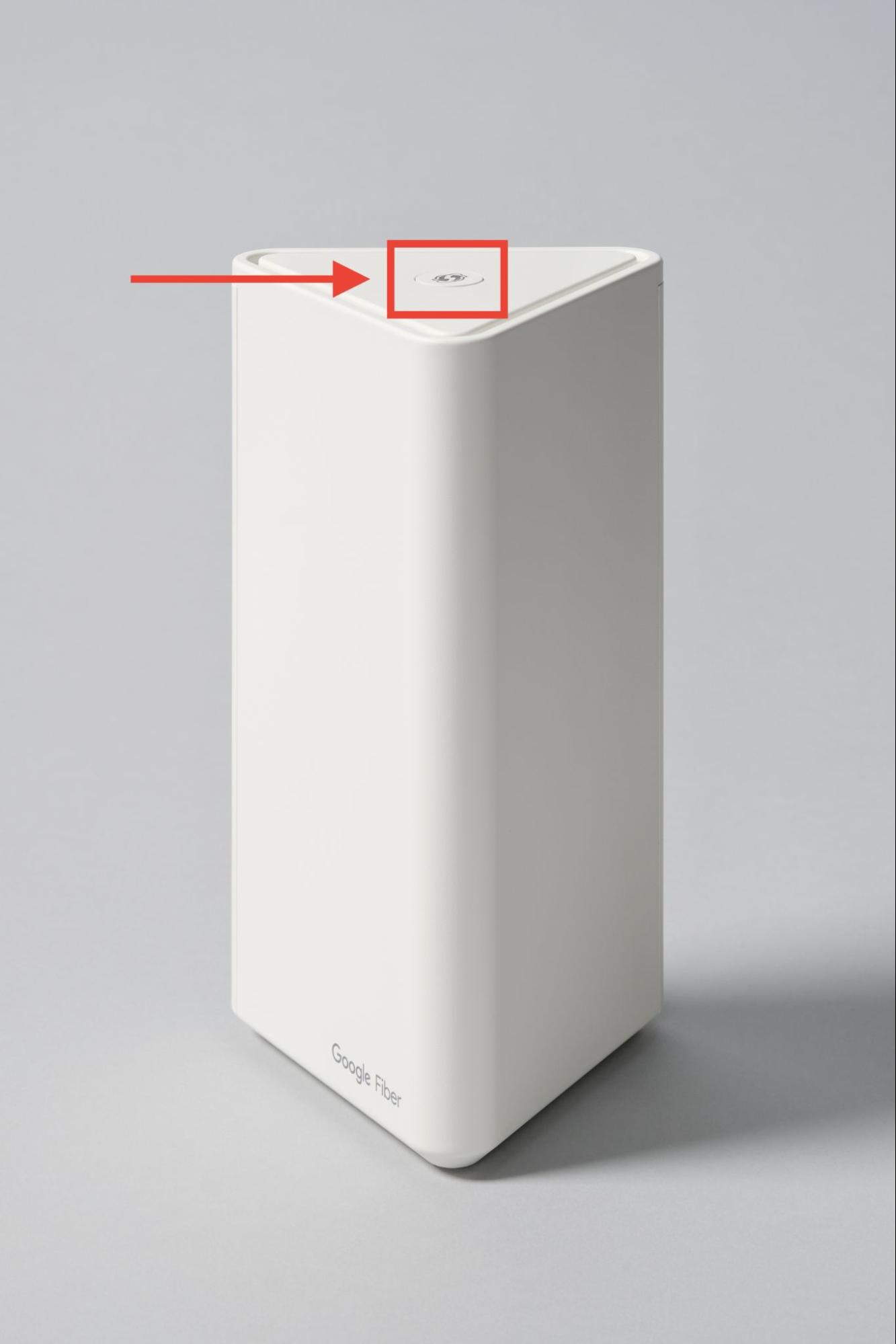
- Press the yellow WPS button on top of your mesh extender. The light will start blinking green.
- Once pairing is complete, the mesh extender status light will turn solid green or yellow.
Step 3: Move Your Mesh Extender to Its Permanent Spot
- Unplug the mesh extender and move it to where you plan to use it — ideally halfway between the router and the devices you want to reach.
- Plug it in and turn the power back on.
- The status light will turn solid green, yellow, or red to show your connection strength.
You can run a speed test to confirm your connection is working.
Mesh Extender Light Status Guide
| Light | Meaning | What to do |
|---|---|---|
| Solid yellow | Waiting to pair | Press WPS on the extender, then WPS on the router within 2 minutes. |
| Blinking yellow | Attempting to pair | Nothing — wait for the connection to finalize. |
| Solid green | Successfully paired | Nothing — the light turns off after 3 minutes during normal operation. |
| Solid red | Connection failure | Move the extender closer to the router, or check that your router’s Wi-Fi is on. |
| Blinking red | Resetting | This happens during a factory reset. Wait for it to return to solid yellow. |
| No light | Off | If already paired, your device is working normally. Can also indicate a reboot or firmware update. |
FAQs
We recommend no more than 2 for a home network. More than that can actually hurt your Wi-Fi performance by causing interference — so more isn’t always better.
You typically only need an extender if:
- Your home is larger than 2000 sq. ft.
- You have areas with weak Wi-Fi signal.
- You do a lot of video calls, gaming, or streaming and need strong, consistent coverage throughout your home.
Not sure? Use the Network Health tool in the GFiber App to check your coverage.
For the strongest signal:
- Put it in a central, open area of your home.
- Keep it out of closed doors, cabinets, or behind panels.
- Avoid metal or glass surfaces nearby, which can cause interference.
You can move it anytime — no special process needed.
- Unplug the extender and plug it into a power outlet at the new location.
- Wait for the status light to turn solid, which confirms it’s reconnected.
- Open the GFiber app to check your signal quality.

Just repeat the same setup process for each device.
To pair an additional extender:
- Plug it into power.
- Pair it with your router using an Ethernet cable or follow the setup steps in the GFiber App.
- Wait for the status light to confirm the connection.
- Move it to its permanent spot.
Tips for the best performance:
- Set them up in order. Place them in a sequence: Router -> Extender 1 -> Extender 2.
- Give them space. Placing extenders too close together can cause interference.
- Less is more. Too many extenders can lead to congestion and slower speeds.
Extenders are available based on your specific service and equipment — not as a standard retail purchase. Here’s how to check:
- Your GFiber account: Sign in online to see available equipment add-ons.
- The GFiber App: Check if your current service supports ordering additional equipment.
- Contact us: Reach out via chat or phone and we can help you figure out what you're eligible for.
In many cases, extenders are included with your service at no extra cost.
For a wired connection between your mesh extender and router:
- Connect a CAT5e (or better) Ethernet cable from a LAN port on your router to the blue WAN port (globe icon) on the back of the mesh extender.
- Plug the mesh extender into power using the power adapter cord.
- Press the power button on the back.
- When the status light turns solid green, it’s connected. The light will turn off automatically after about 3 minutes.