Find or Change Your GFiber Support PIN
Your GFiber Support PIN is a unique 5-digit number that helps us verify your identity when you contact support. Your Support PIN is the fastest way to confirm your identity and resolve your support issue.
If you haven't signed up for GFiber yet, you'll create your Support PIN during the signup process.

Did you receive a "PIN Changed" email you didn't request? If your Support PIN was changed without your permission, someone may have access to your GFiber account. Take these steps right away:
- Change your GFiber account password.
- Sign back in to your account.
- Update your Support PIN.
Use the GFiber Mobile App
Before you begin, download the GFiber App for Android or iOS.
- Open the GFiber App and tap the Account tab.
- Scroll down to the Account settings section.
- Tap Service PIN.
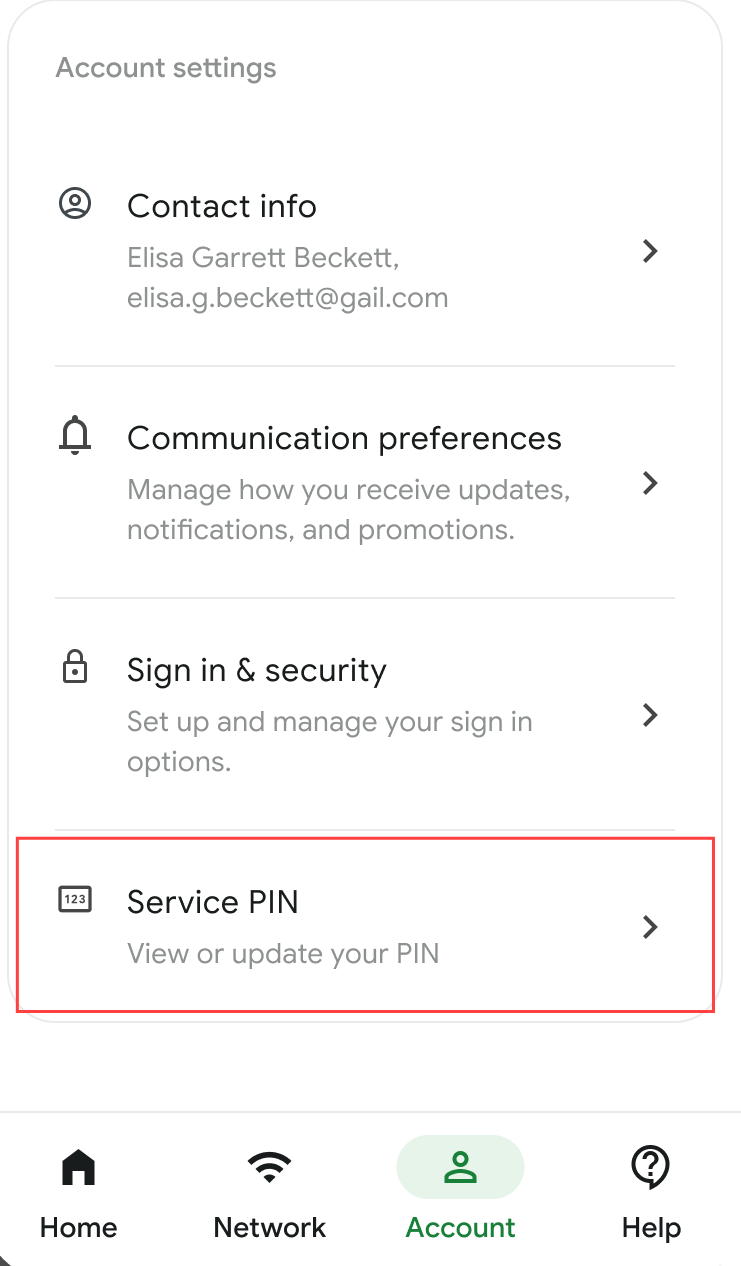
- View your current PIN on this screen. To update it, tap the Change PIN button and follow the prompts.
Use the GFiber Web Portal
You can manage your Support PIN in two places on the web.
Option 1: From the Home Page (fastest)
- Sign in to your GFiber account.
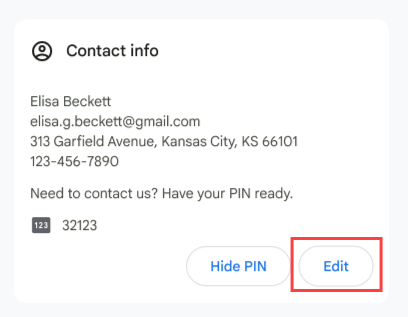
- Find the Contact info section on the left side of the page.
- View your GFiber Support PIN.
- Select the Hide PIN button to hide the numbers.
- Select the Edit button to change your PIN.
Option 2: From Account Settings
- Select Account settings from the main menu.
- Look for the Service PIN card on the bottom-right side of the page.
- Select the Change PIN button and follow the prompts.
FAQs
Your Support PIN must:
- Be exactly 5 digits.
- Include at least 2 different numbers.
- Not be a simple sequence (like 12345).
No. Your GFiber Support PIN is only used to verify your identity when you contact GFiber support.
Your Google Account PIN is used for things like device setup and purchases.