Change Your GFiber Account Password
Keep your account secure by updating your password. Learn how to change a dedicated GFiber password or manage your password through your Google Account.

Forgot your password? If you can't sign in, you'll need to reset your GFiber password instead.
Use the GFiber Mobile App
Follow these steps if you sign in with an email address and a GFiber password.
- Sign in to your GFiber account.
- Select Account settings in the menu on the left.
- Scroll down and select Sign in & security.
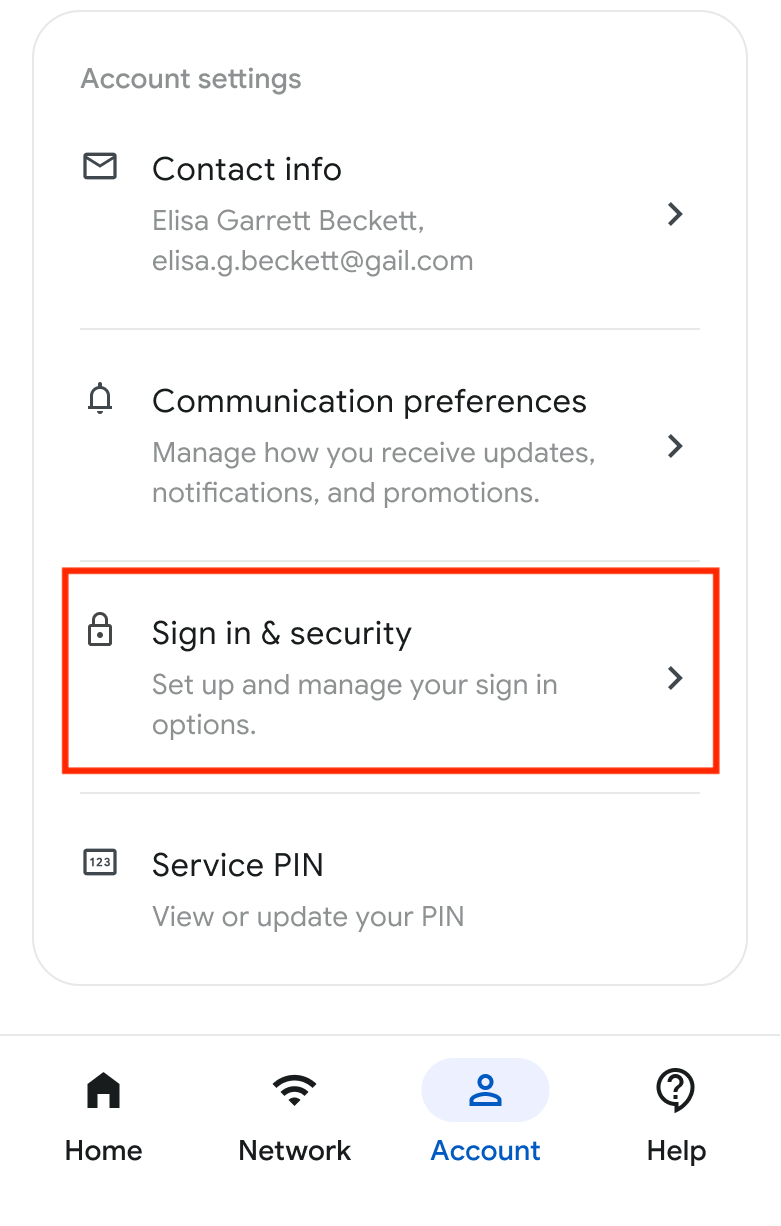
- Select Password. You'll be taken to the change password screen:
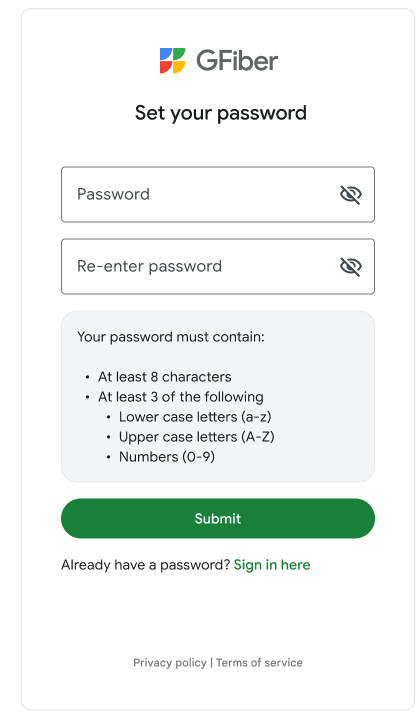
- Enter your new password in the New password field.
 Password requirements:
- At least 8 characters
- Include 3 of the following:
- Lowercase letters (a-z)
- Uppercase letters (A-Z)
- Numbers (0-9)
- Enter it again in the Re-enter new password field.
- Select Submit.
- Select the Done button on the confirmation screen to return to your settings.
Change Your Google Account Password
If you sign in to GFiber with your Google Account, Google manages your password.
- Go to your Google Account settings to change your password.
- For step-by-step instructions, follow Google's guide to changing your password.
FAQs
If you can't sign in, reset your GFiber password or find the email linked to your account.
No — they’re different.
- GFiber account password: Signs you into the website or GFiber App to manage your plan and billing.
- Wi-Fi password: Connects your phone, laptop, TV, or other devices to your home network.
Need to update your network? Learn how to change your Wi-Fi password.