Pause and Block Devices in the GFiber App

While the GFiber App doesn’t include a dedicated parental controls menu, you can use the pause and block features to set screen time limits, schedule bedtimes, or give everyone a break from the internet.
Group Family Devices for Parental Controls and Screen Time
Organizing devices into groups is the most effective way to manage screen time. It lets you apply rules to multiple devices at once — like all your kids' tablets and gaming consoles.
With device groups, you can:
- Manage devices together: Disconnect all of your kids' tablets, consoles, and computers with a single tap instead of pausing them one by one.
- Set recurring routines: Apply a "Bedtime" or "Homework" schedule to a whole group so Wi-Fi turns off automatically at the same time every day.
- See everything at a glance: Check which devices are active or paused across your entire family in one view.
Create a Device Group
Before you begin, download the GFiber App from the Google Play Store or the App Store.
- Open the GFiber App and sign in.
- Tap the Network tab and then tap Manage device groups.
- Tap the plus (+) icon in the top-right corner of the screen.
- Enter a group name (e.g., "Kids") and select an icon for the group. Tap Next.
- Select the devices you want to include, then tap Save.
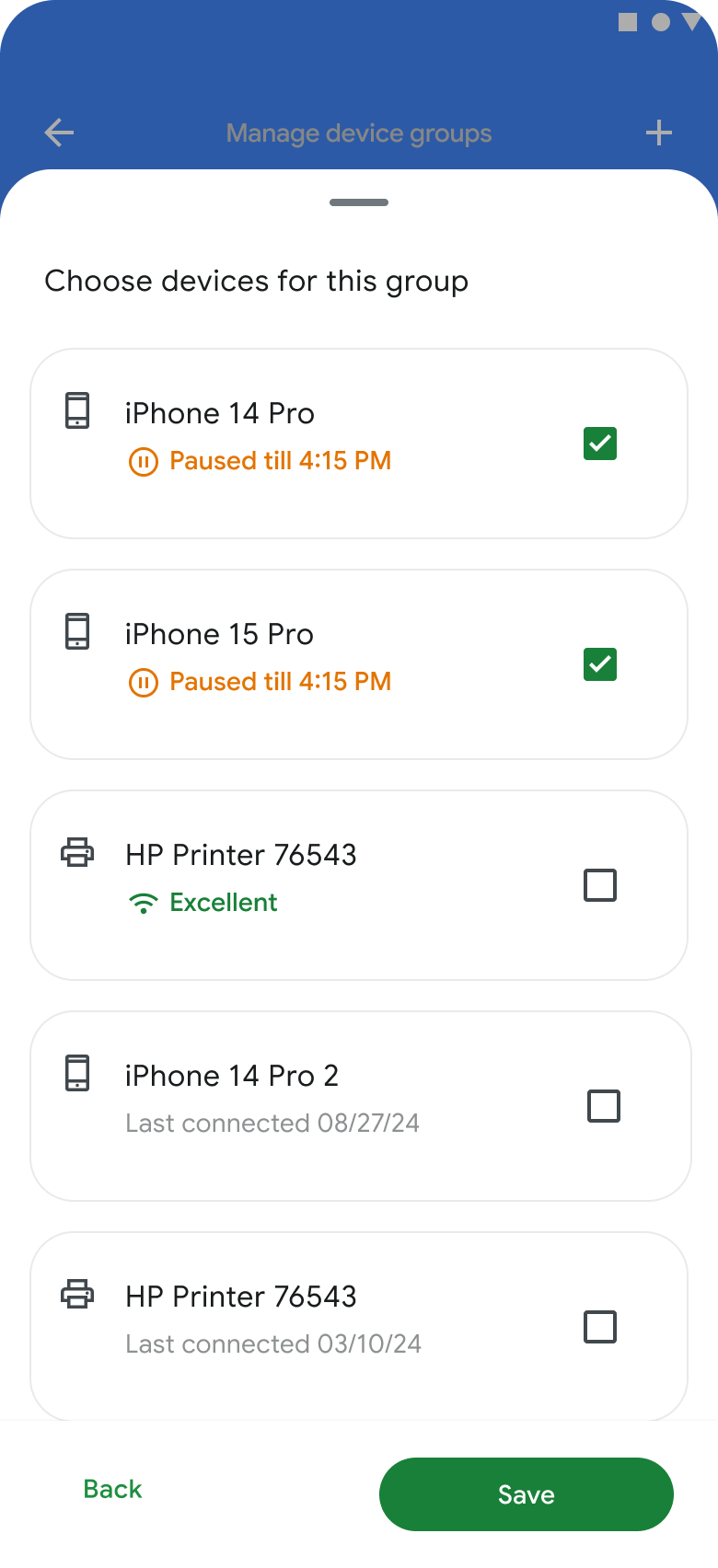
- Your new group will appear on your main management screen, where you can apply pause settings to the entire group at once.
Pause Devices or Set Schedules

Pausing a device or group temporarily disconnects it from your network.
Pause Devices Temporarily
Use this for an immediate, one-time network break. Before you begin, download the GFiber App from the Google Play Store or the App Store.
- Open the GFiber App and sign in.
- Tap the Network tab.
- Scroll down and tap the Manage devices button.
- Check the box next to the device or group you want to pause.
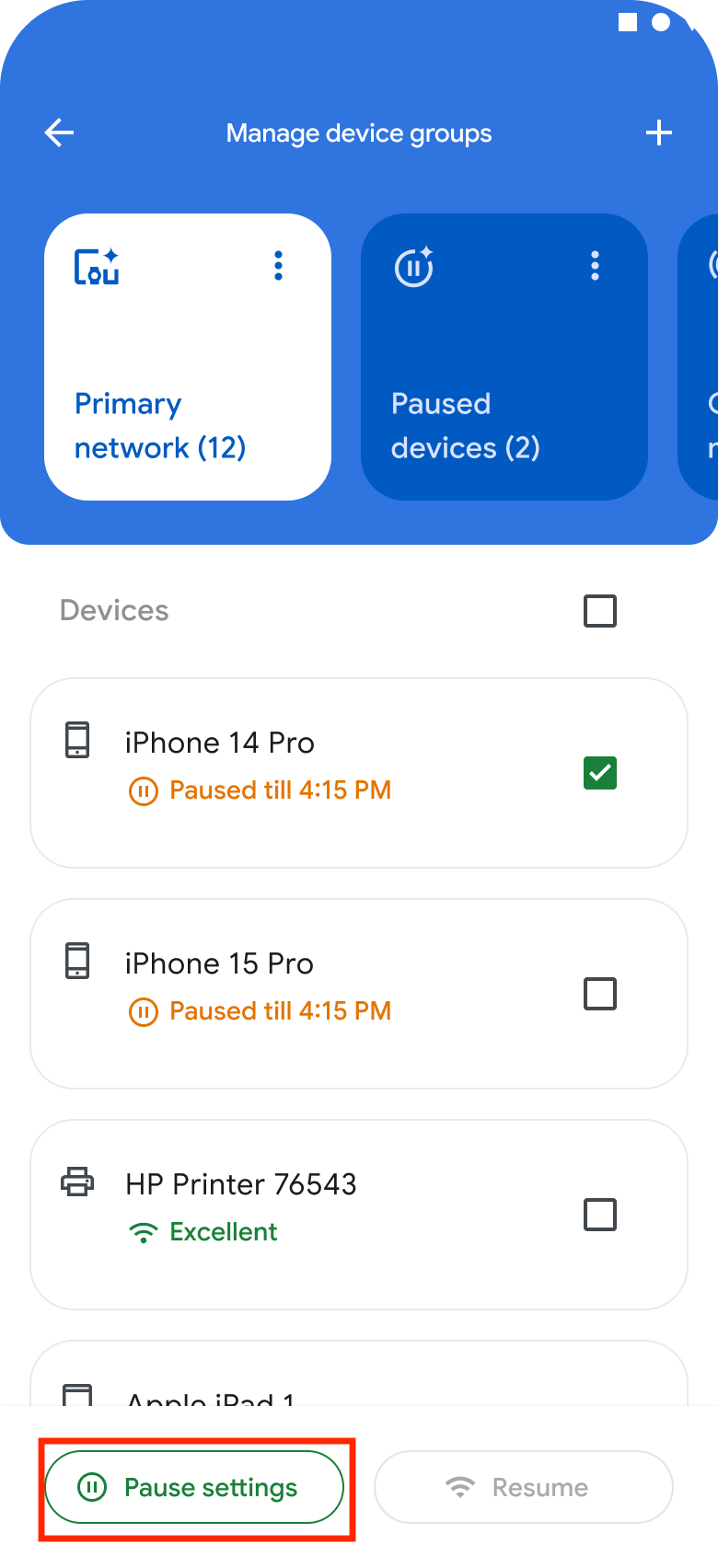
- Tap the Pause settings button.
- Select a time block (between 15 minutes and 24 hours).
- Tap the Save button.
Set a Recurring Pause Schedule
Use this to create an automatic, repeating schedule for bedtimes or homework hours. Before you begin, download the GFiber App from the Google Play Store or the App Store.
- Open the GFiber App and sign in.
- Tap the Network tab.
- Scroll down and tap the Manage devices button.
- Check the box next to the device or group you want to schedule.
- Tap the Pause settings button.
- Select a time block (between 15 minutes and 24 hours), or tap Create schedule to set a start time, end time, and the days of the week.
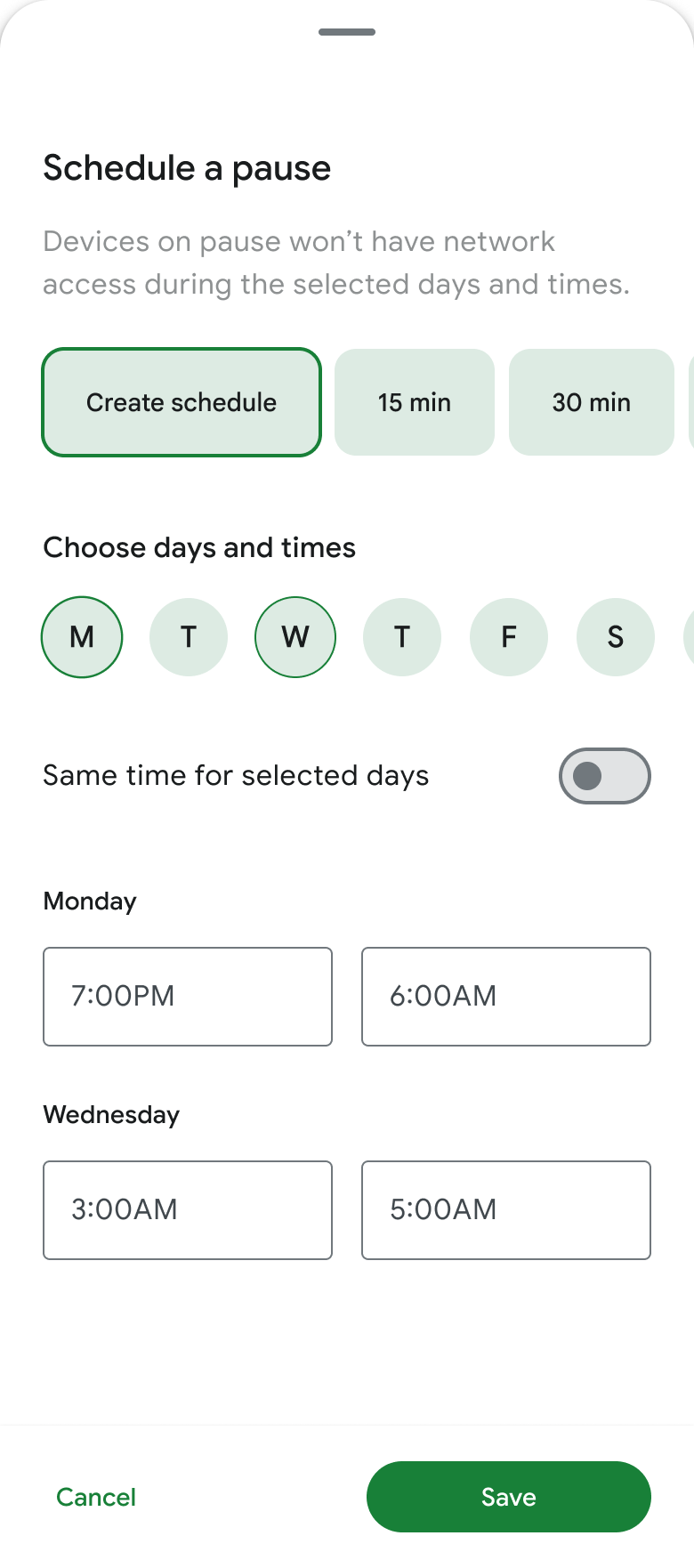
- Tap the Save button.
If you select more than one day, you’ll see a separate row for each — making it easy to set different times throughout the week, like an earlier bedtime on school nights and a later one on weekends.
Resume Paused Devices
You can resume a paused device or group at any time. Before you begin, download the GFiber App from the Google Play Store or the App Store.
- Open the GFiber App and sign in.
- Tap the Network tab and then tap the Manage devices button.
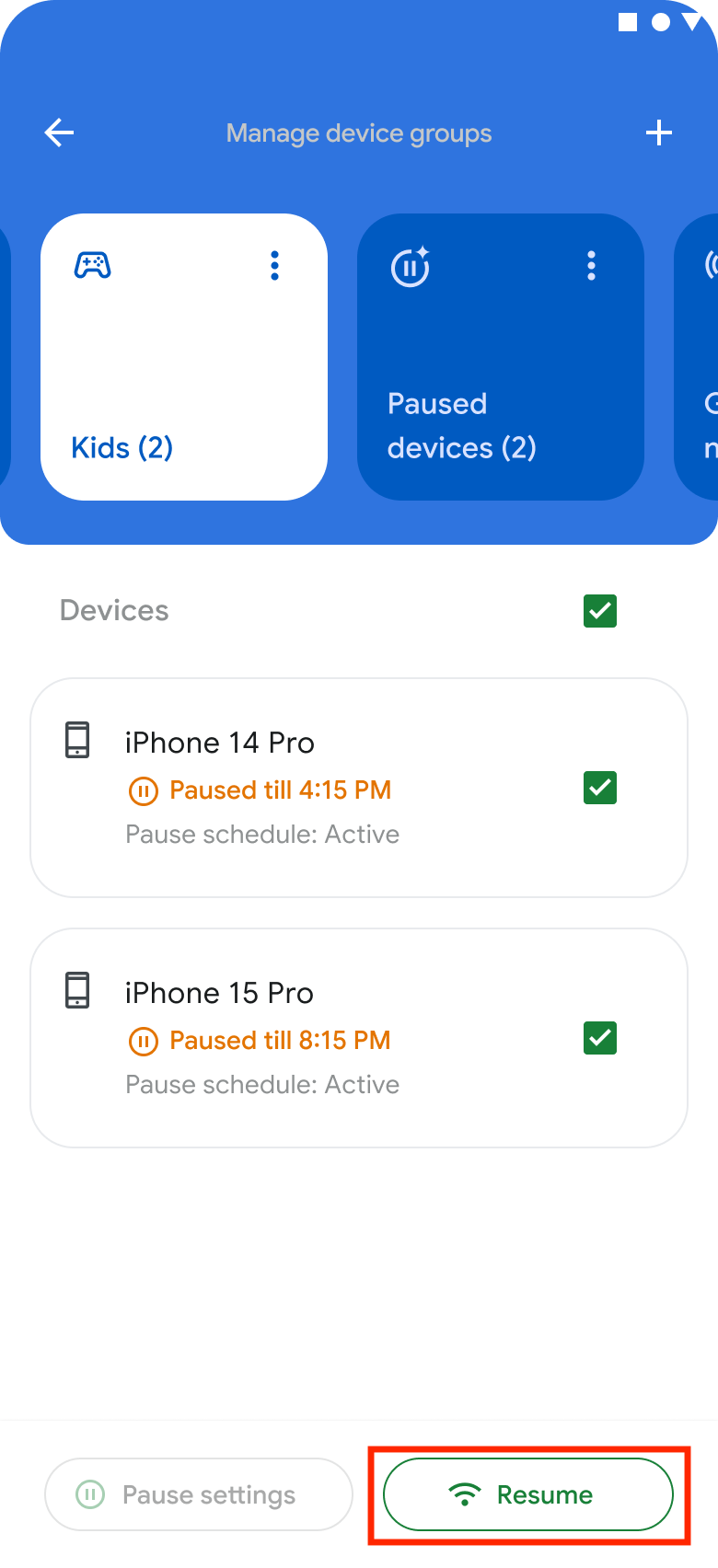
- Select the paused device or group.
- Tap the Pause settings button.
- Select Resume.
Block and Unblock Devices
Use the block feature to completely cut off a device you don’t recognize or don’t want on your network. Blocked devices can’t access the internet and are moved to the Disconnected Devices group.
To block a device:
- Open the GFiber App and sign in.
- Tap the Network tab and then tap the Manage devices button.
- Tap the device you want to block.
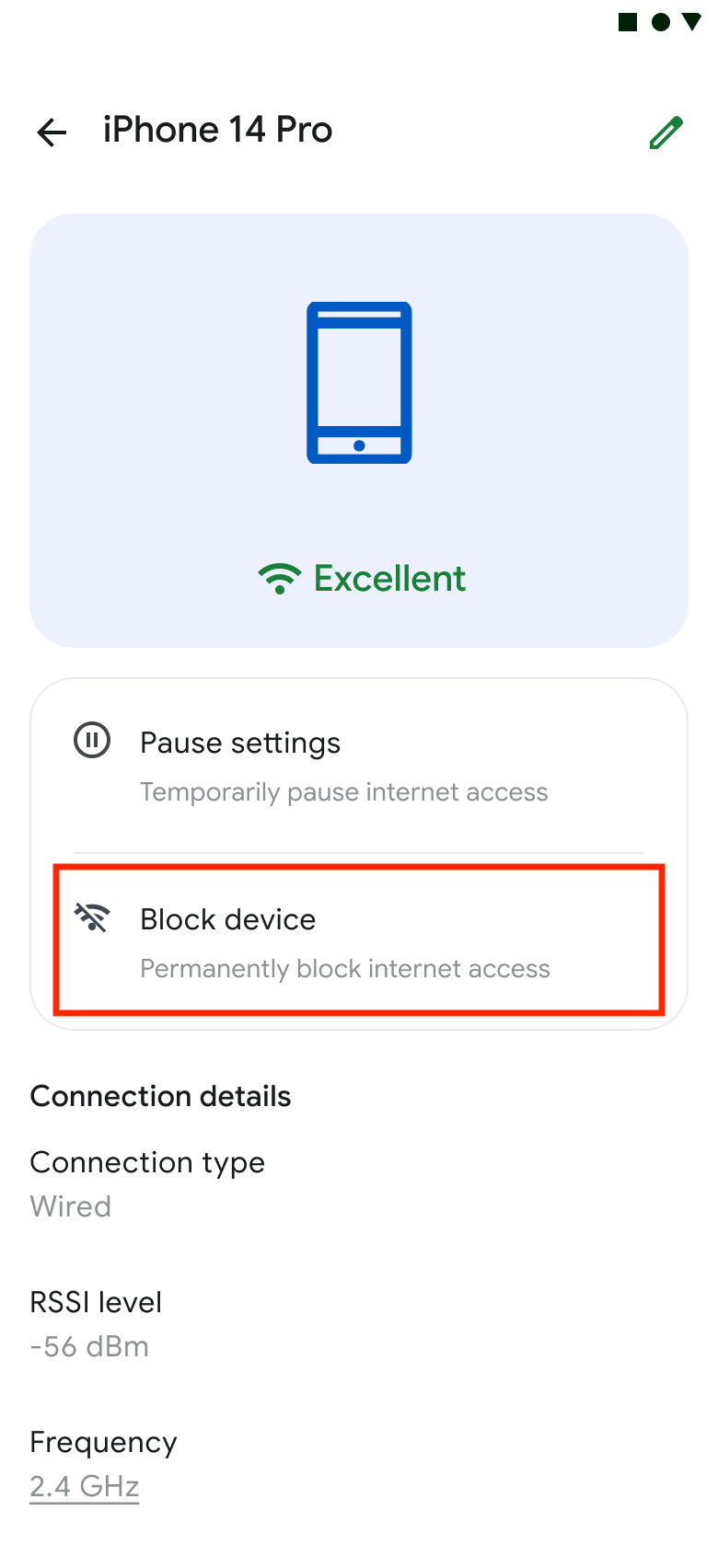
- Tap the Block device button.
- Confirm by selecting Block.
To unblock a device: Go to the device’s details page and tap Unblock device.
FAQs
Use the pause feature for a quick one-time break, or set up a recurring schedule to disconnect at the same time every day — like during homework hours or at bedtime.
Yes. Set a recurring pause schedule so specific devices automatically disconnect at bedtime and reconnect in the morning.
Use the block feature to permanently prevent an unrecognized or unwanted device from accessing your internet.
Create device groups to apply rules to multiple devices at once. You can also create a "Digital Detox" group for yourself to automatically disconnect during specific hours.