Troubleshoot Your Mesh Extender
GFiber mesh extenders help expand Wi-Fi coverage throughout your home. If you’re experiencing slow speeds, dropped connections, or an extender that has a solid red light, try the steps below to improve performance.
GFiber offers several mesh extenders that pair directly with GFiber routers:
-
GFiber Wi-Fi 6 Mesh Extender (Model GFEX310): Pairs with the Multi-Gig or Wi-Fi 6 Router.
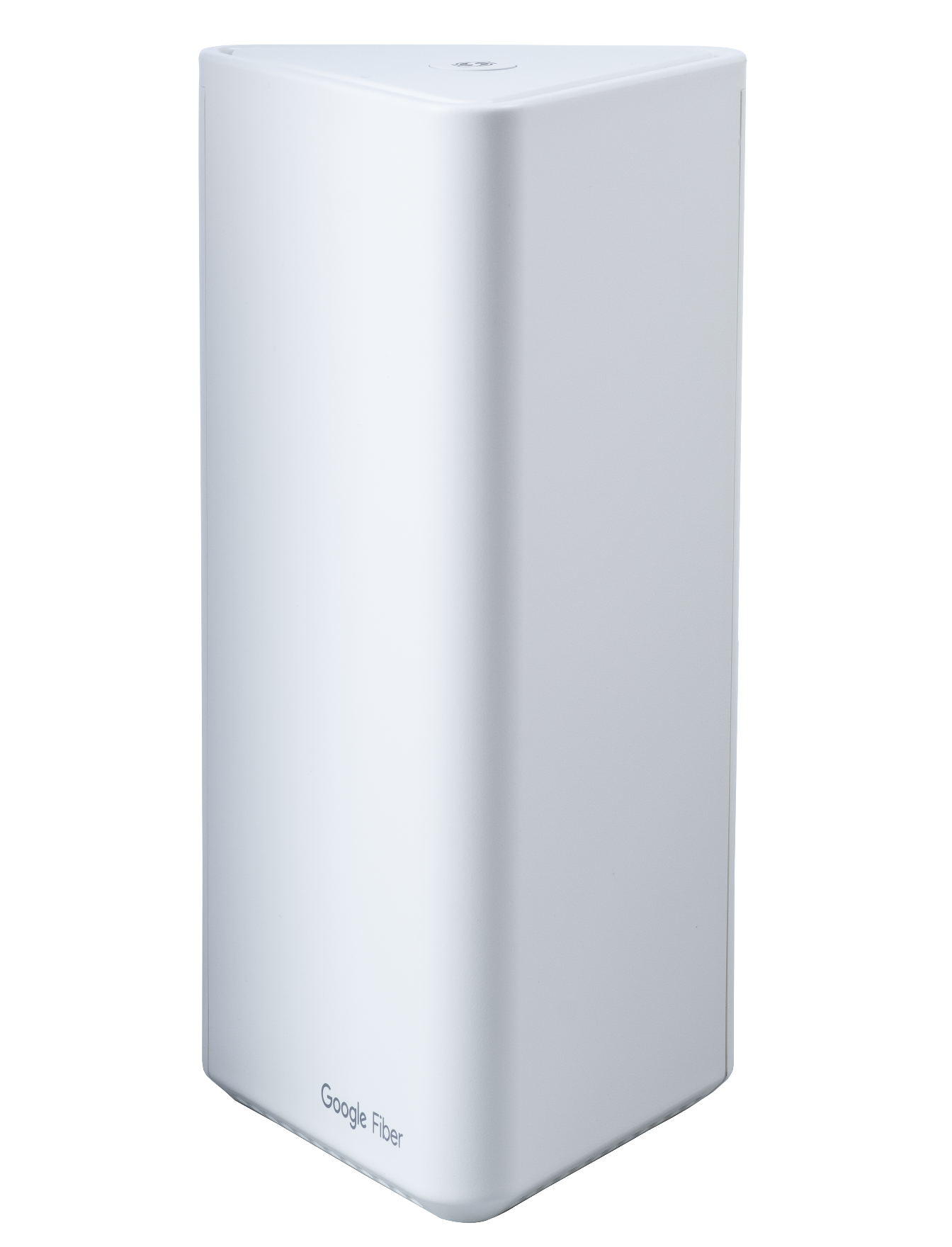
-
GFiber Wi-Fi 6E Mesh Extender (Model GE6E220C): Pairs with the Wi-Fi 6E Router.
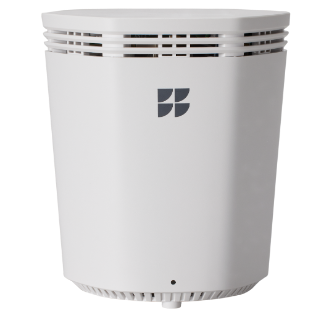
-
GFiber Wi-Fi 7 Mesh Extender (Model GRBE331C): Pairs with GFiber Wi-Fi 7 Router.
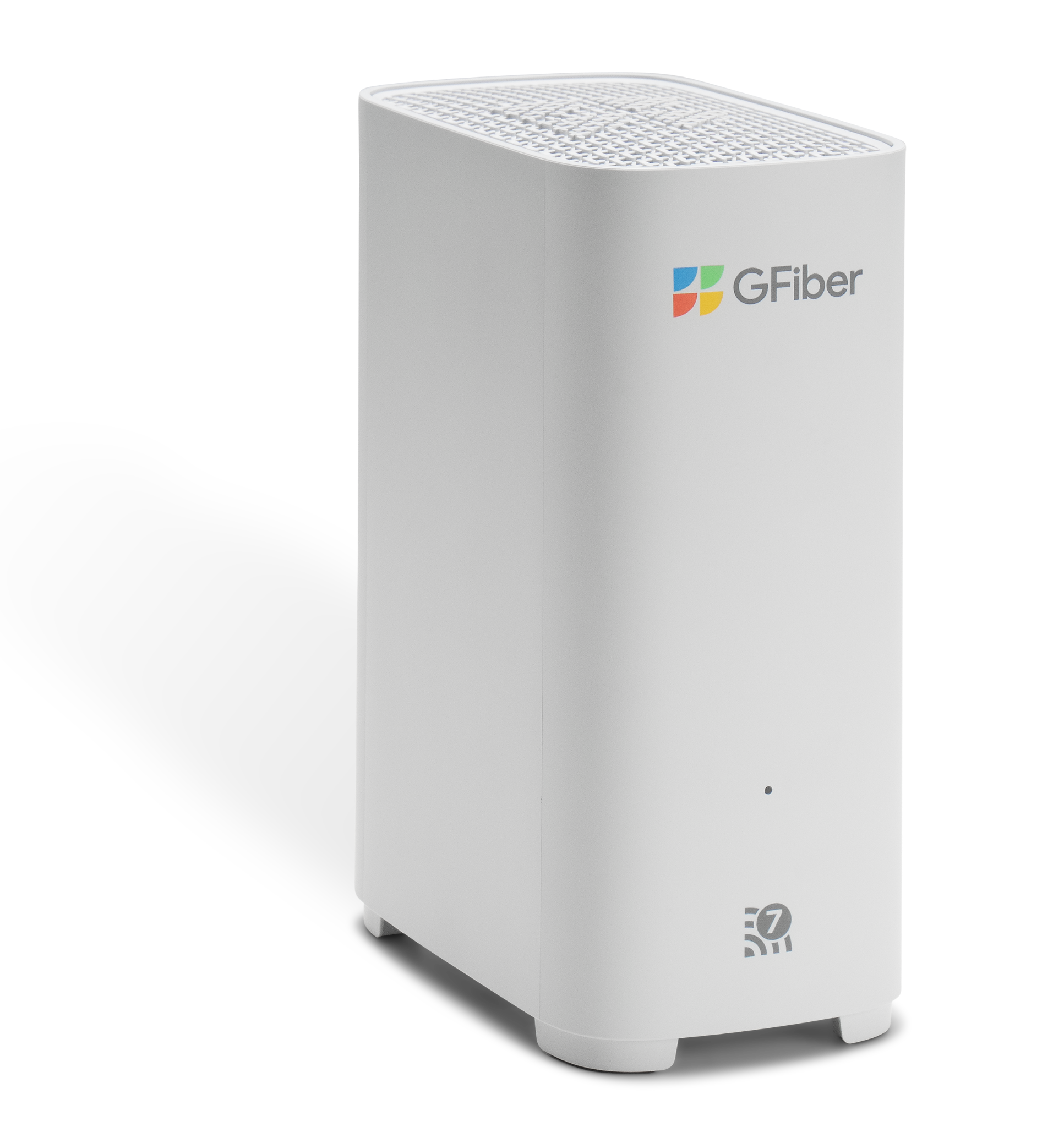
Choose the Right Number of Extenders
More extenders don’t always mean better Wi-Fi. Too many extenders in a small space can cause signal interference, congestion, and slower speeds.
-
1,500 sq. ft. or less: Your GFiber router alone is usually sufficient.
-
1,500–3,000 sq. ft.: 1 router + 1 mesh extender is recommended.
-
3,000+ sq. ft.: 1 router + 2 mesh extenders may be needed for multi-story coverage.
Possible extender overload: If your Wi-Fi is slow or disconnects while you’re standing near an extender, try unplugging one of your extenders to see if performance improves.
Where to Place Mesh Extenders
For the best performance, place your mesh extenders based on your home’s layout.
Option 1: Star Setup (recommended for most homes)
For the fastest speeds and most responsive connection, place each extender so it connects wirelessly and directly to the router.
-
Use the halfway rule: Place the extender halfway between your router and the area needing better coverage.
-
Avoid obstacles: Keep extenders out of cabinets and away from large metal objects or appliances.
-
Keep extenders spaced apart: Place extenders at least 20-30 feet apart to help devices stay connected to the strongest signal.
Option 2: Extended Setup (for spread-out or hard-to-reach areas)
If parts of your home are farther away from your router — like rooms at the end of a hallway, a finished basement, or a detached garage — extenders can connect wirelessly to each other to expand coverage (this is sometimes called daisy-chaining).
This happens automatically — no wiring or manual setup required.
-
When to use it: When an extender is too far away to connect directly to the main router.
-
What to expect: Speeds remain strong, but the furthest extender may have slightly slower response times during activities like gaming.
How to Re-Pair a Mesh Extender
If your extender is offline (solid red) or you moved it to a new location, you may need to re-pair it:
-
Move the extender into the same room as your router and plug it into power.
-
Wait for the light to turn solid white (Wi-Fi 6E or 7 extender) or solid yellow (Wi-Fi 6 extender).
-
Press the WPS button on your router.
-
Within 2 minutes, press the WPS button on your extender.
-
Wait up to 4 minutes while the light blinks during pairing.
-
When the light turns solid green, the pairing is complete.
-
Unplug the extender, move it to its permanent location, and plug it back in.
Note: If more than 2 minutes pass before pressing WPS on the extender, restart the process from step 1.
Mesh Extender Light Status Guide
Use the extender light to quickly identify what’s happening.
|
Status / Meaning |
6 Extender LED Color |
6E Extender LED Color |
7 Extender LED Color |
Recommended Action |
|
Connected / Success |
🟢 Solid Green (Turns off after 3 minutes) |
🟢 Solid Green |
🟢 Solid Green |
No action needed. Your extender is working normally. |
|
Starting / Powering On |
— |
🟢 Blinking Green |
🟢 Blinking Green |
Wait for the device to finish booting up. |
|
Ready to Pair |
🟡 Solid Yellow |
⚪ Solid White |
⚪ Solid White |
Press the WPS button to start the pairing process. |
|
Pairing in Progress |
🟡 Blinking Yellow |
⚪ Blinking White |
⚪ Blinking White |
No action required; Wait up to 4 minutes for pairing to complete. |
|
Connection Failure |
🔴 Solid Red |
🔴 Solid Red |
🔴 Solid Red |
Move the extender closer to the router or check router Wi-Fi. |
|
Resetting |
🔴 Blinking Red |
— |
— |
Wait for the light to return to the "Ready to Pair" state. |
|
Normal / Off |
No Light |
— |
— |
Device is working normally (if previously paired) or updating. |
Still running into issues? Try these additional troubleshooting steps.
-
Reset the extender: If the extender is unresponsive, press and hold the Reset button for 10 seconds using a paperclip. The extender will reboot to factory settings and must be paired again.
-
Use Ethernet backhaul: For the fastest and most stable connection, connect an Ethernet cable from your router’s LAN port to the extender’s LAN/WAN port. This creates a wired connection and reduces wireless interference.
-
Check your service status: Make sure there isn’t a local outage. Check the GFiber App for an outage or verify your account is in good standing.
FAQs
More extenders don’t always improve performance. Too many extenders can cause interference and make devices switch connections too often.
Try these steps:
-
Run the unplug test: Unplug the extender closest to your router and check whether your Wi-Fi performance improves. In many cases, fewer extenders allow the remaining ones to provide a stronger, more stable connection.
-
Keep extenders spaced apart: Place extenders at least 20–30 feet apart. If they’re too close together, devices may struggle to decide which extender to connect to, which can lead to slow speeds or dropped connections.