GFiber Phone Box Device Information
Official device guide for GFiber Phone Box models GFPB100 (1-light) and GAPB110P (3-light). Decode diagnostic LED patterns, view the light status matrix, and verify device connections.
Phone Box Overview
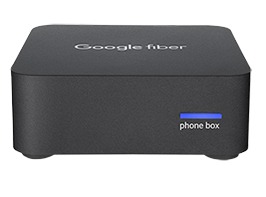
The GFiber Phone Box connects to a power outlet, your router, and your home phone. There are 2 models:
- 1-light model (GFPB100)
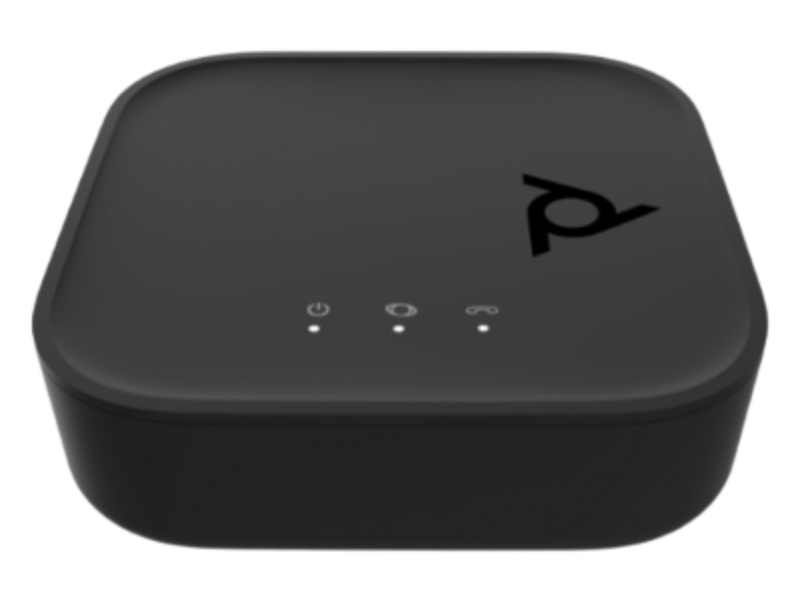
- 3-light model (GAPB110P)
Light Status Guide
When your Phone Box is properly connected, the LED on the front will show a solid color:
- 1-light model (GFPB100): Solid blue
- 3-light model (GAPB110P): Solid green
If the LED doesn’t show a solid color within 2–3 minutes of powering on, contact our support team.
| Light status | GAPB110P (3-light model) | GFPB100 (1-light model) |
|---|---|---|
| No light | No power. | No power. |
| Solid green | Powered on and working. | — |
| Flashing green | Connecting to the network. | — |
| Flashing orange | Upgrading firmware — don’t unplug. | — |
| Solid red | Not operational. | Powering up or hardware failure. |
| Fast blinking red | — | Connection failure. |
| Solid blue | — | Successful connection. |
| Blinking blue | — | Connecting to the network. |
| Fast blinking blue | — | IP address acquired. |
Additional Indicators (GAPB110P Only)
The 3-light model (GAPB110P) has 2 additional LEDS next to the power light.
Network LED: shows Ethernet port activity.
- No light: Network cable isn’t plugged in.
- Flashing green (fast): LAN Ethernet port is active.
Phone LED: shows the status of your phone line.
- No light: Phone port service isn’t available.
- Solid green: Phone ready (standby).
- Flashing green: Phone in use.
Connect Your Devices
- Connect the GFiber Phone Box to your router using an Ethernet cable.
- Connect your phone to the GFiber Phone Box using a telephone cable.
- Plug the power adapter into a power outlet.
Looking for detailed steps to install your GFiber Phone Box? See our complete guide to GFiber Phone self-installation.
Manage your phone: Sign in to your GFiber account and go to the Phone tab to manage your settings.
Safety and Handling
Follow these guidelines to keep your Phone Box working properly:
- Keep it dry: Don’t use it near water or clean it with a wet cloth.
- Allow ventilation: Place it on a solid, flat, unobstructed surface. Avoid soft surfaces like carpet, which can block airflow.
- Avoid heat sources: Keep it away from heaters, radiators, and other electronics that generate heat.
- To turn it off: The Phone Box doesn’t have a power switch — just unplug it.
- Don’t open it: Attempting to open, modify, or repair the device yourself could cause injury or electric shock and will void your warranty.
Technical Specifications and Compliance
- Dimensions: 2.75" W x 2.75" D x 1.0" H.
- GFiber Property: The Phone Box belongs to GFiber. If it's lost or damaged, you may be responsible for the replacement cost.
- FCC Compliance: This device complies with Part 15 of the FCC Rules, is restricted to indoor use, and should be kept at least 20 cm from people during operation.
- Recycling: Don’t throw your Phone Box in the trash. If it needs to be replaced or returned, contact our support team for return and recycling instructions.