Sign In to Your gFiber Account
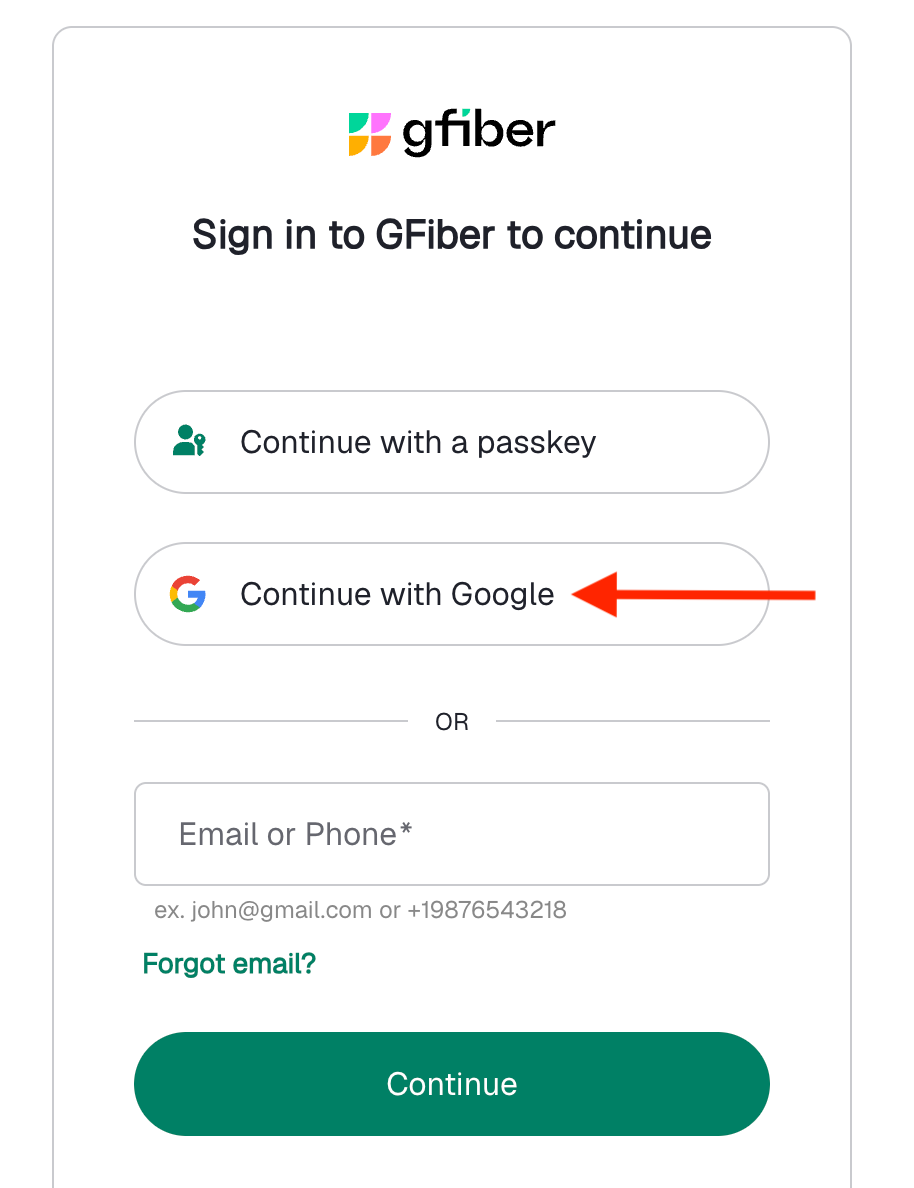
To sign in to your gFiber account, open the gFiber App or visit the sign-in page. Select Continue with Google if your account uses Google authentication, or enter your registered email address and password to log in.
Sign in with a Google account (most common)
Use this method if you set up gFiber service with a Google email address or hold a legacy account.
-
In your web browser, open the gFiber sign-in page or launch the gFiber App.
-
Click Continue with Google.
-
Select the Google email address linked to your gFiber account.
-
Enter your Google password and select Next.

Sign in with a non-Google email
Use this method if you created a dedicated gFiber password using a standard, non-Google email address.
-
In your web browser, open the gFiber sign-in page or launch the gFiber App.
-
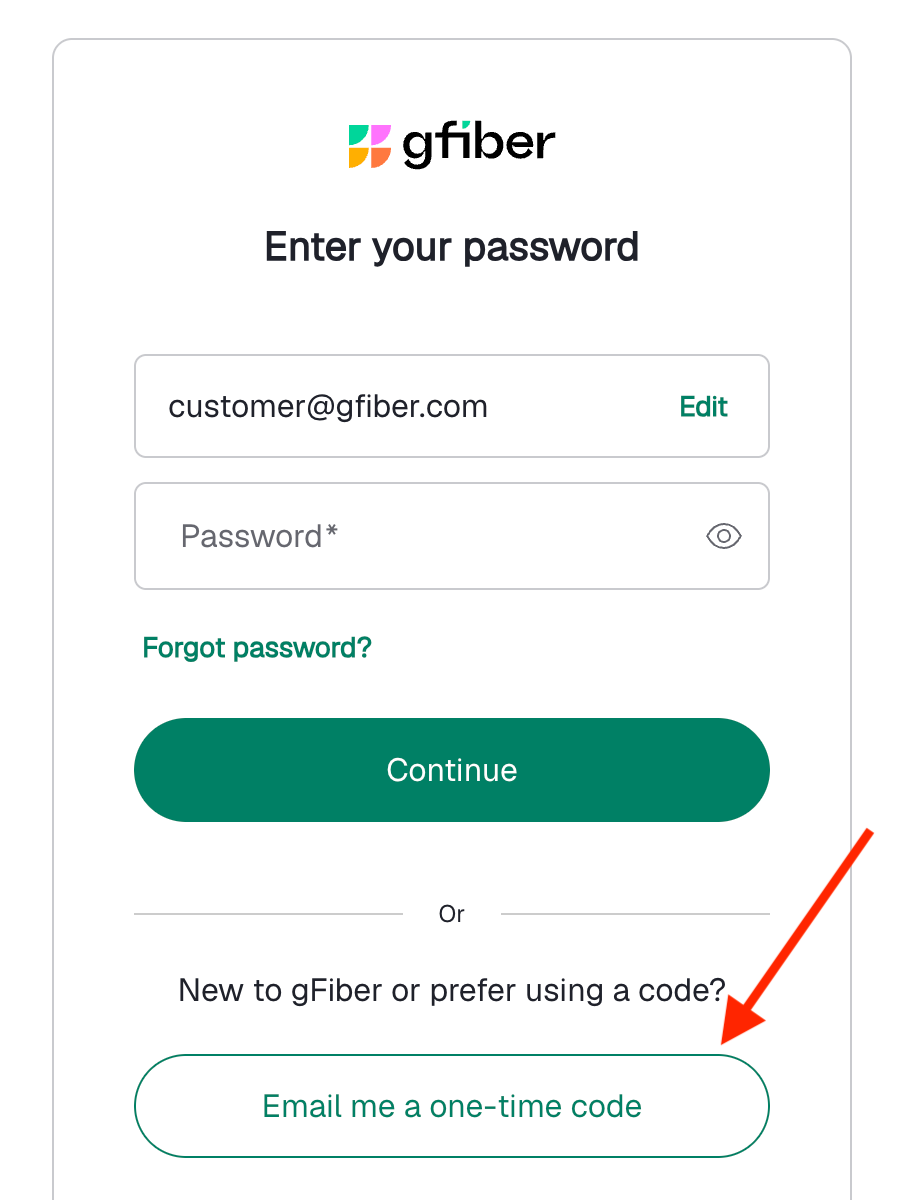
In the email text field, enter your email address and click Continue.
-
In the password text field, enter your password and click Continue.
Sign in as a Webpass customer
Use this method if you are a gFiber Webpass customer accessing your account.
-
In your web browser, open the gFiber sign-in page.
-
In the email text field, enter your registered Webpass email address and click Continue.
-
In the password text field, enter your password and click Sign In.

Troubleshoot sign-in issues
| Error or Issue | Cause | Solution |
| "Account not found" or "Something went wrong" message | Credentials were entered into standard text fields, but the account requires Google social sign-in authentication. | In the sign-in screen, click Continue with Google. |
| Not receiving "Forgot Password" emails | The account is managed via Google authentication or password setup was skipped during account creation. | Google users: Sign in using Continue with Google. If you forgot your Google password, use Google Account Recovery. Non-Google users: Select Email me a one-time code to log in, then set a password in Sign-in & Security Settings. |
| Password reset loop | Password reset is attempted on an account authenticated through Google. | Click Continue with Google for Google-authenticated accounts, or select Email me a one-time code for standard email accounts. |
Yes, you can be signed in to the gFiber App on your mobile device and the gFiber website on a desktop browser simultaneously.
Account sign-in issues do not affect your physical internet connection or Wi-Fi network routing. Your internet service remains active while you resolve sign-in credentials.
If the Google Account linked to your gFiber service changes, sign in using your original Google credentials first, then update your contact preferences inside Sign-in & Security Settings.