Reset Your gFiber Password or Find Your Account Email
To reset your gFiber password, go to the gFiber sign-in page, click Forgot password?, enter your registered email address, and follow the link sent to your inbox. If you log in via Google, reset your credentials directly on the Google Account recovery page.
Reset your gFiber account password
If you log in using a dedicated email address and gFiber password, follow these steps to regain access:
-
On the gFiber sign-in page, click Forgot password?.
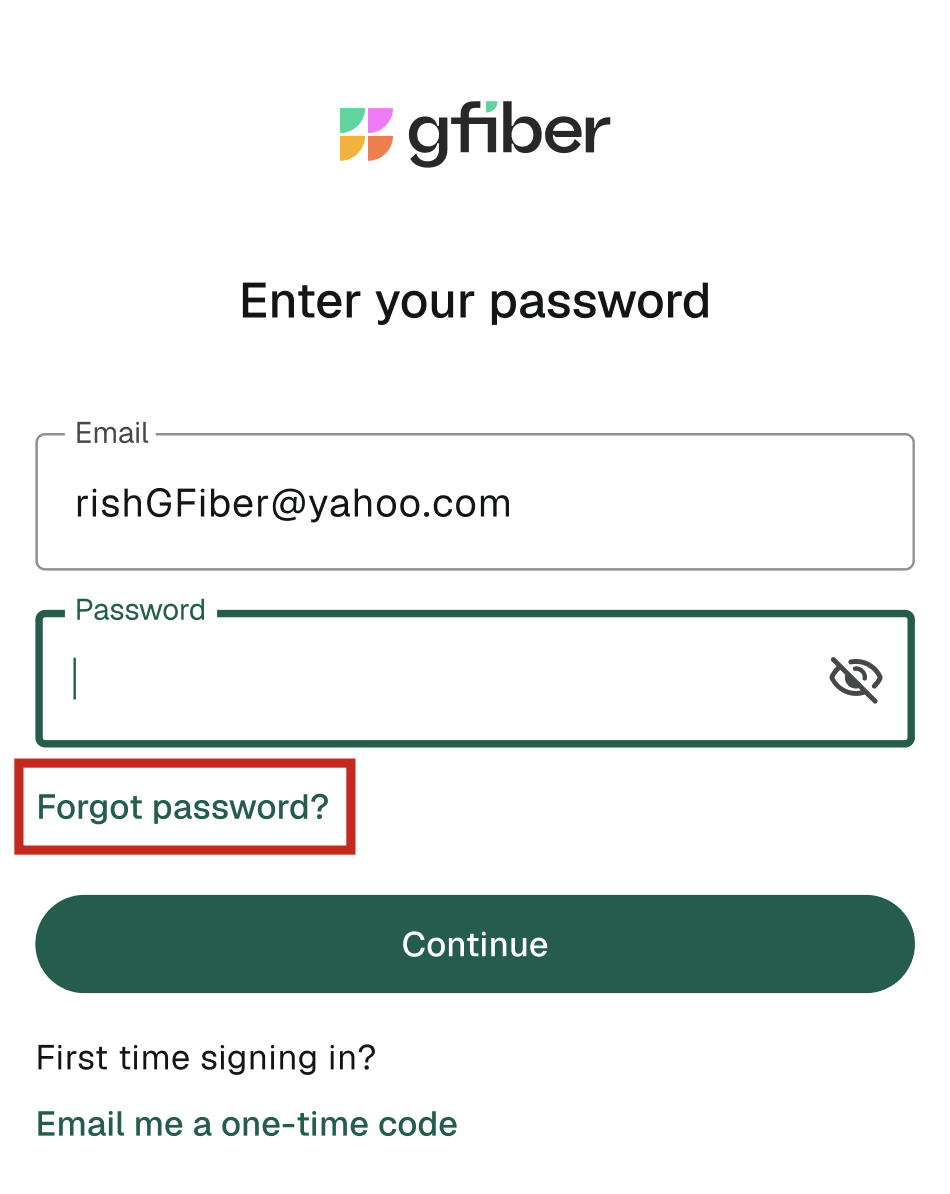
-
In the email text field, enter the email address used for your gFiber account, then click Continue.
-
Open your personal email inbox, locate the message from gFiber, and click the provided reset link.
-
On the Set your password screen, enter your new password in the designated fields.
-
Click Submit. You will see a confirmation screen verifying that your password has been updated.

Reset your Google account password
If you use Sign in with Google or a Gmail password to access gFiber, Google manages your authentication credentials.
-
In your browser, navigate to the Google Account recovery page.
-
Follow the on-screen prompts to verify your identity and set a new password.
Find your gFiber account email address
If you cannot remember the email address associated with your account, verify your physical service address to retrieve it:
-
On the gFiber sign-in page, click Forgot email?.
-
In the Your street address field, enter your full street address.
-
Click Continue.
-
Open your email inbox and check for a message from gFiber containing your registered sign-in email address.

Frequently asked questions
This error occurs when the entered email address is incomplete or missing standard formatting characters, such as the @ symbol or domain extension (e.g., .com). Double-check the text field for missing characters or extra spaces.
Email delivery may take a few minutes. Check your Spam or Promotions folders if the message does not appear in your main inbox. Ensure you entered the exact email address linked to your gFiber account. If you still haven't received it after several minutes, navigate to the gFiber sign-in page and click Resend email.
If you no longer have access to the email account associated with gFiber, contact gFiber customer support to verify your identity and update your primary contact details.
If your account is locked following multiple incorrect password attempts, contact gFiber customer support to verify your account details and clear the security lock.