Manage gFiber Payment Methods
To manage your gFiber payment methods, sign in to the gFiber App or web portal and navigate to Account (or Billing info) > Manage payments > Manage payment methods. From there, you can add, update, or remove credit cards, debit cards, or bank accounts.
Add a payment method

Use the gFiber App
-
In the bottom navigation bar, tap Account.
-
Tap Manage payments.
-
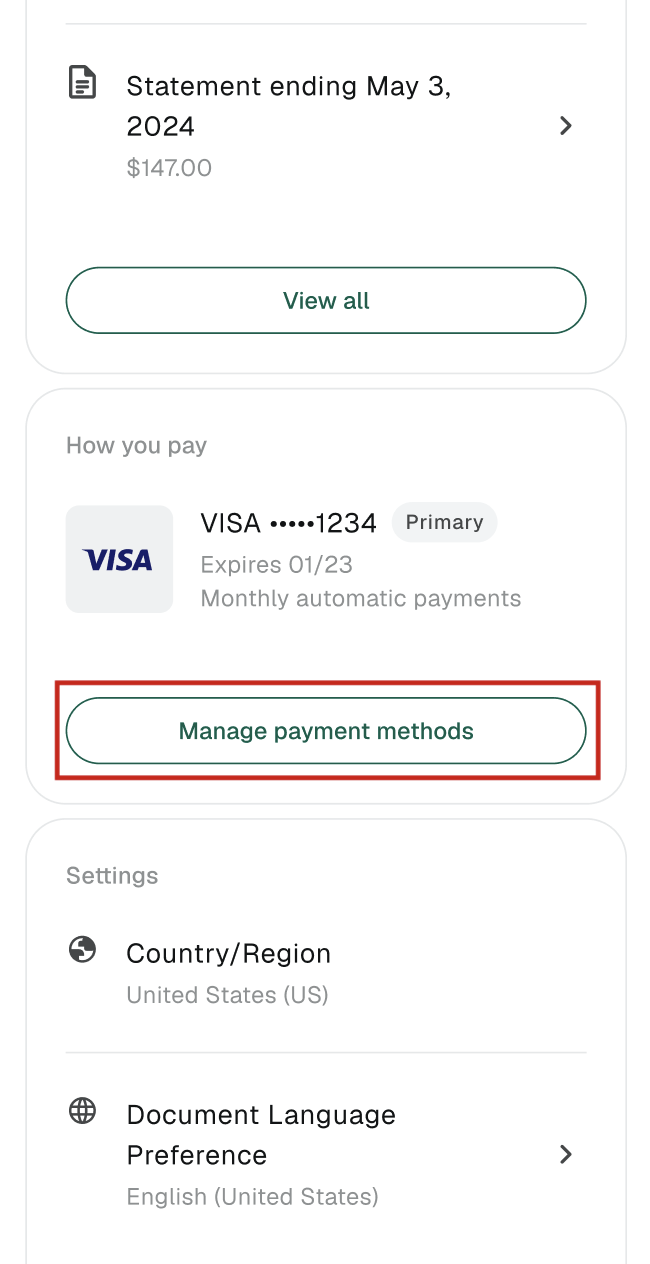
In the How you pay section, tap Manage payment methods.
-
Tap Add payment method.
-
Choose your preferred payment type: credit/debit card (Mastercard, Visa, American Express, Discover, Diners Club), bank account, or Google Pay.
-
Enter your payment details and tap Accept and continue.
-
Select whether to set this card or account as your primary or secondary payment method to complete setup.
Confirm that your new payment method appears under the How you pay list with its correct label.
Use the gFiber web portal
-
Open a browser and sign in to your gFiber account.
-
In the Billing info section, click Manage payments.
-
In the How you pay section, select Manage payment methods.
-
Click Add payment method.
-
Select your payment type, enter your payment details, and click Accept and continue.
-
Choose primary or secondary status to finalize your automatic billing preferences.
Verify that the new card or bank account is active on the Manage payment methods screen.
Update a payment method
You can modify details such as cardholder name, billing address, expiration date, or nickname. To change a full card number or bank routing number, add a new payment method instead.
-
Cards: Account holder name, expiration date, billing address, and payment nickname.
-
Bank accounts: Account holder name and payment nickname.
Use the gFiber App
-
In the bottom navigation bar, tap Account.
-
Tap Manage payments.
-
In the How you pay section, tap Manage payment methods.
-
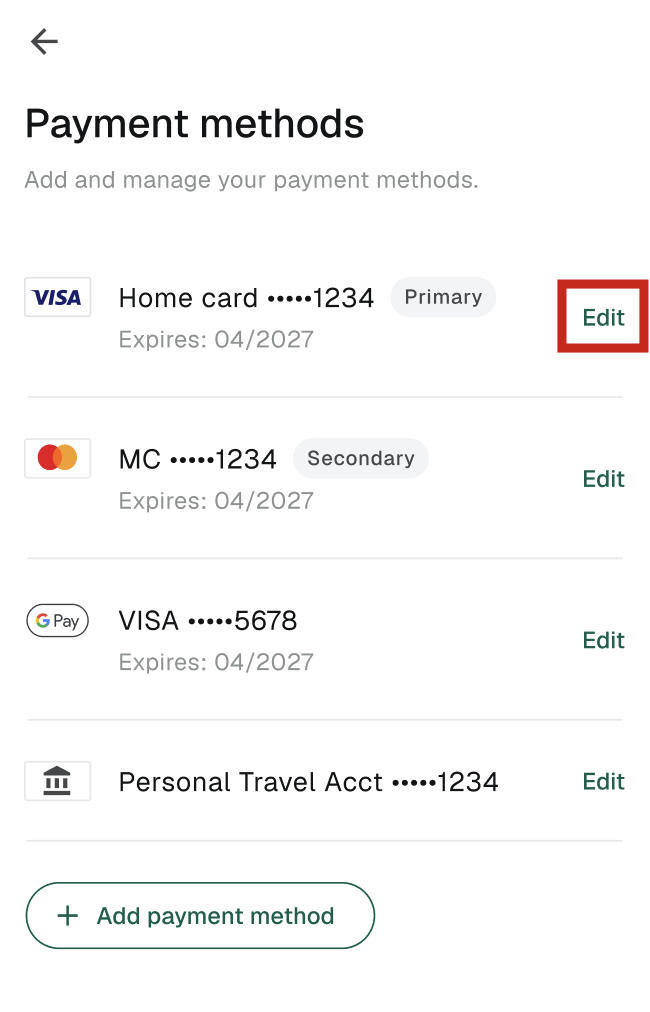
Locate the card or account you wish to change and tap Edit.
-
Enter your changes, then tap Update payment method.
Ensure the updated expiration date or billing information reflects accurately in your account.
Use the gFiber web portal
-
Sign in to your gFiber account.
-
In the Billing info section, click Manage payments.
-
In the How you pay section, select Manage payment methods.
-
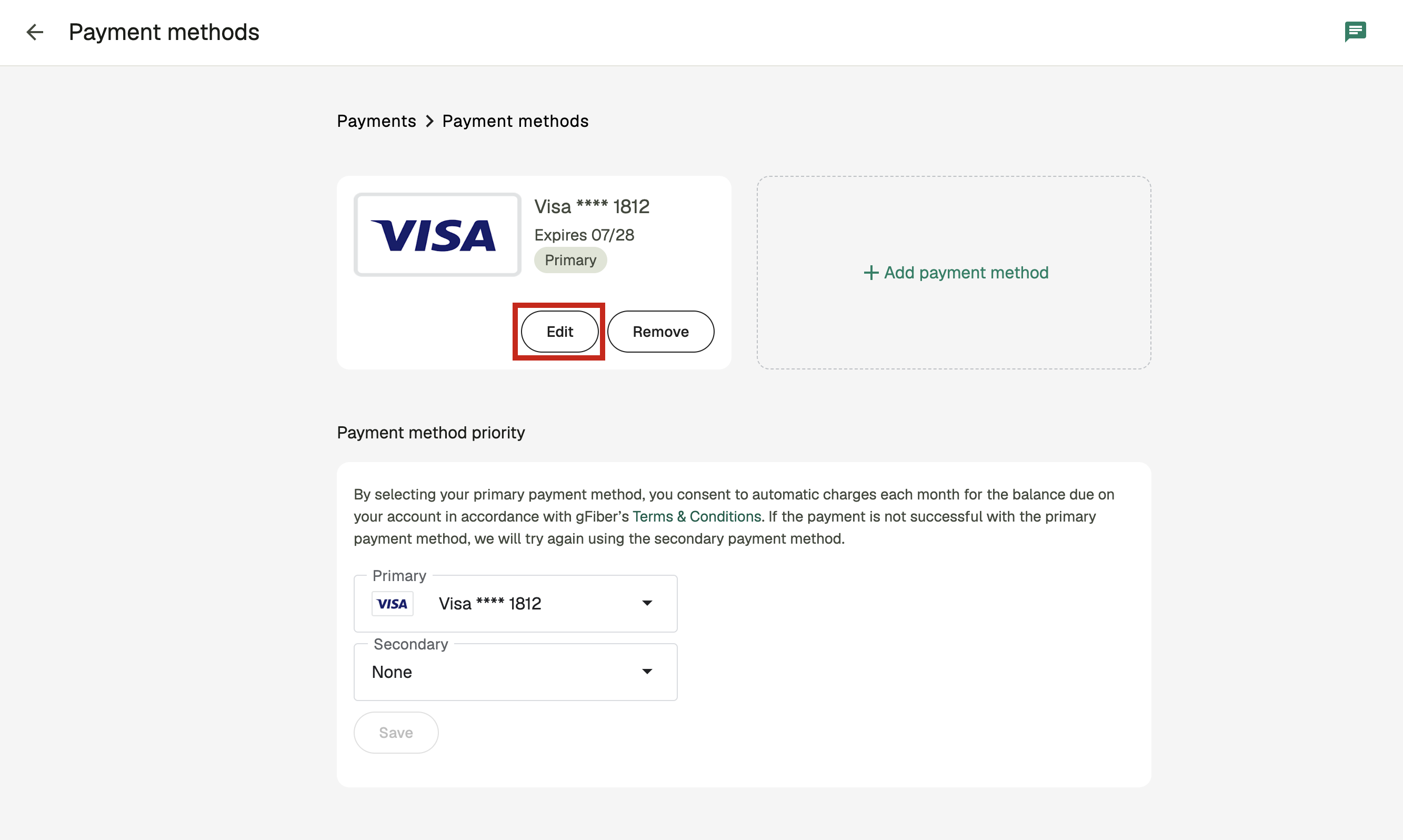
Next to the payment method you wish to modify, click Edit.
-
Update your information in the designated fields, then click Save.
Confirm the updated details appear in the payment method summary list.
Remove a payment method
Your gFiber account requires at least one primary payment method on file to maintain active billing. To remove your primary card or account, designate a different saved option as your primary method first.
Use the gFiber App
-
In the bottom navigation bar, tap Account.
-
Tap Manage payments.
-
In the How you pay section, tap Manage payment methods.
-
Locate the payment method you want to delete and tap Remove.
Check that the card or account is no longer listed under your saved payment options.
Use the gFiber web portal
-
Sign in to your gFiber account.
-
In the Billing info section, click Manage payments.
-
In the How you pay section, select Manage payment methods.
-
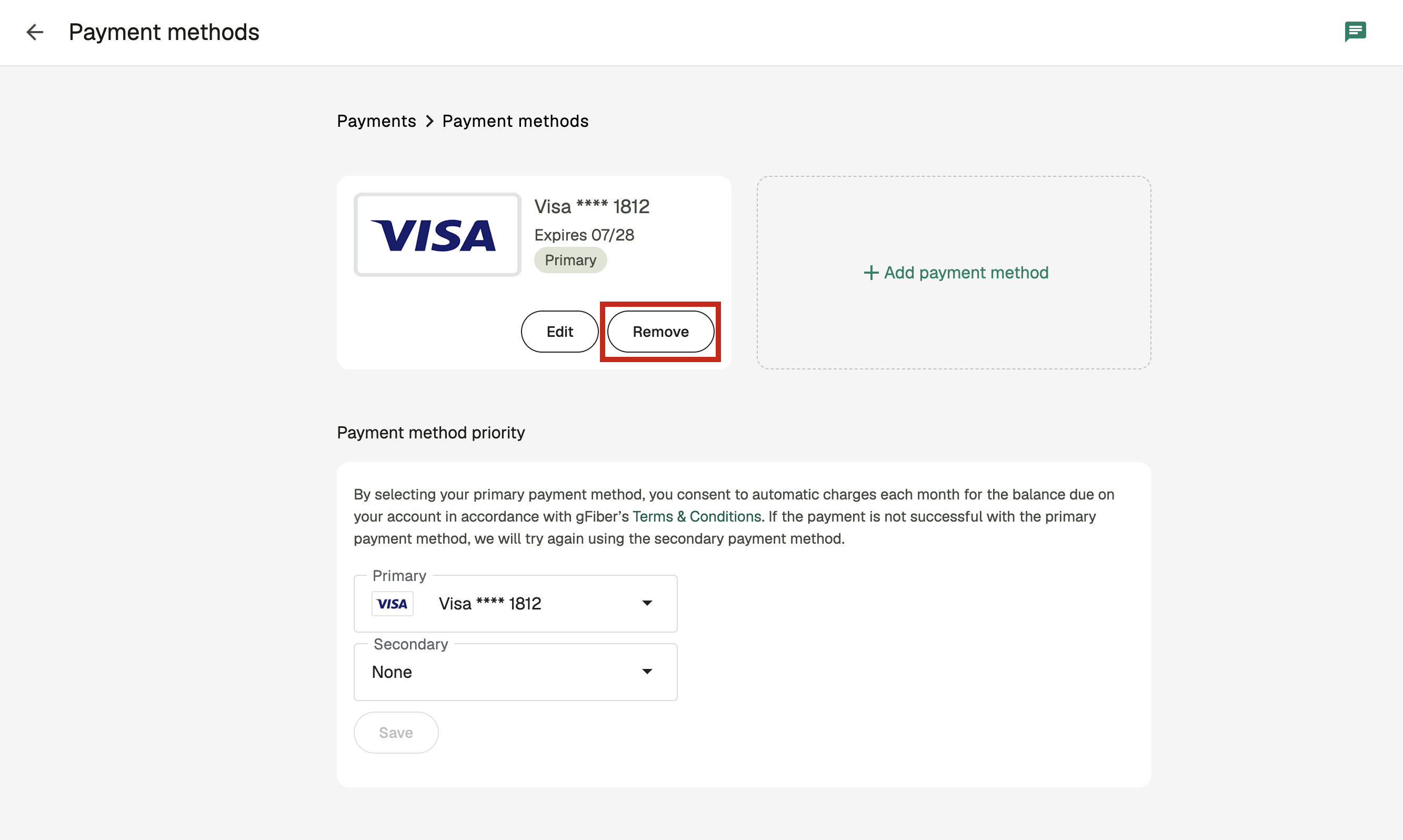
Next to the payment method you wish to delete, click Remove.
Verify that the payment method has been removed from your saved account list.
Frequently asked questions
If an automatic payment fails, you can update your primary payment method or manually process a payment under Manage payments in the gFiber App or web portal to prevent service interruption.
Yes. You can save multiple payment methods and designate one as your primary payment method and another as a secondary backup method for automatic payments.
gFiber accepts major credit and debit cards (Mastercard, Visa, American Express, Discover, Diners Club), bank accounts, and Google Pay.