Use GFiber Phone Call Handling Features

GFiber Phone includes several call handling features that help you control how incoming calls reach you. You can forward calls, ring multiple devices, set schedules, or block unwanted callers.
You can manage these settings anytime in the GFiber Phone portal.
Basic Call Settings
By default, your phone uses Ring Phone, which sends incoming calls directly to your GFiber Phone device.
You can also use these common features: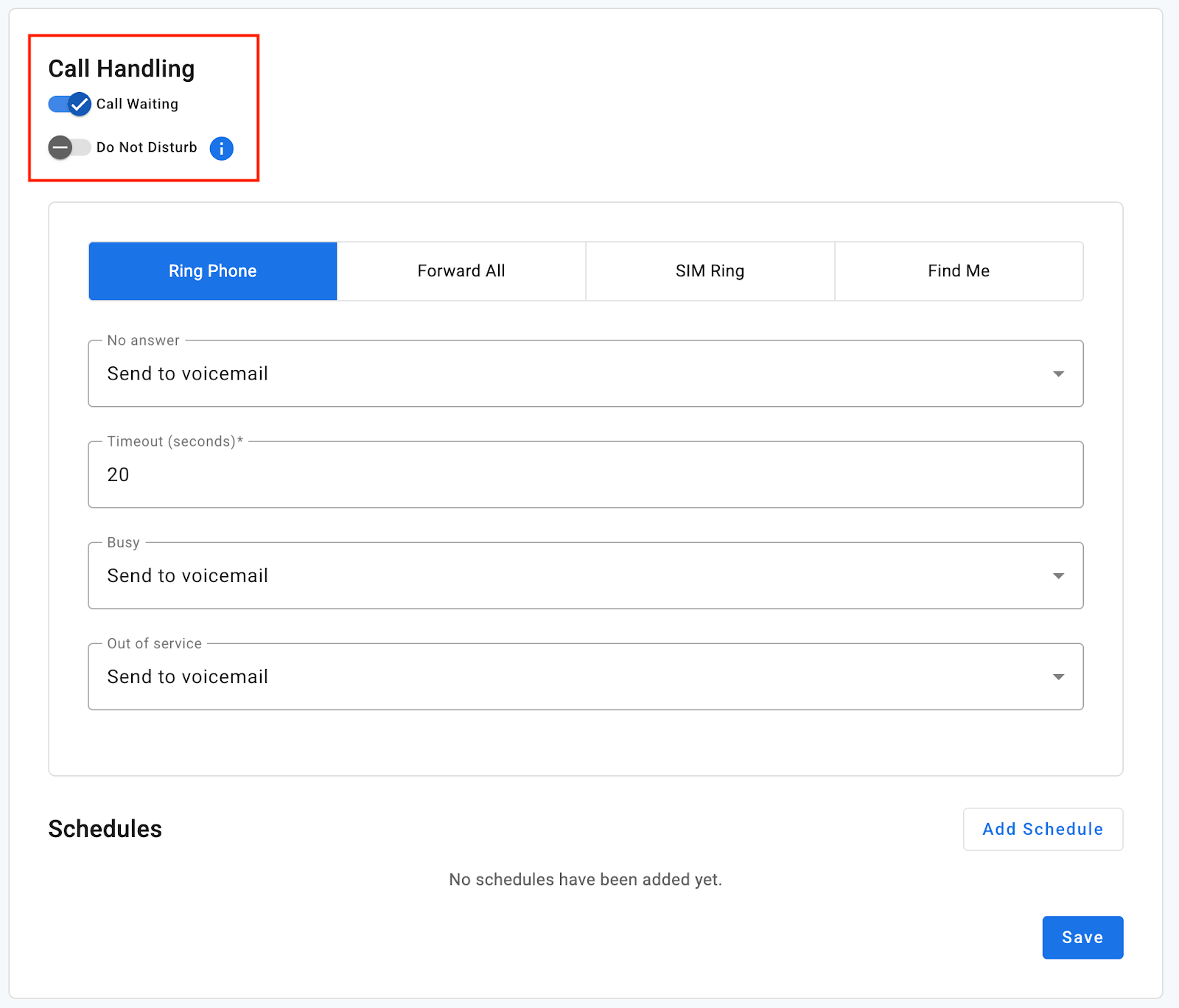
- Call Waiting: If you're on a call and another call comes in, you’ll hear a tone. Press the Flash or Line button on your phone to place your current call on hold and answer the new one.
- Do Not Disturb: Sends all callers directly to voicemail. If you haven't set up voicemail yet, callers will hear a busy tone instead.
Advanced Call Routing
If you're away from home or the office, you can choose how your calls are routed.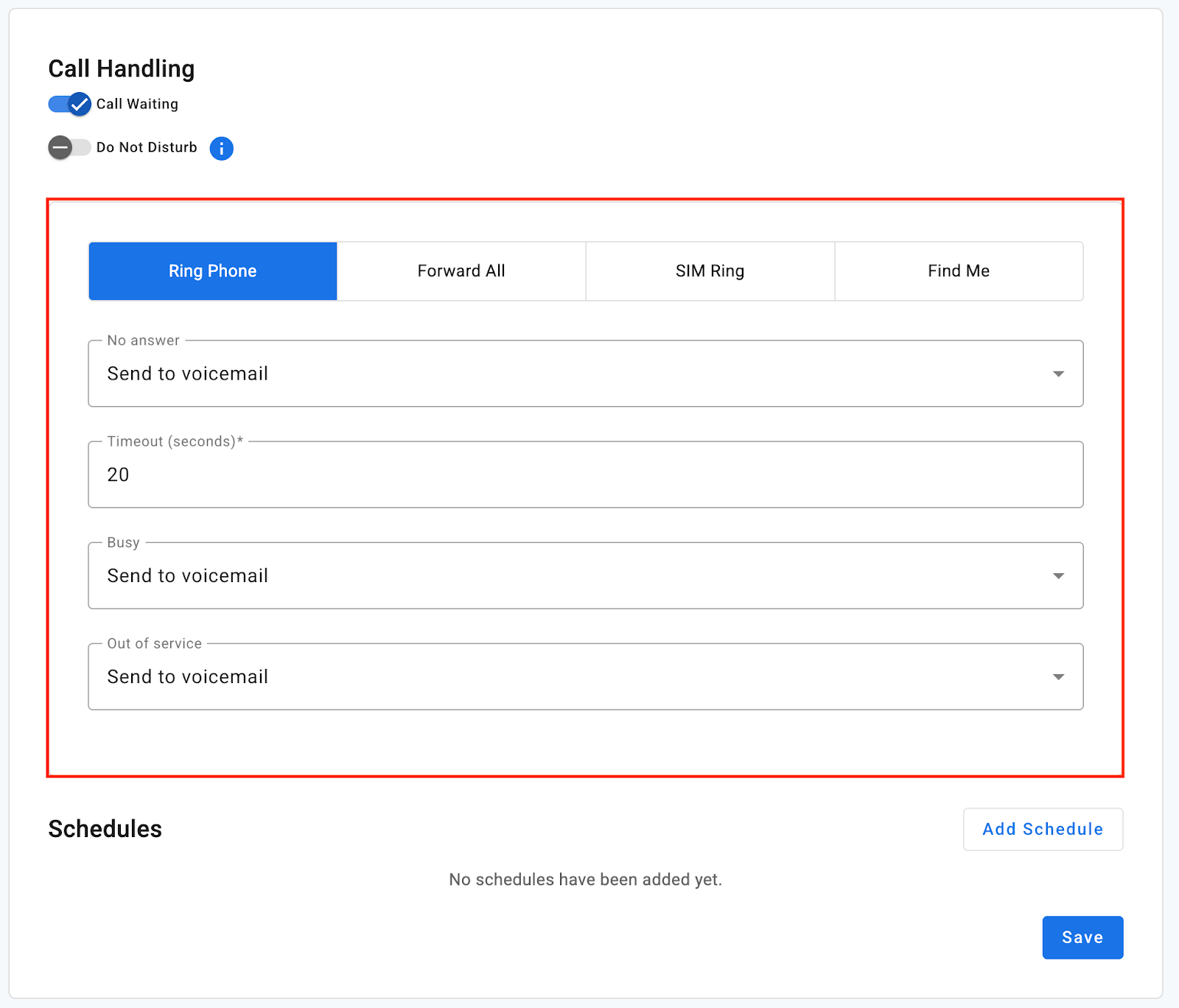
Option | How it works |
Forward All | Sends every incoming call to a specific number, such as your cell phone. |
Simultaneous Ring (SIM Ring) | Rings your main phone and other numbers at the same time. The first person to answer gets the call. |
Find Me | Rings your phones in a specific order (sequential ringing). |
Set Up Forward All
-
Sign in to your GFiber account.
-
Click Phone to open the GFiber Phone portal.
-
In the Call Handling section of the Settings tab, click Forward All.
-
Enter the phone number where you want calls sent and click Save.

Set Up Simultaneous RIng (SIM Ring)
SIM Ring lets your GFiber Phone and other devices ring at the same time. The first person to answer gets the call.
-
Sign in to your GFiber account.
-
Click Phone to open the GFiber Phone portal.
-
In Call Handling, select the SIM Ring tab.
-
Add the phone numbers or devices you want to ring.
-
Choose how long each device should ring.
-
Select what happens if no one answers (for example, Send to Voicemail) and click Save.
Set Up Find Me
Find Me rings your devices in a specific order (also called sequential ringing). Each device rings for a set amount of time before moving to the next one.
-
Sign in to your GFiber account.
-
Click Phone to open the GFiber Phone portal.
-
In Call Handling, select the Find Me tab.
-
Add the phone numbers or devices you want to ring.
-
Choose how long each device should ring before moving to the next one.
-
Select what happens if no one answers (for example, Send to Voicemail) and click Save.
Create a Call Handling Schedule
Schedules let you automatically change how calls are handled based on the time or day. This is useful for after-hours calls or vacation schedules.
-
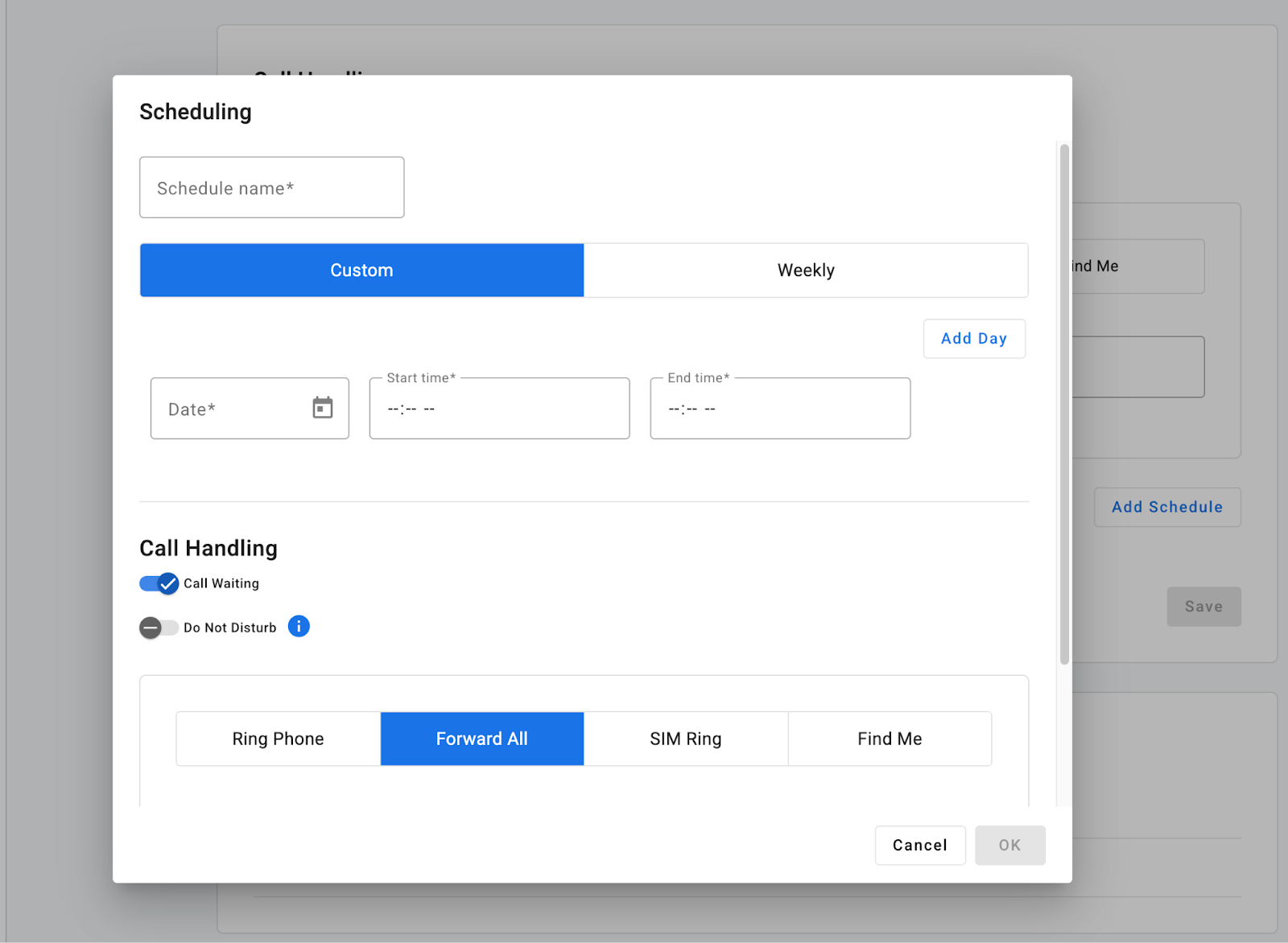
In the Call Handling section of your portal, click Add Schedule.
-
Enter a name for the schedule.
-
Choose Weekly for recurring schedules or Custom for one-time events.
-
Set the times and choose how calls should be handled (for example, send calls to voicemail after 5:00 PM).
-
Click Save.
Call Screening and Blocking
Call screening lets you decide how different types of callers are handled.
Screening Categories
You can create rules for these types of callers:
-
Anonymous callers: People calling from hidden or private numbers
-
Toll-free callers: Numbers starting with 800, 888, and similar prefixes
-
All other callers: Everyone else
Available Actions
For each of the categories above, you can choose one of the following actions:
| Action | What it does |
| Allow | The call rings through normally. |
| Allow with Priority Ring | The call rings with a unique ringtone for easy identification. |
| Block | The call is disconnected immediately. |
| Block with Message | The caller hears a recording stating calls aren’t being accepted. |
| Forward | The call is automatically sent to a different number. |
| Voicemail | The caller is sent directly to your voicemail. |
Note: Forwarding requires a designated Screening Forward Number.
Block a Specific Number
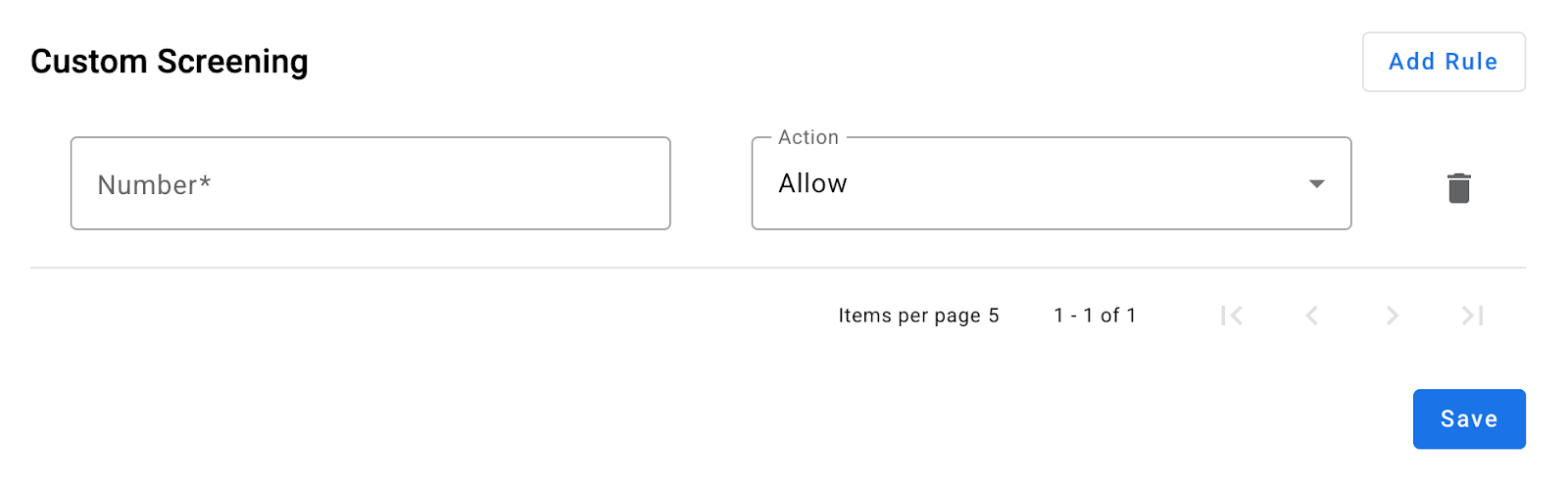
If you want to block a specific caller or give someone priority ringing, you can create a Custom Rule.
-
In the Custom Screening section, click Add Rule.
-
Enter the phone number.
-
Select the Action you want to apply.
-
Click Save.
FAQs
Dial *98, enter the default PIN 1234, press #, and follow the voice prompts to create a new PIN of at least 4 digits.
Dial *67, then enter the phone number (example: *67-503-555-5555). Your Caller ID will appear as "Blocked" for that call.
-
Forward All: Sends every incoming call to a specific number.
-
Simultaneous Ring (SIM Ring): Rings your main phone and other numbers at the same time.
-
Find Me: Rings your phones in a specific sequential order.