View and Filter Call History

The Call History section in the GFiber Phone portal shows a record of all calls made and received on your GFiber Phone account. You can filter the list to find specific calls and export the data if you need a copy for your records.
Access Call History
-
Sign in to your GFiber account.
-
Click Phone to open the GFiber Phone portal.
-
In the left sidebar, click Call History.
-
Your calls appear in chronological order, with the most recent calls at the top.
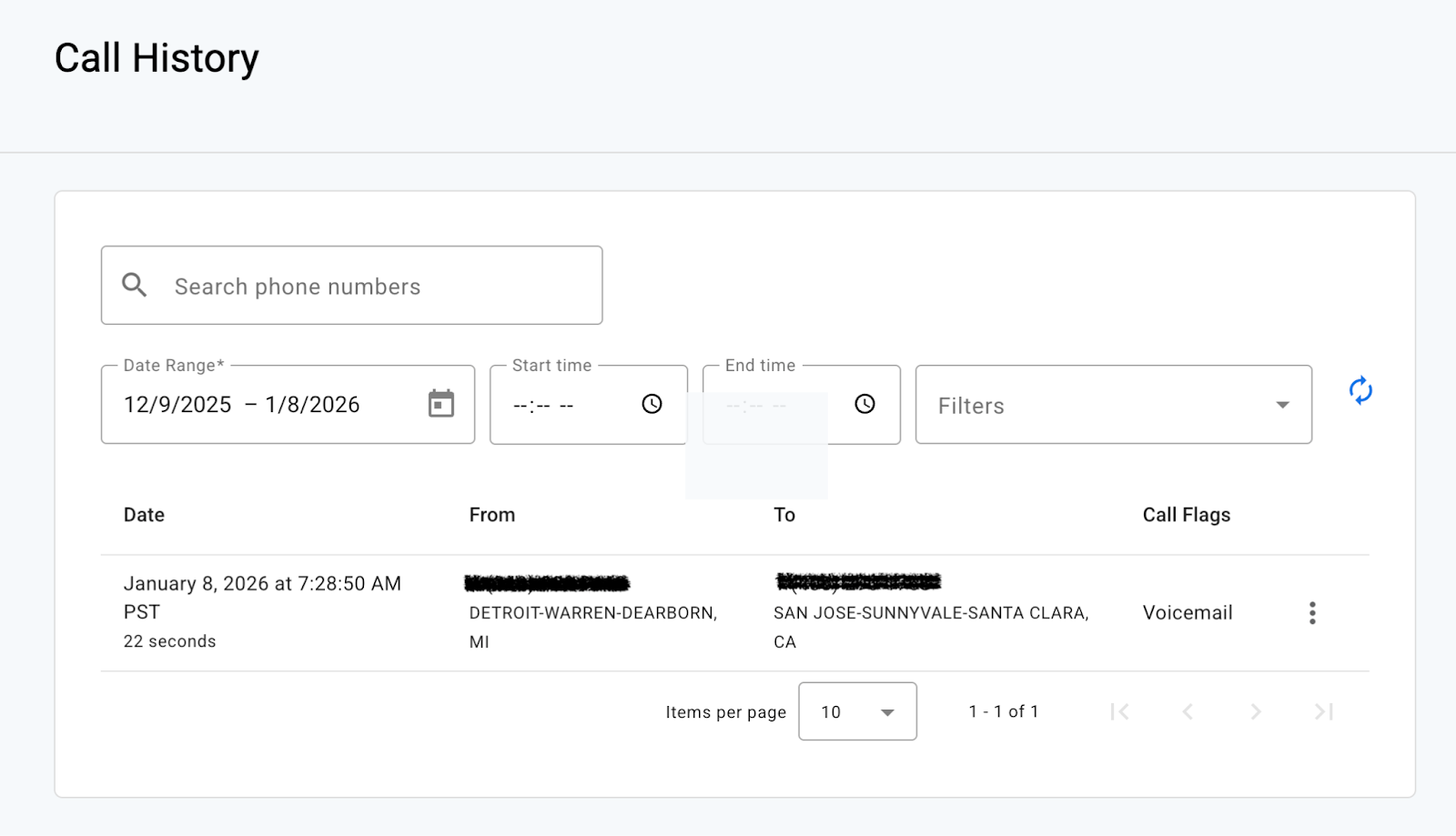 Data retention: Call detail records are stored for a minimum of three years.
Filter Call Records
Use filters to quickly find specific calls.
Basic Filters
-
Search: Enter a phone number or extension. Results appear automatically after the first three digits are entered.
-
Date Range: By default, the last 30 days of call records are displayed. You can adjust the start and end dates as needed.
-
Start/End Time: Choose a time range between 12:00 AM and 11:59 PM based on your account's time zone.
Advanced Filters
You can also filter by the following categories:
-
Direction: inbound or outbound calls
-
Number: filter by the number calling from or to your account
-
Call Flags: how the call ended, such as:
-
Answered
-
Busy
-
Forwarded
-
Missed
-
Sent to voicemail
-
-
Call Category: on-net or off-net calls


View Call Details or Block a Number
Each call in the Call History table includes additional actions.
-
Click the menu icon (three vertical dots) next to a call.
-
Choose one of the following options:
-
Details: View more information about the call, including start time, connection time, ended time, call duration, cost, origination and termination details.
-
Block Number: For inbound calls, you can block the number to prevent it from calling your account again.
-