Restart Your GFiber Network After an Outage
Restarting your equipment in the right order can fix most connection issues after an outage. Restart your devices from the “outside” of your network inward — starting with your Fiber Jack, then your router, and finally any Wi-Fi extenders.
Step 1: Restart Your Fiber Jack
Your Fiber Jack is the small, wall-mounted box where the fiber line connects to your home. It usually looks like this:
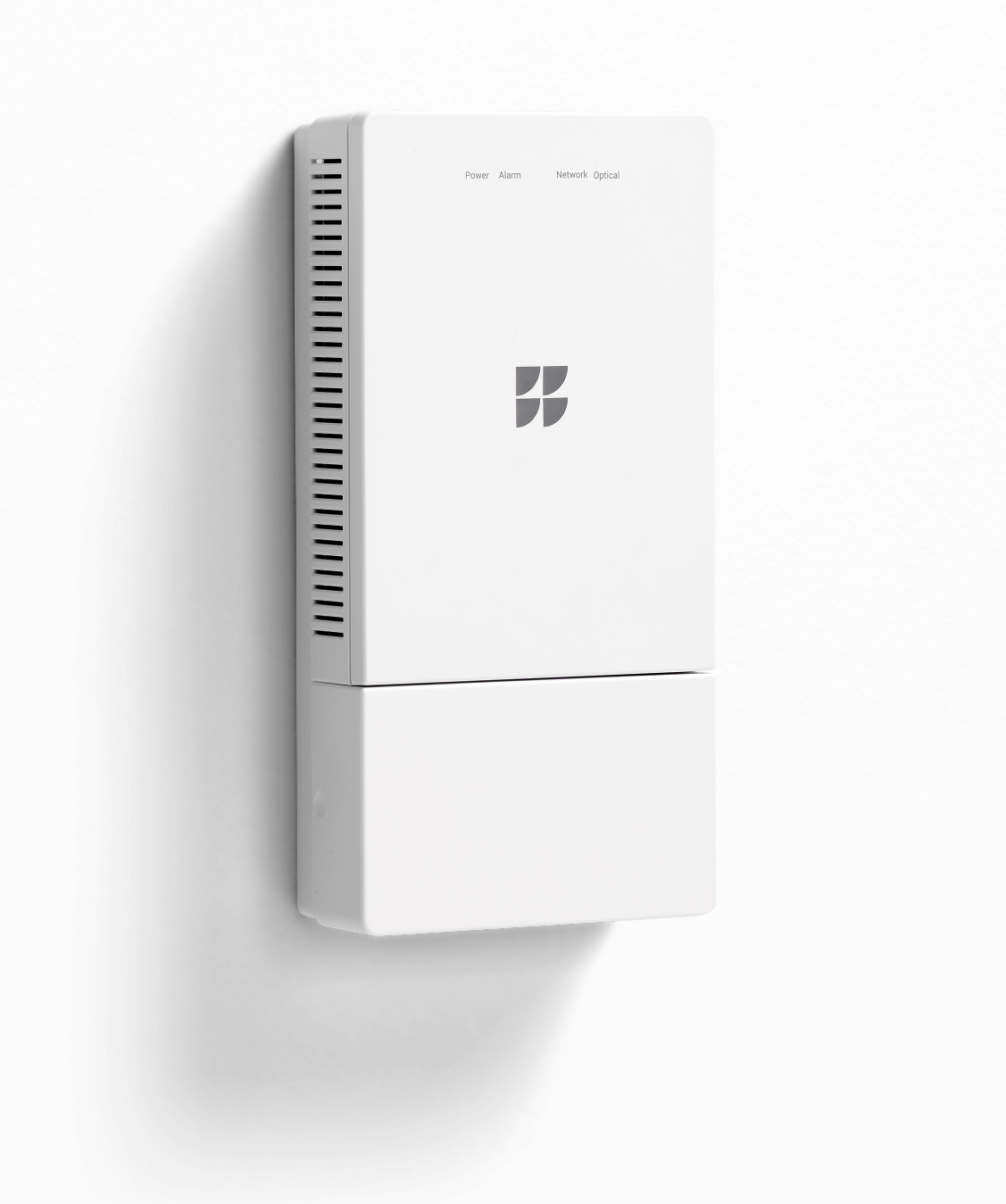
To restart your Fiber Jack:
- Unplug the power cord from the Fiber Jack.
- Wait about 30 seconds.
- Plug the power cord back in.
- Give it a couple of minutes to fully power on and connect. A solid blue or green light means it’s ready.
For more help, see our guide on how to troubleshoot your Fiber Jack.
Step 2: Restart Your Router
Once your Fiber Jack shows a steady connection light, restart your router. This is the main device connected to the Fiber Jack — like the GFiber Wi-Fi 6E Router or Nest Wifi Pro.
To restart your router:
- Unplug the power cord from the back of your router.
- Wait about 30 seconds.
- Plug the power cord back in.
- Wait a few minutes for it to fully start up. When the light is steady (typically white, blue, or green), your router is ready.
For more help, visit our router troubleshooting guide.
Step 3: Restart Your Wi-Fi Extenders
If you use mesh extenders, wait until your router is fully back online before restarting them.
To restart your extenders:
- Unplug the power cord from all GFiber Mesh Extenders.
- Wait about 30 seconds.
- Plug them back in.
- Allow a couple of minutes for them to power on and reconnect to your router.
For more help, see our mesh extender troubleshooting guide.
Final Check
Once all devices have restarted, your network should be back online. Try reconnecting to Wi-Fi on your phone or computer.
If a specific device still won’t connect, try restarting that device as well.